
🔔 Note: this is article is part of the CartonCloud Academy - WMS Mobile App Trail. This is the first article in the Trail. 🎓
Welcome to the WMS Mobile App Trail! In this Trail, you will learn about the CartonCloud warehouse mobile application and how to use it in your operations. CartonCloud’s mobile application is purposely designed to complement and work in conjunction with the web application to support the agile and on the go work of warehousing and transport. In this Trail, we will focus on the warehouse features, and the transport features will be covered in the TMS Mobile App Trail.
Nick is the Manager at Coffee Distribution and Warehousing. Coffee Distribution and Warehousing store and deliver coffee beans for several different customers. Nick is in charge of setting up CartonCloud for the company. He has completed the set-up on the web application for transport and warehouse. He is excited to look at how he can use the mobile application to enhance his warehouse and transport processes further!
CartonCloud’s warehouse mobile app is designed to increase efficiency in inventory identification, stock movement and picking from the warehouse floor. In addition, the CartonCloud mobile app can connect with barcode scanners and printers to optimise and streamline warehouse operations and processes. The key features and benefits of the mobile warehouse application are listed below.
Warehouse Mobile App Features
- Receiving and verifying a Purchase Order
- Putting away a Purchase Order (into a warehouse location)
- Splitting a Purchase Order
- Moving stock to different warehouse locations
- Checking what stock is in each warehouse location
- Picking a Sale Order
- Wave Picking
- Scanning to confirm the quantity, batch number or any other specified information (done by creating custom fields)
- Print labels
Warehouse Mobile App Benefits
- Improved picking accuracy
- Increased visibility
- Facilitates greater efficiency in the putaway and picking process
- Enables the warehouse worker to be mobile in the warehouse but still have access to CartonCloud data and functionality
- Improved data accuracy
- Real-time data and information for customers
- Reduced manual and admin tasks
- Allows you to record information relating to the order at the e.g.e (e.g. extra charges or receiving a damaged pallet)
Navigating the mobile app
Before Nick starts using the mobile app in his warehouse operations, he needs to ensure everything is set up correctly and that he and his staff know how to navigate and use the app in their warehouse. To prepare for using the mobile app, Nic follows the below steps.
Follow along Vincent, as he introduces the warehouse mobile app and explains how to navigate the app.
Downloading the mobile application
The first step in using the mobile application is downloading it onto your device! You can download the CartonCloud app onto either your iOS or Android device. The application can be downloaded from the Apple App Store (for iOS) or the Google Play Store (for Android).
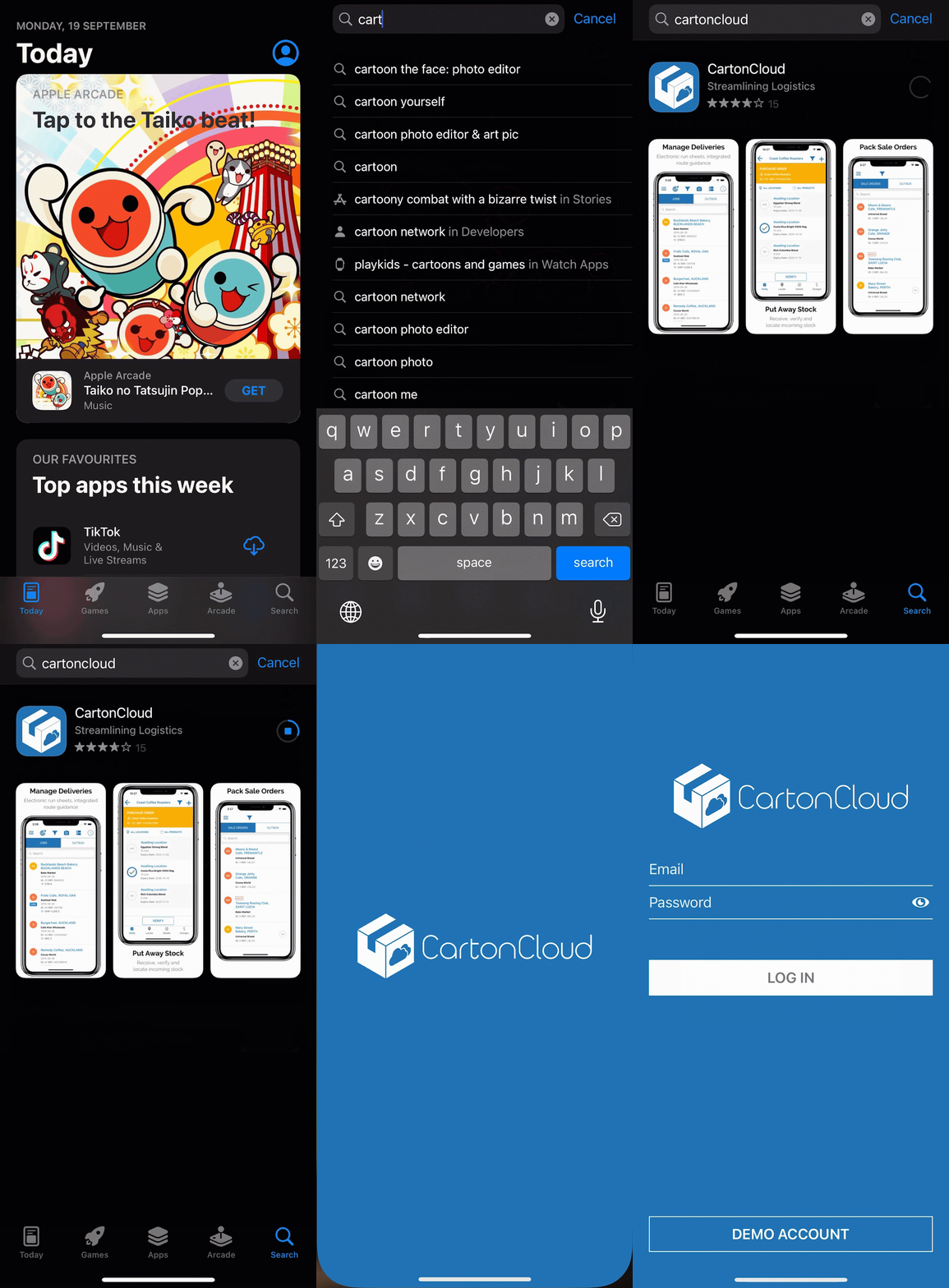
Logging in
Once you have downloaded the CartonCloud application and opened it on your device, you will be prompted to log in. Use the same login credentials you use for the CartonCloud web application.
You will need to ensure you have the user role Packer enabled against your user to be able to access the mobile app with your login.
Follow along with the below video for steps on how to login into the CartonCloud mobile app.
Pair it with a scanner!
If you are using an iPhone or Android phone, pair it with a Bluetooth barcode scanner to enable barcode scanning when using the Cartoncloud app. If you are using or would like to use a mobile computer (which has an inbuilt scanner), you can check out this page for recommended devices.
Switch Mode
Once you have logged into the mobile app, you must select a Mode. Each Mode offers different functionality and accommodates for a different warehouse process.
The four different warehouse Modes are:
| Putaway | allows you to receive, verify and putaway Purchase Orders. |
| Picking | enables you to pick Sale Orders. |
| Picking 2.0 | enhanced functionality for picking Sale Orders. The new Picking 2.0 mode has numerous additional features to the stadard picking mode. It is suggested you utilise the Picking 2.0 mode. |
| Wave Picking | complete wave picks, and print wave pick labels. |
| Scan Move | scan warehouse locations, POP labels or pallet labels to move stock into new locations or print labels. Scan the warehouse location to check stock levels. |
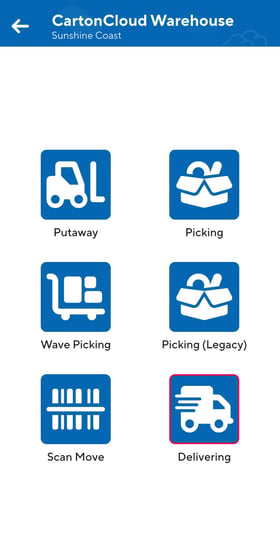
To access the User Modes selection page, use the hamburger menu icon. From here, you can select Switch Mode.
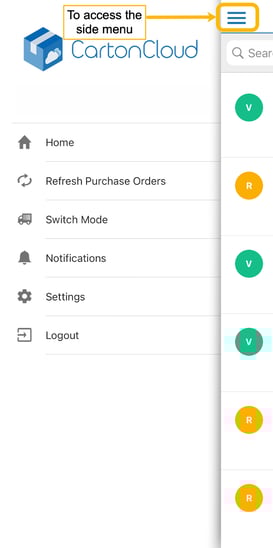
You can also access the CartonCloud mobile app Settings and Notifications or refresh your current page.
Settings
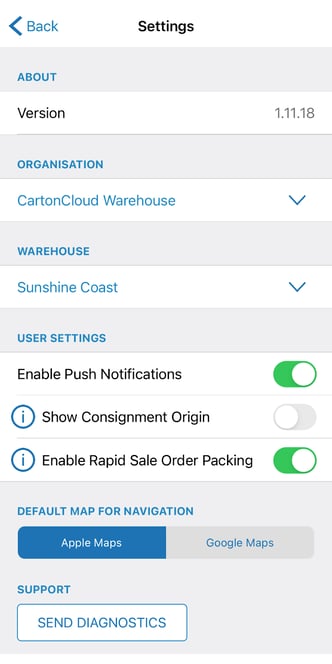
From the Settings page, you can:
| ABOUT | See what version of the application you are currently operating. We are consistently updating the application for performance improvements and new features, so ensure you always operate the latest version of the app! |
| ORGANISATION | The CartonCloud tenancy you are in (tenancy is your CartonCloud account). |
| WAREHOUSE | The Warehouse you are in. If you have multiple warehouses, you will have a drop-down arrow to select the relevant warehouse you wish to be in. You will need to ensure the user has access to the warehouse to see the warehouse in the drop-down menu. |
| USER SETTINGS |
|
| DEFAULT MAP FOR NAVIGATION | Transport only |
| SUPPORT |
Now that Nick understands how to set up the mobile application, he uses the checklist below to ensure he has everything ready to start using the warehouse app.
Checklist before using the mobile app
- Do you have devices to use the application on? (this could be as simple as an iPhone or Android mobile device or something more robust such as a mobile computer. See this page for recommended devices)
- If using a mobile device, do you have bluetooth barcode scanner to connect the phone to? (See this page for more information)
- Have you downloaded the application onto your device from either the Apple App Store or Google Play Store?
- Have you added a Packer User Role to the relevant Users in CartonCloud?
- Do the relevant Users have access to the warehouse they are working in?
▶️ Follow along in the WMS Mobile App Trail...next up is Putaway Process on the mobile app (Purchase Orders) 🎓