
🔔 Note: this article is part of the CartonCloud Academy - WMS Mobile App Trail. Please ensure you have read Introducing the warehouse mobile app first. 🎓
Now that you know what the CartonCloud warehouse mobile app is and have it set up on your devices and for your users, it is time to start learning about one of the modes, Putaway!
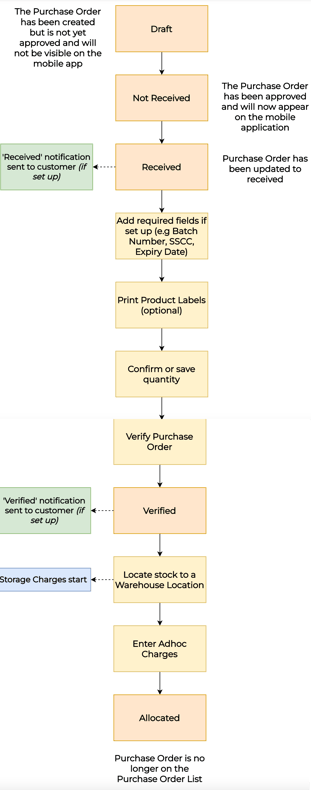
The Putaway mode on the mobile application is designed to facilitate the inbound or receival process. Using the Putaway mode will allow you to receive Purchase Orders, verify the quantity, products and condition of the goods (e.g. if the freight is damaged) and then put the stock away in the appropriate warehouse location. All the while, your customers will be updated throughout the process (depending on what customer notifications they have set up), the status of the order will be updated and reflected in the web application, and all charges related to the orders will automatically be calculated. In addition, you will be able to scan values against the order (e.g. a batch or SSCC number), print labels and record Adhoc charge data against the order.
Putaway Process on the Mobile App
How to access Putaway Mode
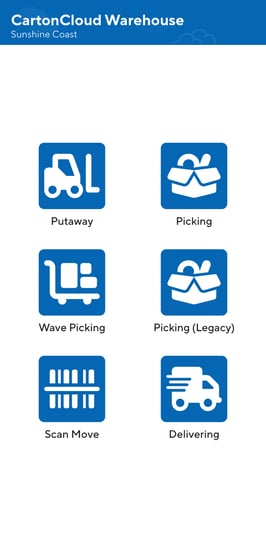
- Select the hamburger menu icon and select Switch Mode.
- Click the Putaway icon.
- You will now be on the Purchase Order List.
Using the Purchase Order List
Once on the Purchase List page, you will see all the Purchase Orders in the given warehouse that are in a status of:
- Not Yet Received
- Received
- Verified
The Purchase Order must be approved from ‘Draft’ to be visible on the mobile application. Once in a status of ‘Allocated’, the Purchase Order will no longer appear on the mobile application.
The Purchase Order status will appear on the far left with a different letter and colour (depending on its status) for each Purchase Order.
You can also filter the list by searching for a Purchase Order reference, or you can sort the list and split it by customer name.
Why can’t I see a Purchase Order on the Purchase Order List?
- Check if the Purchase Order has been approved
- Check you have the correct Warehouse selected (from the mobile application settings)
Receiving the Purchase Order
The first step in the putaway process is to receive the Purchase Order. This step allows you to mark that the Purchase Order has arrived at the warehouse. With the customer notification enabled, this step lets you notify the customer that their goods have arrived at your warehouse.
Follow along with Vincent as he receives a Purchase Order into the CartonCloud warehouse.
Once the Purchase Order has been received, the stock can't be allocated to a Sale Order yet. The Purchase Order must be in a 'Allocated' status before the stock can be assigned to a Sale Order.
Verify and locate a Purchase Order
The next step in the Putaway process is verifying the Purchase Order and then locating it in a warehouse location. Follow along with Vincent as he shows you how to verify and locate a Purchase Order on the mobile app.
Nick is excited to start using the mobile application to verify and locate his Purchase Orders. He wants to use barcode scanning to increment product quantities and fill in required fields such as Batch Number. This will help ensure the correct quantities are counted, and the right Batch Number is recorded for each Purchase Order. To be able to do this, Nick will need to:
- Create Unit of Measure barcodes to scan when verifying the quantity. See this page for steps on how to set this up.
- Set up Purchase Order Product Custom Fields and mark it as required. See this page for steps on how to set this up.
Inbound unique reference scanning
Now that you know how to receive a Purchase Order, we can go into more detail surrounding some of the options you have when receiving the order. One option you have is to record unique references, for example, serial numbers, by either scanning or inputting the data against the stock coming into the warehouse via the Purchase Order.
Nick from Coffee Warehouse and Distribution will need to follow this process for the majority of his customers as they have requested the team record the serial numbers on the product upon receiving it and verify them on the way out (this will covered in a later module).
Benefits of unique reference scanning
- Allows you to record unique references against the base unit of measure (smallest unit of measure) of a product
- Improves tracking accuracy of items
- Allows for data captured on the inbound process to be validated on the outgoing process (as items leave the warehouse)
- More accurate traceability of all items (not just the purchase order as a whole)
- Assist with any recall process or warranty claims
- Provide greater visibility to your customers on their inventory
- Better meet customer requirements for recording custom and unique data against stock
Use cases of unique reference scanning
- A pallet comes into a warehouse with 30 individual items and each item needs a serial number scanned against it.
- Wanting to group individual items together on a pallet and use a single pallet barcode to move the items into a warehouse location
- Unloading a container to multiple pallets and locating each pallet to a location
Set up requirements
To follow this process in your own CartonCloud account follow the below steps:
- Navigate to the relevant Customer, Contacts > Customers.
- Click Edit.
- Select the Warehouse Management > Purchase Order Products tab.
- From the relevant Custom Field, enable the below settings:
- Enforce unique values
- Split to lowest Unit of Measure
- Make this a required step
- OR you can select Serial Number captured on Inbound and Verified on Outbound from the Configuration Type. Choosing this option will ensure all of the correct settings have been selected.
- Scroll down and select Save.
Please note, Is required can be set to optional at the customer purchase order product custom field but must be required at the product level (for the product you wish to enable inbound unique reference scanning for). To make this change at the product level you will need to edit the relevant product and scroll to the bottom under Modify Purchase Order Product Fields.
How to record unique references on inbound
You covered how to receive a Purchase Order in the previous module. In this process, there was a step to record any relevant unique references. The below video steps through this process.
How to record unique references against stock that is already in the warehouse
If you already have stock in the warehouse that you wish to record unique references you can do by following the below process. This process is useful when you first start to use unique reference scanning in your operations and you need to record references against existing stock.
Bulk split and bulk split on putaway
Now that you know how to follow the basic putaway process of receiving, verifying and locating, it is time to cover another possible workflow during the putaway process. If you need to break that quantity into pallets or if stock is received damaged and needs to be split onto a different product line so that the status can be updated, you can use the Split or Bulk Split function.
Follow along with Vincent as he demonstrates how to split and bulk split a Purchase Order.
Nick knows the Bulk Split option will be useful for his team during the locating process as forklift drivers will be able to locate stock by the pallet rather than having to put multiple pallets into one location.
Locating the Purchase Order via Scan Move
Even though we have already covered how to locate a Purchase Order, we are going to go through another option you have when locating your Purchase Orders. Depending on your operational processes and workflows, you may choose to have one team receive and verify a Purchase Order and then another team locate it. In this case, locating via Scan Move can be extremely beneficial. Similarly, if you operate a large warehouse where several Purchase Orders are being received at once, and multiple forklifts are moving around the warehouse floor, it can be advantageous to have the ability to split the receiving and locating process.
Follow along with Vincent as he shows you how to locate stock using the Scan Move functionality.
Nick will be encouraging his staff to use Scan Move to locate Purchase Orders, as he usually has one team receiving and verifying the orders and then another putting the orders away. The team putting the orders away can scan the label barcode, take the stock, scan the warehouse location, and put the stock into the warehouse location.
Pallet Handling
CartonCloud allows you to print, assign and scan pallet labels throughout the system. Pallet labels can be applied when stock arrives, or, to stock already in the warehouse. Pallet labels can be used to locate stock to a location, move stock between locations, to consolidate stock, or to split stock apart.
Pallet labels can be automatically generated when new stock arrives, or pre-printed in bulk and assigned to stock that is arriving. Pallet labels can also be used when picking to specify or verify the stock being picked.
Pallet labels can be printed either from the mobile or web app.
Follow the below video to learn how to apply pallet labels to stock already in your warehouse. This process is well suited if you have just started using pallet labels in your operation.
Photos and Documents on Purchase Orders
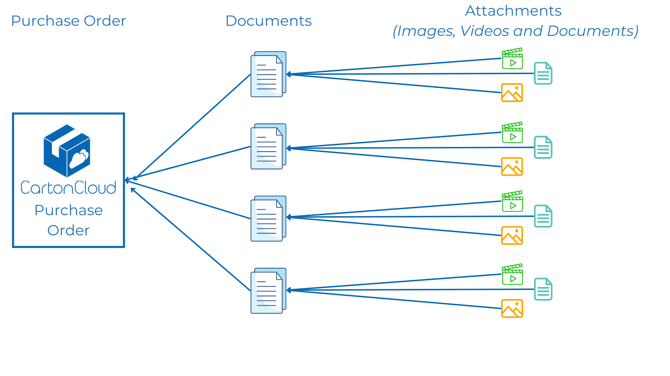
With Photos and Documents on Purchase Orders, users can attach photos, videos, and documents directly to Purchase Orders through both the mobile and web app. These attachments—whether photos, videos, or documents—are linked to the Purchase Order.
Check out the diagram below for a visual breakdown of how Purchase Orders, Documents, and Attachments are connected.
Follow along with Vincent as he steps through how to use the Photos and Documents on Purchase Orders via the mobile app in the warehouse.
▶️ Follow along in the WMS Mobile App Trail...next up is Picking process on the mobile app (Sale Orders). 🎓