
Table of Contents
- Overview
- Considerations
- Benefits
- Limitations
- Cost
- How to create a Self-Managed EasyPost Carrier Connection
- Understanding and Using EasyPost
- Using Carrier Predefined Packages with EasyPost
- International Shipments and Customs Information with EasyPost
- Disconnecting an existing Self-Managed EasyPost Carrier Connection
- Recommended Next Steps
Overview
The Self-Managed EasyPost Carrier Connection allows you to connect your own carrier accounts to CartonCloud. This enables you to book and manage shipments, access live rates and generate shipping labels within CartonCloud using your BYO carrier rates and/or via the walleted rates from EasyPost.
EasyPost is recommended for North American and Global carriers.
Considerations
- You will require a EasyPost account. This can be created on demand directly from within CartonCloud when you enable the integration. See the steps below.
- Carrier Selection Rules allow you to automatically assign the most suitable carrier during packing. These rules will need to be set up once the connection is enabled. See here for details.
- Carrier Account Mapping allows you to define a set of rules that automatically update the Carrier, Delivery Run, and Service Type on a Consignment after a shipment is booked through a Carrier Connection.Carrier Account Mapping will need to be set up once the connection is enabled. See here for details.
- This is a paid integration; please ensure you read the included costs below.
- You need to use the Pack Screen to access Carrier Connections.
- Some carriers, such as FedEx offer specific flat rates on shipments using their own predefined packages (e.g FedEx One Rate, UPS Express Flat Rate, USPS Priority Flat Rate). To access these rates, you need to configure Carrier Predefined Package on the relevant Transport Product. See Using Carrier Predefined Packages below for details.
Benefits
- Manage all shipments from within CartonCloud - book shipments, compare rates and print labels all from the Pack Screen.
- Streamline the packing process.
- Use your existing carrier agreements and pricing (BYO) or use EasyPost’s Prenegotiated Carrier Rates (Walleted Rates).
- Access rate shopping across multiple carriers.
- Avoid paying for a separate EasyPost subscription.
- Consolidate workflows into a single system.
Limitations
If you have an existing EasyPost account, there is currently no way to connect it to CartonCloud. If you have an existing EasyPost account and want to move to one provided by CartonCloud refer to the steps below.
Cost
- No EasyPost subscription or label fee.
- CartonCloud fee per connection. The fee is charged per EasyPost account, not the number of carriers connected to that account.
How to create a Self-Managed EasyPost Carrier Connection
At the Customer level:
- Navigate to Self-Managed Integrations by typing Self-Managed Integrations into the Search for anything.
- Select the Customer you wish to set the integration up for.
- Select EasyPost.
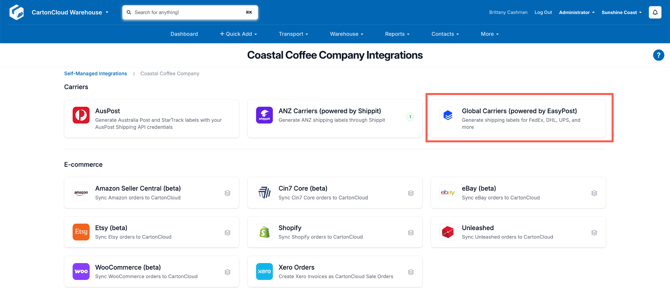
- Click Configure.
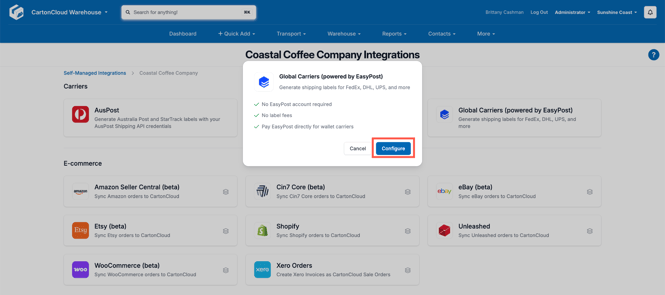
- An EasyPost account will be automatically created for you.
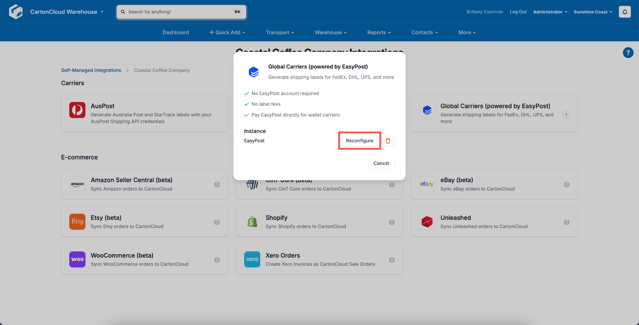
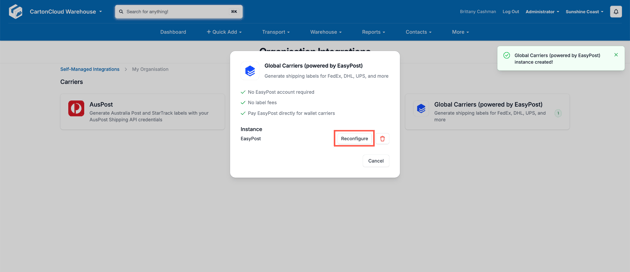
- You will receive a pop-up message confirming the connection was successful. A green number will appear against the EasyPost Carrier, indicating the number of accounts connected.
- Click Reconfigure to access your EasyPost account.
At the Organisation level:
- Navigate to Self-Managed Integrations by typing Self-Managed Integrations into the Search for anything.
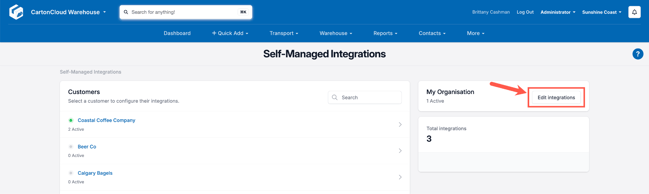
- Under My Organisation select Edit Integrations.
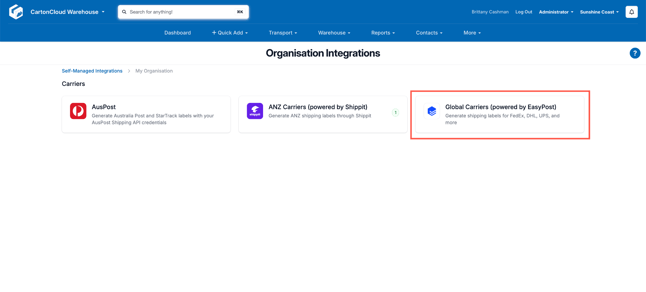
- Select EasyPost.
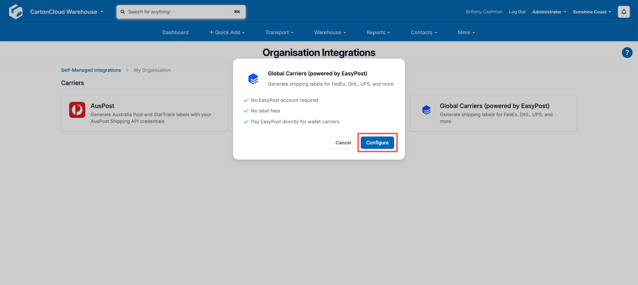
- Click Configure.
- An EasyPost account will be automatically created for you.
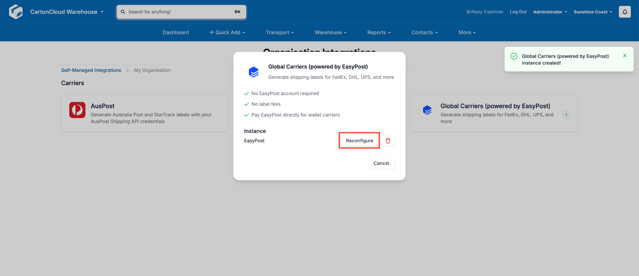
- You will receive a pop-up message confirming the connection was successful. A green number will appear against the EasyPost Carrier, indicating the number of accounts connected.
- Click Reconfigure to access your EasyPost account.
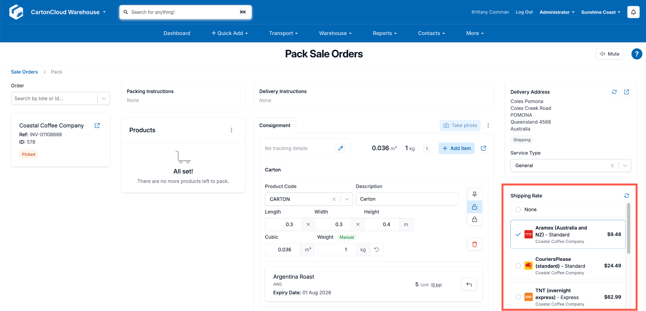
You will now see shipping rates appear on the Pack Screen when packing orders.
Understanding and Using EasyPost
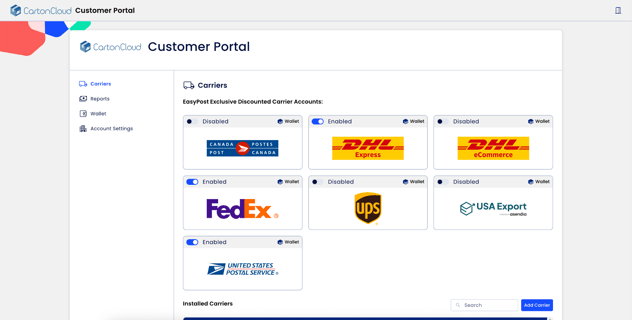
To access your EasyPost account use the Reconfigure button on the Carrier Connection setup.
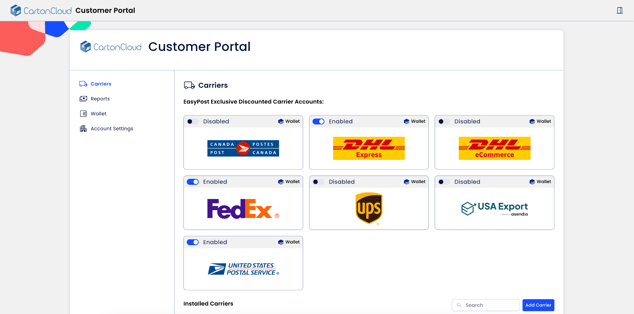
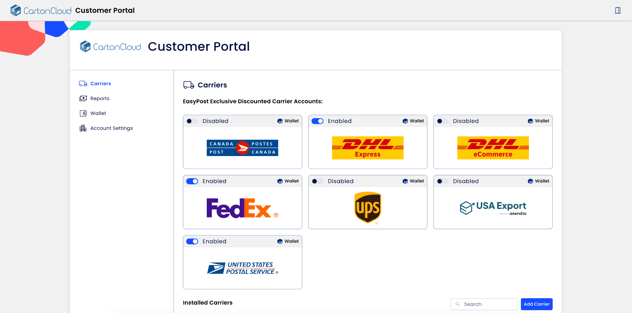
From here you can:
- Add or remove carriers
- Select Carriers from the side navigation and either enable carriers in the Wallet Carrier Accounts section or scroll down and select Add Carriers.
- For the BYO carriers (carriers not included in the Wallet Carrier Accounts with EasyPost) you will need to enter your account information. For more information see here.
- Add payment details to pay for freight:
- Navigate to Wallet in the side navigation.
- Click Setup Wallet.
- When using Wallet rates from EasyPost, you will be billed directly from EasyPost for these shipments at the end of each week. This is not charged or managed by CartonCloud, and is a direct commercial relationship between EasyPost and your company.
If you need help with EasyPost itself please contact their support team here or visit their Help Center.
Using Carrier Predefined Packages with EasyPost
Certain carriers, such as FedEx, offer flat rates for shipments using their own predefined packaging (e.g. FedEx One Rate boxes). To support this, enable the Carrier Predefined Package setting on the relevant Transport Product. When enabled, CartonCloud sends the Transport Product code to EasyPost during rate quoting instead of package dimensions, and EasyPost returns rates for that specific package type.
When Carrier Predefined Package is enabled, only the Transport Product code and weight are sent to EasyPost. Package dimensions are not included. Ensure the Transport Product code in CartonCloud exactly matches the predefined package code required by the carrier.
How to configure Carrier Predefined Package on a Transport Product
For more information on Carrier Predefined Packages, please see Transport Products.
Note, ensure your carrier (e.g FedEx) supports predefined package codes via EasyPost. Check the EasyPost carrier documentation or your carrier account for the correct package codes.
International Shipments and Customs Information with EasyPost
When you ship internationally using your Self-Managed EasyPost Carrier Connection, CartonCloud automatically includes customs information in the shipment request. EasyPost requires this information to generate accurate international rates and shipping labels. It is also required for customs clearance, ensuring the necessary information is available to customs authorities and helping shipments move smoothly through international borders.
When customs information is included
- A shipment is treated as international when the pickup country and delivery country are different.
- A shipment is treated as domestic when the pickup and delivery countries are the same. Domestic shipments are not affected by this feature.
- If either address is missing a country, CartonCloud treats the shipment as domestic and does not include customs information.
- Customs information is included both when fetching carrier rates and when booking the shipment on the Pack Screen.
Configuring international shipment certification
EasyPost's customs declaration includes an optional certification that takes the place of a signature on the physical customs form. You can configure this against your EasyPost connection:
- Navigate to Self-Managed Integrations by typing Self-Managed Integrations into the Search for anything bar.
- Select the relevant Customer (or, at the Organisation level, select Edit Integrations).
- Select EasyPost.
- Click Reconfigure to open the EasyPost configuration window.
- Select the Certify international shipments checkbox to mark all international shipments as certified for customs.
- Enter the name of the person certifying the shipments in the Certifier field. This field is required when Certify international shipments is selected.
- Click Save to apply your changes, or Cancel to close without saving.
Preparing your Products for customs
To ensure CartonCloud can build accurate customs declarations, set the following against each Product that ships internationally:
- A Country of Origin.
- A Harmonised System (HS) Code.
- A customs Description (the Product Name is used if this is left blank).
See International Shipping Product Fields for how to add these details to a Product.
How customs information is calculated
CartonCloud creates one customs declaration per box (Consignment Item). Only the products packed into that box are included on its declaration — if an order is packed across multiple boxes, each box's customs information reflects only what was packed into it.
|
Field |
Source |
Notes |
|
Description |
Product Customs Description |
If not set, the Product Name is used instead. Truncated to 250 characters. |
|
Quantity |
Quantity packed into the box |
Matching products packed into the same box are combined into a single customs line. |
|
Value (USD) |
Sale Order line unit price × quantity |
Converted to USD for EasyPost. Sent as $0 if no unit price is set on the Sale Order line. |
|
HS Code |
Product Harmonised System Code |
Left out of the request if not set on the Product. |
|
Country of Origin |
Product Country of Origin |
Left out of the request if not set on the Product. |
|
Weight |
Box weight, split across the products in that box |
Sent to EasyPost in ounces. |
CartonCloud does not block a rate request or booking if customs details are missing from a Product or Sale Order line — the relevant field is simply left out of the request. If EasyPost rejects the request because of missing or invalid customs information, the error appears through the existing carrier rate error message on the Pack Screen.
Disconnecting an existing Self-Managed EasyPost Carrier Connection
- Navigate to Self-Managed Integrations by typing Self-Managed Integrations into the Search for anything.
- To disconnect an Organisation level connection, select Edit Integrations.
- To disconnect a Customer level connection, select the relevant Customer.
- Select EasyPost.
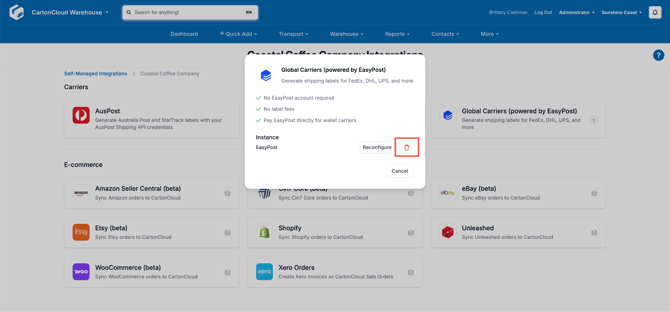
- Select the bin icon to remove the connection.
Recommended Next Steps
- Set up Carrier Selection Rules.
- Set up Carrier Account Mapping.