Table of Contents
- Purpose
- How Carrier Account Mapping works
- How to set up Carrier Account Mapping
- Example Carrier Account Mapping
Purpose
Carrier Account Mapping allows you to define a set of rules that automatically update the Carrier, Delivery Run, and Service Type on a Consignment after a shipment is booked through a Carrier Connection. This removes the need to manually update these fields on every Consignment after booking a shipment, saving time and reducing the risk of errors.
How Carrier Account Mapping works
When a shipment is booked via a Carrier Connection, CartonCloud looks for a matching Carrier Account Mapping rule based on the Warehouse, Carrier Provider, Carrier Account, and Service used to book the shipment. If a match is found, the Consignment is automatically updated with the Carrier, Delivery Run, and Service Type defined in that rule.
CartonCloud uses the following priority order to find a matching rule:
- Exact match — CartonCloud first looks for a mapping that exactly matches both the Carrier Account and the Service used to book the shipment.
- Carrier Account match with 'All' Services — If no exact match is found, CartonCloud looks for a mapping that matches the Carrier Account but has 'All' selected for the Service.
- 'All' Carrier Accounts — If still no match is found, CartonCloud uses any mapping configured with 'All' for the Carrier Account (which applies regardless of the account or service used).
If no matching rule is found, the Consignment is not updated. The shipment booking still completes successfully — only the Carrier, Delivery Run, and Service Type fields on the Consignment are unaffected.
Carrier Account Mapping and Transport Lanes
Zone Sets and Transport Lanes are processed before Carrier Account Mapping. This means the Carrier and Delivery Run assigned by the Transport Lane configuration are already set on the Consignment by the time the Carrier Account Mapping runs.
This also means you can reference those values in your Carrier Selection Rules. For example, if your Zone Set determines that a Consignment should use Direct Couriers, you can create a Carrier Selection Rule that preselects the Direct Couriers rate on the Pack Screen by default.
How to set up Carrier Account Mapping
- Navigate to More > Organisation Settings.
- Select the Transport > Carrier Account Mapping tab.
- Select the Warehouse you wish to apply the mapping to.
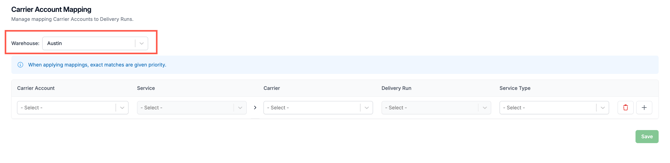
- Add a mapping by selecting a Carrier Account, Service, Carrier, Delivery Run and Service Type.
Note: only Delivery Runs, Carrier Accounts and Carriers associated with the selected Warehouse will appear as options.
- Click Save.
- To add another mapping, click the plus icon.
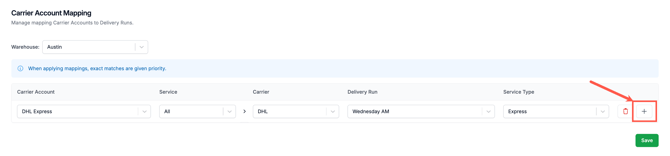
- Repeat the above steps for each Warehouse you wish to add mappings for.
If you see the message "Carrier account mapping is not available. Please ensure you have set up your Carrier Accounts, Delivery Runs and Service Types"
Ensure the following have been configured for the selected Warehouse before proceeding:
Once these are in place, return to More > Organisation Settings > Transport > Carrier Account Mapping and select your Warehouse to proceed.
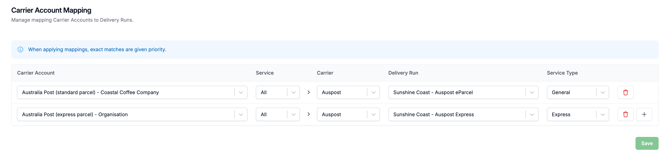
Example Carrier Account Mapping