
Table of Contents
- Purpose
- Prerequisites
- Benefits
- Use Cases
- How to use the Pack Screen
- Additional Pack Screen Features
- Video Tutorial
- How to Use the Pack Screen with Different Picking Workflows
- Scanning Capabilities
- Pack Screen Photo Capture
- Recommended Packing Station Setup
- Printing a Packing Slip from the Pack Screen
- Known Limitations
- Enhancements Coming Soon
Purpose
The CartonCloud Pack Screen allows you to pack Sales Orders that are in a ‘Picked’ status. The Pack Screen streamlines the final stage of order fulfilment by enabling an efficient and accurate packing workflow.
Prerequisites
Before using the Pack Screen, please ensure the following:
-
Turn on Warehouse Fulfilments (Consignment) auto-generation in the Organisation Settings (can be further controlled at the customer level if you wish to only enable it for certain customers). See here for more details. (Note: this is enabled by default for new CartonCloud accounts)
-
The Sale Order you wish to pack is in a ‘Picked’ status.
-
You have barcode labels for either the Pick List, Customer Reference, or Totes to scan the order to pack.
-
You have printed the Action Barcodes. See here for more information.
-
Transport Products are set up, ideally with barcodes and dimensions. See here for more information.
-
You have reviewed the Recommended Packing Station Setup.
-
Ensure Products are updated with weight information (if wanting to record total item weight). See here for more information.
-
Sale Orders can't be packed through the Pack Screen if the Consignment is already on an approved Invoice. The Invoice status needs to be in Draft.
-
If you are using Auto-Generated Consignment Items, please ensure you have selected the correct settings to either hide or show them on the Pack Screen. See here.
- If you are using Carrier Connections ensure you have Self-Managed Carrier Connections set up.
If you are an existing CartonCloud user, please review the How the Pack Screen Changes Your CartonCloud WMS guide for more information relating to the Pack Screen and Warehouse Fulfilments.
Benefits
-
Enables fast, barcode-driven packing workflows.
-
Automatically applies product and packaging dimensions.
-
Supports label printing and e-commerce workflows.
-
Reduces human error and streamlines fulfilment.
Use Cases
-
High-volume e-commerce operations.
-
Workflows utilising Pick to Tote or Split Pick and Pack Waves.
-
Operations needing to pack large volumes efficiently with minimal data entry.
-
Operations with dedicated packing stations.
How to use the Pack Screen
The Pack Screen is broken into four sections:
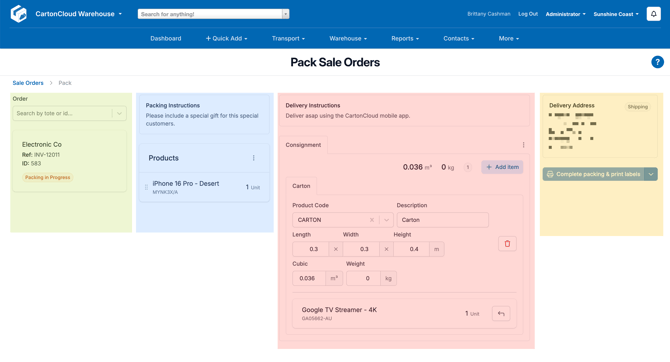
| Section | Purpose |
| Green |
This displays the order that is currently being packed. In the future, it will support showing multiple orders when packing a wave. |
| Blue | The products to be packed. |
| Red | Consignments (Warehouse Fulfilments) and Consignment Items (Packages). |
| Yellow |
The delivery information and action buttons. |
Tips:
-
It is recommended to use at least a 21” monitor. If you are using a laptop, iPad or similar, adjust your browser zoom if your screen does not display all sections clearly.
-
The optimal way to use the Pack Screen is by only scanning barcodes and avoiding using the keyboard and mouse as much as possible.
Accessing the Pack Screen
There are three ways to access the Pack Screen:
-
From the Warehouse Menu:
-
Navigate to Warehouse > Pack Sale Order.
-
-
From the View Sale Order Screen:
-
Navigate to a Sale Order that is in the “Picked” status.
-
Select Pack Sale Order.
-
-
From the Wave Pick Sale Order Screen:
-
Navigate to a Wave Pick.
-
Select the Sale Order tab.
-
Click Pack Order.
-
Packing an Order (via scanning)
Using the Pack Screen with a barcode scanner is the most efficient workflow.
-
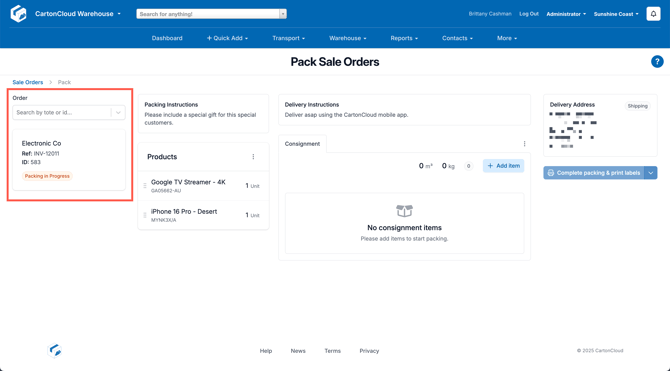
From the Pack Screen, scan the Pick List or Tote to search for the order. The order must be in the current warehouse and be in a “Picked” status to appear in the search.
-
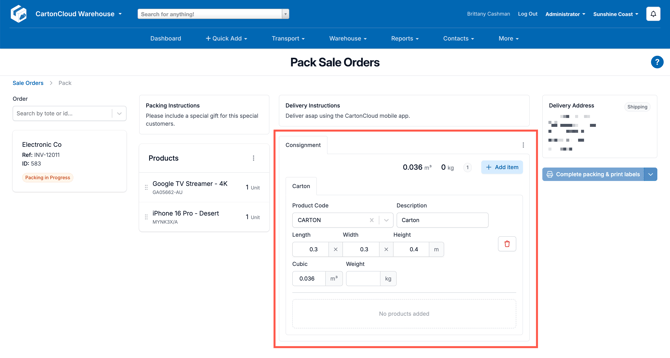
Scan a Transport Product barcode.
-
This will create a new Consignment Item with the corresponding information (code, description and dimensions).
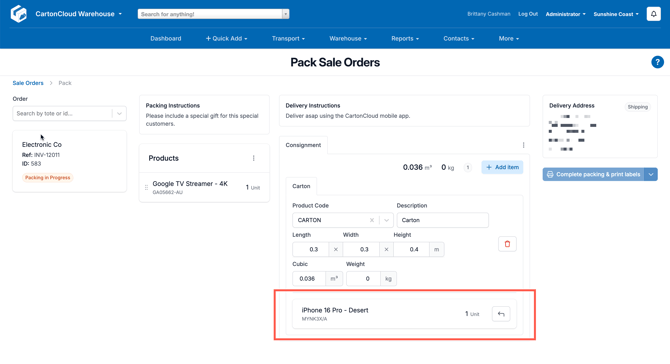
- To pack an item, scan the Product’s barcode. If the Product is set up with weight information, the total item weight will be incremented as products are added.
-
To add another Consignment Item, scan another Transport Product barcode and continue the packing process.
-
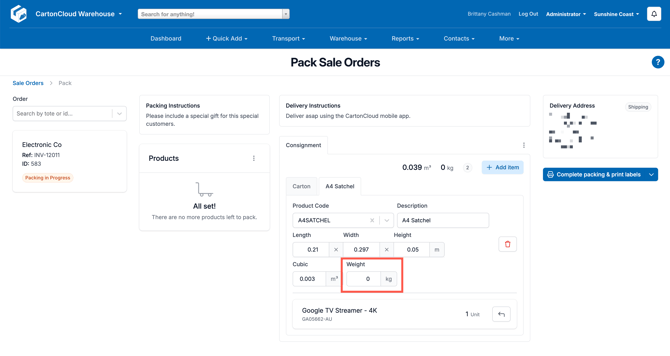
Once packing is complete, double-check the weight using scales and, if needed, update the weight field.
- Check and update the Service Type if required.
-
Scan the Complete Packing or Complete Packing and Print Labels barcode.
Packing an Order (without scanning)
The Pack Screen is designed to be used with a barcode scanner; however, it is still possible to use the Pack Screen without a scanner. Alternatively, you can use a combination of scanning and non-scanning depending on your workflow and operation requirements.
-
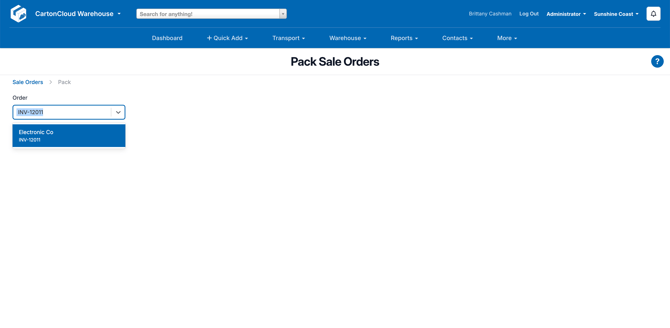
From the Pack Screen, search for the order using the ID, Reference or Tote in the Order search bar.
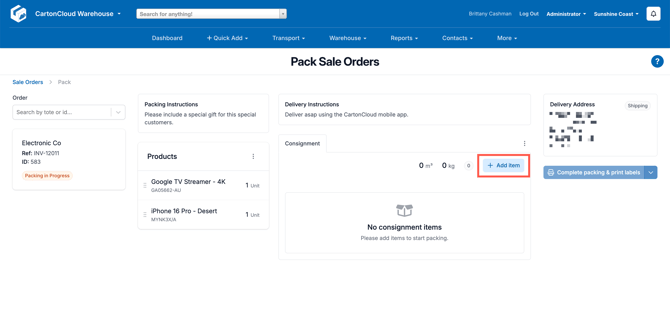
- Click Add Item to add the first Consignment Item.
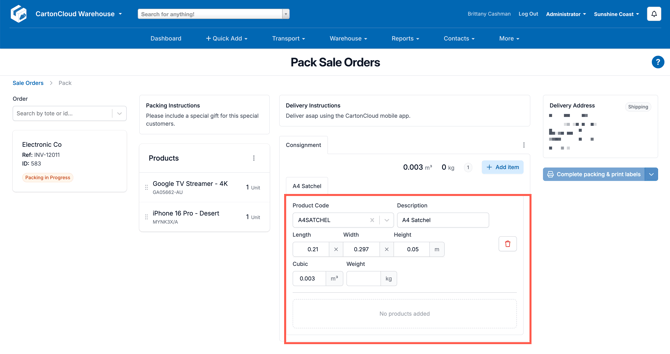
- Type to search for the Transport Product in the Product Code search box.
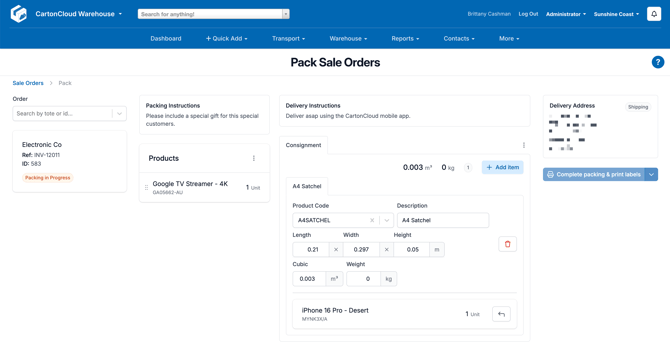
- Click products to pack them. By default, the entire quantity of the product will be packed. If you would like to move partial quantities, you can do so from the 3-dots menu.
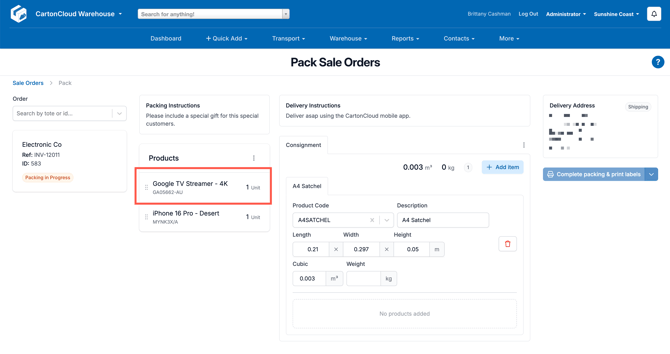
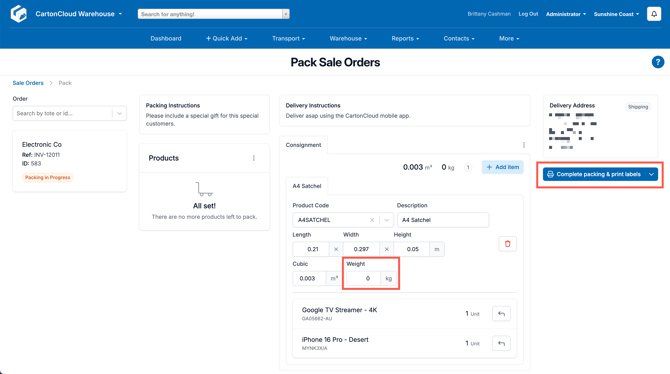
- Once packing is complete, double-check the weight using scales and, if needed, update the weight field.
- Check and update the Service Type if required.
- Once all products have been packed, click Complete packing & print labels.
Packing an Order with Carrier Connections
Ensure you have Carrier Connections set up. Please see here for more details.
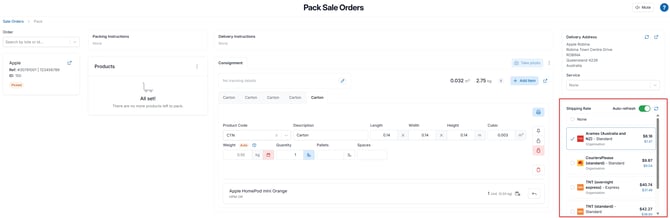
Carrier Connections are used directly within the Pack Screen, allowing you to view and select freight options during the packing process. Within the Shipping Rate window on the Pack Screen, you can:
- Compare live shipping rates
- Select a carrier and service
- Book freight
- Print shipping labels
Following the same steps as above (with or without scanning), once you have packed the order the available shipping rates and carriers will appear under the Shipping Rate window. The rate that is auto-selected is determined by the Carrier Selection Rules.
Viewing Income, Expense and Margin on a Shipping Rate
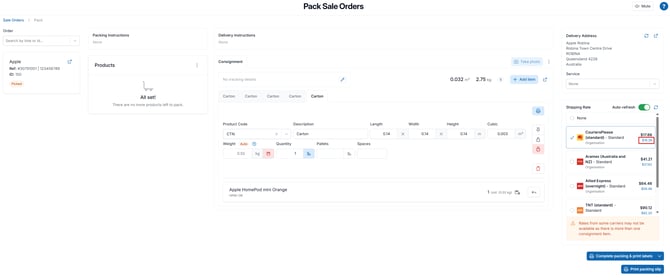
When a Rate Card has been set up to apply markups to your carrier rates, the Shipping Rate window shows both the price you will charge your customer and the cost charged by the carrier, so you can check your margin before booking a rate.
Income, expense and margin figures are only visible to users with permission to view charging information. Administrators (with the Hide all Charging information from this user permission disabled) see the full breakdown. Packers, and Administrators with that permission enabled, see a single price only.
-
The main price shown against each shipping rate is the income — the price after your Rate Card markup has been applied.
- Underneath the income, the expense is shown in smaller text. This is the raw cost charged by the carrier, excluding GST. Hover over this figure to see the tooltip Carrier cost.
- If CartonCloud could not calculate an income charge, the price is shown in red with a warning icon.
To see a full breakdown of a quoted rate:
-
Select the expense figure underneath the price you want to review.
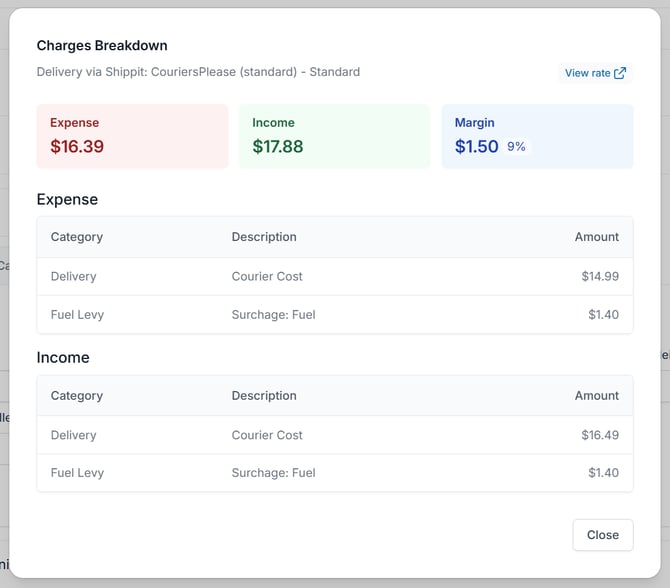
This opens the Charges Breakdown dialog, which shows:
-
The delivery provider, carrier and service level being quoted.
-
Three summary figures: Expense, Income, and Margin (shown as both a dollar value and a percentage).
-
An Expense section, listing the price breakdown as returned by the carrier (when the carrier provides one).
-
An Income section, listing the charges that will be applied to the consignment, including Fuel Levy shown as its own line item where relevant.
-
A link to the transport Rate Card used to calculate the income charge, where one was found.
Automatic Consignment Splitting After Multi-Parcel Shipment Booking
When you book a shipping label for a Consignment and the carrier splits your shipment across multiple parcels, CartonCloud automatically splits the Consignment to match — creating one Consignment per tracking number. This keeps each Consignment's tracking, status updates, and charges accurate for the parcel it represents.
How It Works
This happens automatically as part of completing packing — you don't need to do anything differently. When you complete packing for a Sale Order with a carrier rate selected:
- CartonCloud books the shipping label with the carrier as normal.
- If the carrier's response includes multiple parcels, multiple tracking numbers, and CartonCloud can match each tracking number to a specific parcel, the Consignment is split — one new Consignment is created for each additional tracking number.
- If the carrier's response can't be reliably matched to individual parcels, the Consignment is not split, and continues to show all tracking numbers as it does today.
- The Sale Order is only marked as packed once the booking (and any splitting) has finished successfully.
If booking the shipping label fails, or the Consignment split fails after a successful booking, the Sale Order is not marked as packed. Check the error message on the Pack Screen — it will recommend reviewing the booking within your carrier integration if a booking may already exist.
What Happens to a Split Consignment
When a Consignment is split, the original Consignment is kept, and one or more new Consignments are created alongside it — one for each additional tracking number. The following applies:
- Reference: the original Consignment keeps its existing reference. Each new Consignment's reference has -2, -3, and so on added to the end.
- Manifest, Run Sheet, Driver, and Delivery Run: carried over from the original Consignment to each new Consignment, if they were set.
- Consignment totals (Quantity, Pallets, Spaces, Cubic, Weight): recalculated for the original and each new Consignment based on the items each one now contains.
- Barcode Number: unchanged on the original Consignment; automatically generated for each new Consignment.
- Invoice details: each new Consignment is linked to the same invoice as the original, with a Customer Invoice Status of No Invoice until invoicing runs.
- Scan history: stays with the original Consignment; new Consignments start with no scan history.
- Tracking details: each Consignment shows the tracking information for its own parcel.
- Charges: the carrier charge is apportioned across the split Consignments based on the pricing the carrier returns for each parcel, so charges reflect what was actually paid for that parcel where possible.
Split Consignments are not automatically re-grouped. This prevents CartonCloud's automatic grouping rules from combining them back into a single Consignment group.
Where You'll See Split Consignments
After packing completes, split Consignments appear as separate entries wherever Consignments are listed — for example the Consignments page, Delivery Runs, and Manifests. Open the original Consignment or any of the new Consignments to view their individual tracking numbers, items, and charges from the Details tab.
Additional Pack Screen Features
-
Gross weight is used: When available, Product UOM Gross Weight is used in Consignment Item Weight calculations. (Note: Directly Shippable Products always use Gross Weight and will not fall back to using Product Weight)
-
Directly Shippable Products: Products Unit of Measure flagged as “directly shippable” will auto-create consignment items with weight and dimensions from product data (e.g. TVs, cartons). See Directly Shippable Products for more information.
-
Transport Product weight toggle: The Pack Screen includes a toggle to exclude Transport Product Weight from automatic item weight calculations. This toggle is enabled by default for directly shippable products
-
Product UOM weight visibility: The Pack Screen displays the weight of the UOM being packed, making it easier to identify missing or incorrect product master data.
-
Weight calculation visibility: A help pop-up explains how weights were automatically calculated
-
Workflow controls: Pin/Lock/Unlock buttons let you adjust Pack Screen behaviour to suit various workflows and prevent accidentally packing additional items into directly shippable consignment items
-
Auto-generated item visibility: Toggle the visibility of auto-generated consignment items directly within the Pack Screen (in addition to existing organisation and customer-level settings)
- Pack Screen Photo Capture: capture photos directly from the Pack Screen, allowing you to record exactly what was packed into each Consignment Item before sealing.
Auto Pack / Bypass Pack Workflows
These workflows exist to ensure that every Sale Order Product (SOP) is packed to a consignment item before an order is marked as Packed. This is a system requirement: items must exist on a consignment for them to appear on pack lists and for fulfilment data to be reported back to connected systems (e.g. storefronts).
When Auto-generated consignment items are not configured — or no mapping rules exist — SOPs have no item to pack themselves to. In these cases, CartonCloud provides two automatic fallback behaviours that allow customers to bypass the physical packing process while still satisfying this requirement:
Auto Packing (no items exist): If an order is marked as Packed and no consignment items have been created, CartonCloud automatically generates a single "blank" item and packs all SOPs into it. Fields such as weight, dimensions, and transport product are left empty by default. This ensures every consignment has at least one item, even when packing is skipped entirely. (Note: This workflow cannot be used with carrier integrations as item dimensions are not present. Note also that an upcoming release will auto-set the weight of this blank item.)
Auto Packing with Auto-generated Consignment Items: If one or more consignment items have already been created, any unpacked SOPs automatically pack themselves to the first available item. This mirrors the mobile packing workflow without requiring manual packing steps, and leaves item dimensions and weight unchanged. This workflow is suitable for use with carrier integrations, as item dimensions can be configured via the auto-generation settings.
Video Tutorial
How to Use the Pack Screen with Different Picking Workflows
The Pack Screen is designed to work with various workflows, providing flexibility in how you pack orders. The CartonCloud workflows below work in conjunction with the Pack Screen:
Note: these workflows are only possible with Warehouse Fulfilments turned on.
-
Pick to Tote: Totes can be scanned or entered manually to bring up the associated order for packing.
-
Single Orders: If picking and packing via the web app, you will be automatically taken to the Pack Screen for the packing step. If you are picking via the mobile app, or picking off paper, within the Pack Screen, you can search for and pack individual orders by scanning or typing the order’s UUID, Numeric ID or Customer Reference. If you have a printed Pick List, the barcode on the Pick List can be scanned.
-
Split Pick and Pack Waves: Orders that have been picked in a Split Pick and Pack Wave can be packed via the Pack Screen. The Pack Screen can be accessed either by searching for the order on the Pack Screen page or by using the Pack Order button on each order within the Wave.
Scanning Capabilities
The Pack Screen is designed to be used in conjunction with a scanner to enable a more efficient and seamless workflow.
The Pack Screen’s search box allows you to search for a Sale Order by scanning or entering one of the following:
-
Numeric ID (the barcode is displayed on the printed Pick List, this is set up by default)
-
Customer Reference
-
Tote Barcode
-
Sale Order UUID
In addition, there are a number of other barcodes that can be used to complete various steps during the packing process:
| Type | Barcode action | How to set up the barcode |
|
Transport Products |
By scanning a Transport Product’s barcode, a new Consignment Item of that type is automatically added and populated with the corresponding dimensions and descriptions. |
Transport Product barcodes are set up against the Transport Product. See Setting up Transport Products for more information. |
|
Products |
By scanning a product’s barcode, you can pack a specific quantity of that product to the selected Consignment Item. |
Product barcodes are set up against the Product and Product Unit of Measure. See Add a Product and Products Unit of Measure for more information. |
|
Action Barcodes |
CartonCloud features several action barcodes that can be used to complete packing and print labels. |
It is recommended that the following action barcodes be printed and placed at the packing station. See here for a printer-friendly version.
|
Transport Products for Scanning
When you scan a Transport Product barcode in the Pack Screen, a new Consignment Item is created automatically. The product code, description, weight and dimensions are pre-filled, making the packing process faster and more accurate.
To use scanning workflows effectively:
-
Set up Transport Products for commonly used packaging (e.g. boxes, satchels).
-
Assign a unique barcode to each Transport Product.
-
Follow the setup instructions here.
Pack Screen Photo Capture
Pack Screen Photo Capture allows you to capture photos directly from the Pack Screen, allowing you to record exactly what was packed into each Consignment Item before sealing. This helps improve accuracy, accountability, and traceability.
Photos can be triggered using a barcode (CCACT006) or the Photo button on the Pack Screen page. Photos are automatically saved against the Sale Order as Packing Confirmation documents.
Recommended Setup:
-
Use a USB camera mounted on an arm that sits above the packing station.

-
Position the camera to clearly capture the contents of each carton and what has been packed.
- Use the action barcode to trigger photo capture hands-free.
How to take photos on the Pack Screen:
- During packing, when a Consignment Item is selected, scan the barcode CCACT006 or click the Take Photo button.
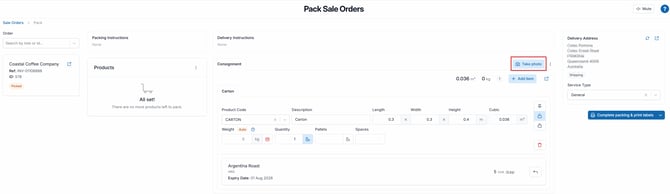
- The image will be captured instantly using the connected camera and attached to the current Consignment Item.
- Repeat the process to take multiple photos for the same item if required.
How photos are stored
- Photos are saved as Packing Confirmation documents.
- They are attached to the relevant Sale Order.
- Each image is:
- Linked to the specific item it was captured against.
- Named using the item's label for easy identification.
- Photo visibility is controlled via Organisation Settings here.
Recommended Packing Station Setup
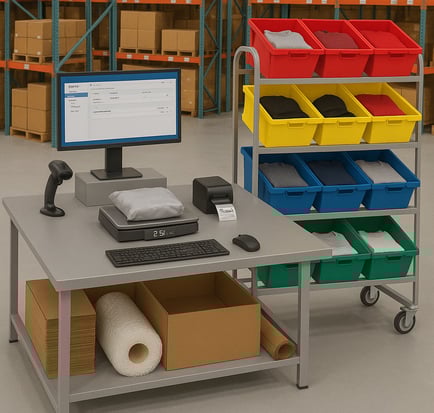
For an efficient packing workflow, it is recommended that the packing station setup include:
-
A computer monitor (min: 21”, ideal:27”): A larger screen provides a clear view of all the order details, products, and packages, reducing eye strain and the need to scroll.
-
A small mini PC: A compact computer can be mounted directly behind the monitor to save space on your packing bench.
-
A USB barcode scanner (wired or wireless): This is essential for quickly scanning Transport Products and Sale Order Products to ensure accuracy and speed up the packing process. A wireless scanner offers greater freedom of movement around the packing station.
-
A label printer: A dedicated label printer is crucial for printing consignment labels, which are generated through the Pack Screen to finalise the fulfilment process.
-
A keyboard and mouse: While the packing process is designed to be performed through the use of a barcode scanner, a keyboard and mouse are required for other parts of the CartonCloud application (and currently needed to enter package weights).
-
Digital Scales: Scales are essential for entering the correct package weights. Support for USB-connected scales will be available in a future update. See here for a list of supported digitial scales.
Printing a Packing Slip from the Pack Screen
The Pack Screen allows you to print or download a packing slip directly while packing a Sale Order. This means you can generate packing documentation without needing to return to the Sale Order screen.
CartonCloud provides two customisable document templates for packing slips, available at the organisation and customer level under Document Templates.|
Template |
Description |
|
The original packing slip template. Displays all items from the whole Sale Order in a single file. If the order spans multiple consignments, each consignment's items are repeated within the document. |
|
|
A new template that renders once for each consignment item. All rendered pages are combined into a single PDF before being sent to the printer or downloaded. Ideal for printing a slip per carton or box. |
To print or download a packing slip for the entire order from the Pack Screen:
- Navigate to the Pack Screen for the relevant Sale Order.
- Click Print Packing Slip.
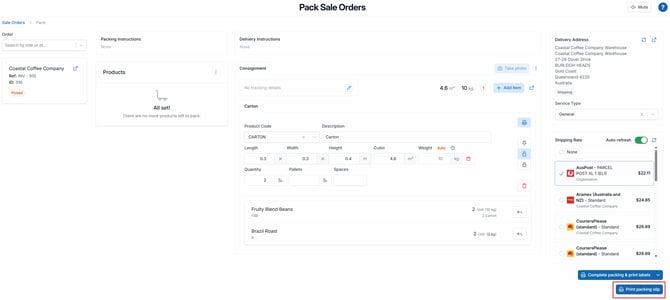
- Select Download or Print:
- Download - saves the Packing Slip as a PDF to your device.
- Print - sends the Packing Slip to your configured printer that can be seen in your Print Log.
- Select either Download (Aggregated) or Download (Per Item) depending on the format you require.
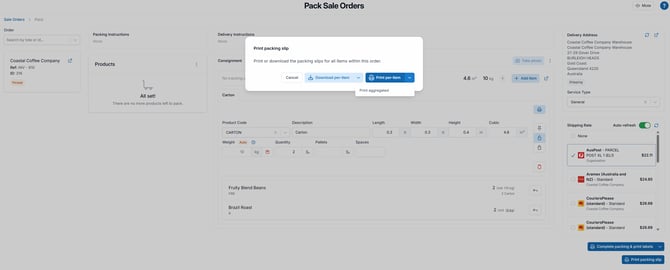
To print or download a packing slip for a single item as you pack:
-
On the Pack Screen, locate the consignment item you have just packed.
- Click the Print button next to that item.
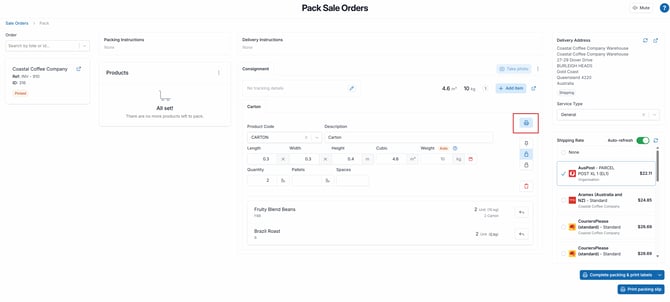
- Select Download or Print to generate the packing slip for that item only.
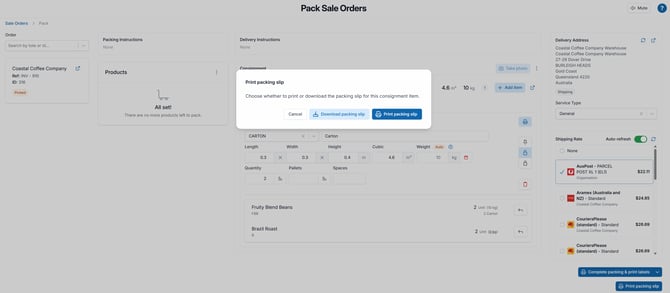
Packing slips are formatted for A4 paper. Routing them to a label printer (e.g. a Zebra printer) may produce unexpected results, as label printers interpret page sizes differently. It is recommended to use a standard A4 printer for packing slips.
Using action barcodes to trigger printing:
CartonCloud supports action barcodes that can trigger packing slip printing directly from a barcode scan — removing the need to interact with a mouse or keyboard.
There are three action barcodes available for packing slips:
|
Barcode |
Action |
|
CCACT008 |
Print packing slip — Aggregated (whole order) |
|
CCACT009 |
Print packing slip — Per Item (whole order) |
|
CCACT010 |
Print packing slip for currently focused item |
Action barcodes are available for printing only - not for downloading.
Known Limitations
There are current limitations with the Pack Screen that will be addressed in future updates. The current limitations include:
-
Custom Field Verification
-
The Pack Screen currently does not prompt for verification of custom fields such as batch, expiry or lot.
-
If the order was picked via the “Picking” mode on the mobile app, then the custom fields would have been verified at the point of picking.
-
Orders picked via Pick to Tote or Split Pick and Pack Waves will not have verification performed at the time of picking.
-
If strict custom field verification is required, please use the picking mode on the mobile (rather than wave picking).
-
-
Custom Field Capture
-
The Pack Screen currently cannot capture custom fields such as serial numbers or MAC addresses. Orders requiring this will display an error.
-
If the order was picked via the “Picking” mode on the mobile app, then the custom fields would have been captured at the point of picking, allowing them to be packed with the Pack Screen.
-
If the order was picked via either Pick to Tote or Split Pick and Pack Waves, no capture would have been performed at the time of picking. It is recommended to use the mobile app’s pick mode to capture the data before packing via the Pack Screen.
-
Future updates will add both verification and capture capabilities.
Enhancements Coming Soon
Several improvements to the Pack Screen are coming soon:
-
Adhoc Charges: Add adhoc charges directly from the Pack Screen, including via barcode scanning.
-
USB Connected Scales: Capture actual package weight via USB-connected scales.