Table of Contents
- Purpose
- How Carrier Selection Rules Work
- How to set up Carrier Selection Rules
- Example Carrier Selection Rules
Purpose
Carrier Selection Rules allow you to automatically preselect the most suitable carrier when packing an order on the Pack Screen. Rather than manually choosing a carrier each time, you can configure rules based on order details such as destination, customer, or consignment type — and CartonCloud will apply the first matching rule to auto-select a carrier rate for you.
Carrier Selection Rules are used in conjunction with Self-Managed Carrier Connections. To use this feature, you must first have at least one Self-Managed Carrier Connection configured. See the Self-Managed Carrier Connections article for more information.
How Carrier Selection Rules Work
Carrier Selection Rules can be configured at two levels:
- Organisation level - rules that apply across the entire organisation.
- Customer level - rules configured for a specific customer that take priority over organisation-level rules.
Customer level rules are checked and applied first. If no customer level rules match, the organisation level rules are applied.
Carrier Selection Rules are evaluated in priority order when carrier rates are fetched on the Pack Screen. The first rule with conditions that match the current order is used to auto-select a carrier rate.
You can configure Carrier Selection Rules based on:
- Destination
- Weight and dimensions
- Service type
- Customer
- Cost (eg: Cheapest)
- + More
Each rule consists of two parts:
- Conditions: When the rule should apply — one or more criteria based on fields from the Address, Consignment, or Sale Order. All conditions within a rule must be met for it to match.
- Action: What CartonCloud does when the rule matches.
Key behaviours to understand:
- Priority order: Rules are evaluated from top to bottom. The first rule that matches is applied. You can reorder rules to adjust their priority.
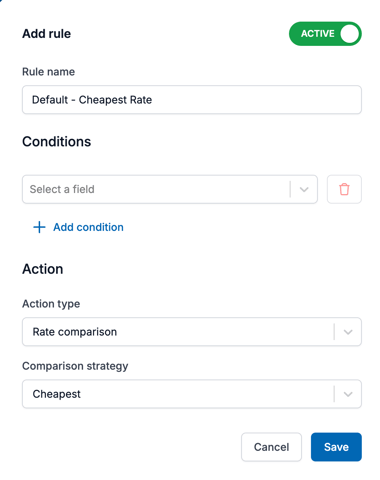
- Catch-all rule: You can create one rule with no conditions. This rule acts as a catch-all and is always placed at the bottom of the list. It applies when no other rule matches.
- Auto-selected rate: The rate determined by the matching rule is automatically selected on the Pack Screen.
- Remaining rates: All other rates that are not auto-selected are listed in order from cheapest to most expensive, so packers can still choose an alternative if needed.
- Carrier and service availability: If a rule is set up to use a specific carrier and service, but the carrier or service is not available when rates are loaded on the Pack Screen, the rule is skipped. For example, if a rule is configured to use Australia Post Express when the service type is Express but Australia Post Express is unavailable for the shipment due to weight or volume restrictions, that rule is ignored and the next matching rule is applied instead.
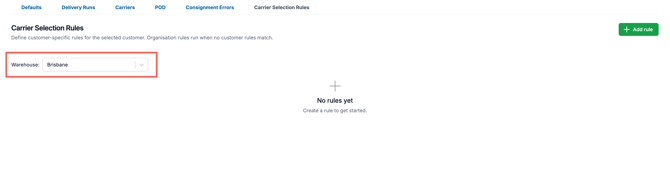
- Carrier Selection Rules are configured per Warehouse: if your account operates multiple warehouses, use the Warehouse drop-down at the top of the Carrier Selection Rules screen to view and manage rules for each Warehouse separately. Rules only apply to orders associated with the relevant Warehouse.
- Carrier Selection Rules are configured at the Organisation and Customer level: customer level rules are applied first. If there are no matches then the organisation level rules are applied.
Use cases for Carrier Selection Rules include:
- Automatically routing fragile or urgent orders to a premium carrier service.
- Sending orders for specific customers via their preferred carrier.
- Routing deliveries to certain regions or postcodes via a specific carrier.
- Applying a default catch-all rule that selects the cheapest available rate for all remaining orders.
How to set up Carrier Selection Rules
Adding a new Rule at the Organisation level:
- Navigate to More > Organisation Settings.
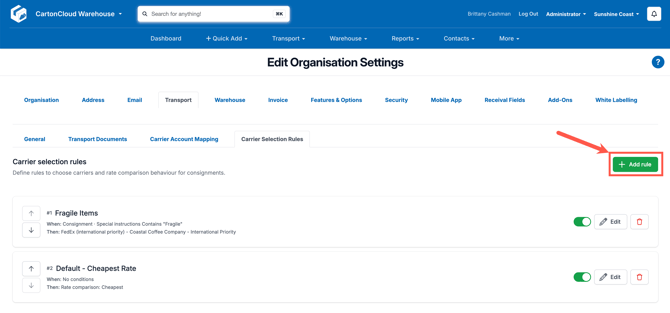
- Select the Transport > Carrier Selection Rules tab.
Adding a new Rule at the Customer level:
- Navigate to Contacts > Customers.
- Select the relevant Customer and click Edit.
- Select the Transport Management > Carrier Selection Rules tab.
How to add a new Rule (same steps at the Organisation and Customer level)
- Select the Warehouse you wish to apply the Rules to.
- Click + Add Rule.
- Enter a Rule name and ensure it is Active if you wish for it to apply straightaway.
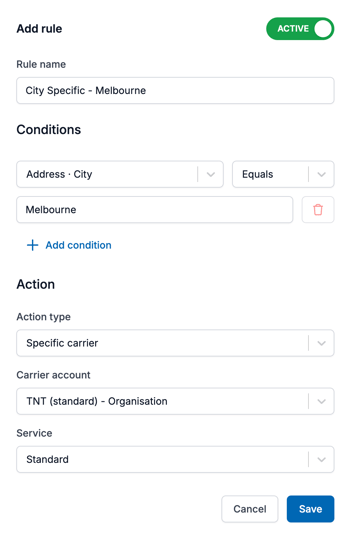
- Apply Conditions to the Rule. These Conditions will dictate when and if the rule is applied. You can add one or more Conditions to a Rule. All Conditions must be met for the Rule to match.
- Select a Field. Fields are available from the following categories:
- Address
- Consignment
- Sale Order
- Select the Operator.
- Enter the Value to compare against.
- Repeat these steps to add additional Conditions to the Rule if required.
- Select a Field. Fields are available from the following categories:
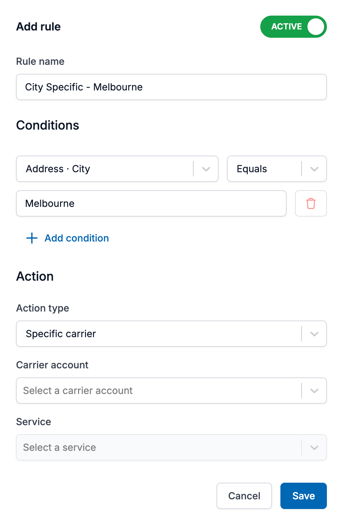
- Apply Actions to the Rule. This dictates the Action that will take place when the Conditions are met.
- Action type:
- Rate comparison: you can choose which rate will appear when the Conditions are met, either the cheapest or fastest rate.
- Specific carrier: you can define a certain carrier and service to be selected when the Conditions are met.
- Action type:
Creating a Catch-All Rule:
A catch-all Rule has no Conditions and applies to any order that does not match the previous rule. You can only have one catch-all Rule, and it is always placed at the bottom of the Rules list. For example, you may have a catch-all Rule that selects the cheapest rate.
Reordering Rules:
Rules are evaluated in the order they appear on the list. To change the priority of a Rule:
- On the Carrier Selection Rules page, locate the Rule you wish to update the priority of.
- Use the up and down arrows next to the Rule to move it higher or lower in the list.
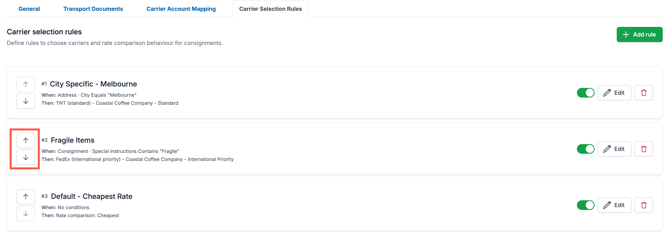
- The Catch-All Rule (no conditions) always remains at the bottom of the list and cannot be moved above other rules.
Activating Rules:
Rules will only be applied if they are active. To ensure they are active:
- Select the Active button when creating the Rate and/or
- Enable it by toggling it on from the Carrier Selection Rules page.
.png?width=670&height=232&name=2026-04-22_12-13-05%20(1).png)
Example Carrier Selection Rules
-
Example #1 - send orders below a weight threshold with a certain carrier
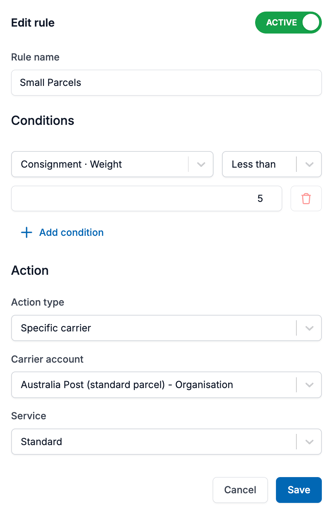
-
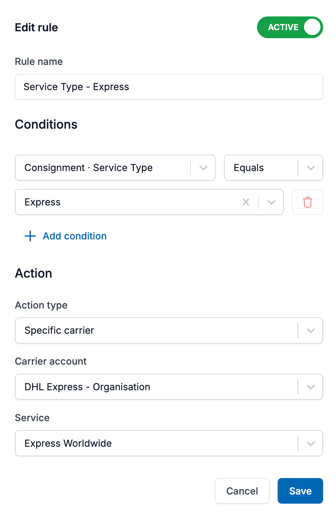
Example #2 - send orders using the service type to determine the carrier
-
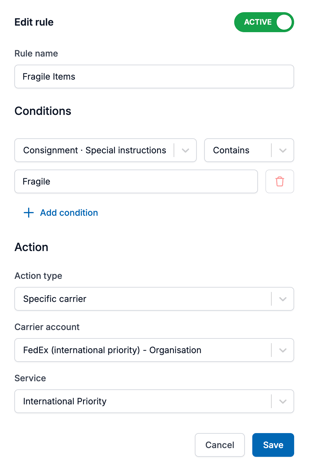
Example #3 - route fragile items via a certain carrier
-
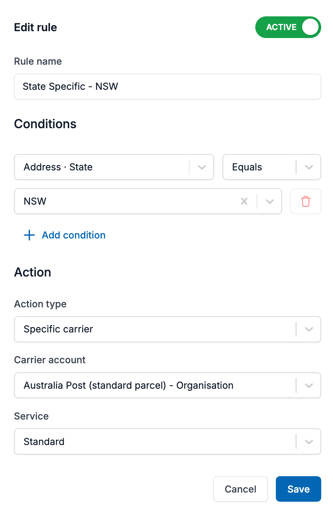
Example #4 - send orders for a specific state/area via a certain carrier