
🔔 Note: this article is part of the CartonCloud Academy - WMS Basic Setup Trail. Please ensure you have read Purchase Order Product Custom Fields Explained first. 🎓
What is a Product Unit of Measure in CartonCloud?
All products in CartonCloud are measured in a particular unit of measure. Each product contains a Base Unit Of Measure, which is the smallest sellable quantity of the product. CartonCloud uses the Base Unit of Measure to convert the quantity into other units of measure using the conversions set up against the product.
For Nick from Coffee Warehousing and Distribution, this is excellent news! His customer, Country Rosters, sells their products at the individual bottle level or in bulk by carton or pallet. Nick will now be able to set up the different units of measure for each of his customer’s products and set up conversions to make it easier for his staff and customers.
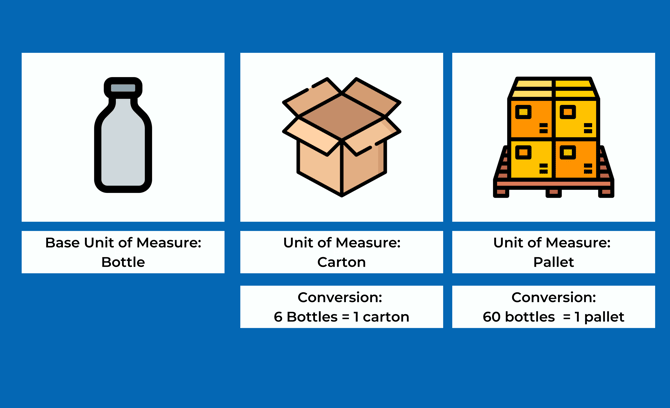
Benefits of using Product Unit of Measure
- Product unit of measure conversions will be utilised during sale order optimisation to prevent breaking larger quantities where possible. For example, if six bottles make up a carton and you have a location that contains three bottles and another with six bottles, CartonCloud will prioritise taking from the three bottles as this cannot be sold as a Carton.
- Handling charges for both Sale Orders and Purchase Orders will be Scaled automatically. So, picking six bottles from a location will automatically charge handling for one carton rather than six bottles.
- Pick Lists will be shown in Scaled Quantities (so rather than saying to pick 60 Bottles, it'll say one pallet).
- Stock Reports can be shown in Scaled Quantities (very useful when dealing with Pallet Conversions).
Now that you understand what a Products Unit of Measure is and how they are used in CartonCloud, it is time to learn how to add a Products Unit of Measure in CartonCloud.
How to create a Products Unit of Measure
Follow along with Vincent as he explains how to add a Product Unit of Measure.
Nick from Coffee Warehousing and Distribution is ready to set up his Products Unit of Measure and conversions for Country Roasters. Nick will need to:
- Navigate to the Products page, Warehouse>Products.
- Click Related and then Products Unit of Measure or in the Search for anything type Product Unit of Measure.
Note, once you are at the Products Unit of Measure page, you will notice that there is already some Products Unit of Measure set up in your account. However, these are locked and can not be deleted. Therefore, if you see the Product Unit of Measure you want to create, we strongly advise you don’t create a new one but rather use the one already created.
Nick can see that Carton and Pallet have already been created as a Product Unit of Measure in his account (created by default in every account), so he will only need to create a Bottle Product Unit of Measure.
- Select +Add Product Unit of Measure.
-
Enter the Name for the Product Unit of Measure and the Code.
-
Select the Category (Mass, Volume, Count).
-
Enable the Oversize Warnings if you wish to be notified of when you may be over-allocating to a warehouse location. See Oversize Warnings for more information.
-
If you wish to link the Product Unit of Measure to a Transport Product/Consignment, see Mapping Product Unit of Measures to Consignment Fields/Transport Products for more information.
-
Click Save.
▶️ Follow along in the WMS Basic Set Up Trail...next up is Learn about Warehouse Locations 🎓