
🔔 Note: this article is part of the CartonCloud Academy - WMS Basic Setup Trail. Please ensure you have read Introduction to Users in CartonCloud - Warehouse first 🎓
What is a Purchase Order Product Custom Field
The great thing about CartonCloud is that it is super customisable for all your operational and customer needs. One way CartonCloud offers customisation is through custom fields. Custom fields allow you to select what information you wish to be recorded against certain items in CartonCloud. For example, you can have custom fields against addresses, Sale Orders, Customers and Products (just to name a few!).
For Nick from Coffee Warehousing and Distribution, this is great news because his customer, Country Roaster, has already provided him with a long list of certain information that needs to be recorded, and they have visibility on it.
We will be focusing on Purchase Order Product Custom Fields in this unit; however, to better understand how Purchase Order Product Custom Fields work, we will compare the difference between Product Custom Fields and Purchase Order Product Custom Fields.
Nick’s customer Country Roasters has requested:
- That the production date and batch number be recorded against each product line of stock on a Purchase Order.
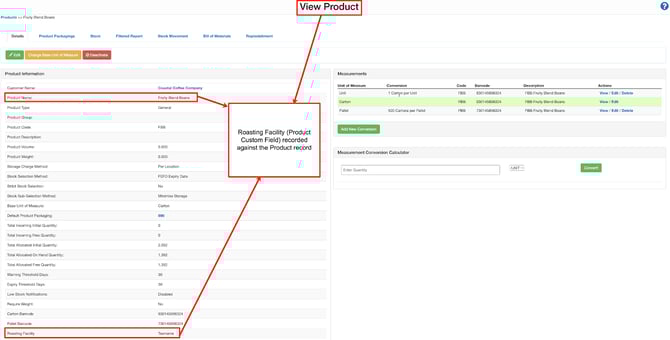
- That the roasting facility for each product is visible against the product (they roast their beans at two different facilities, and certain products are roasted at each).
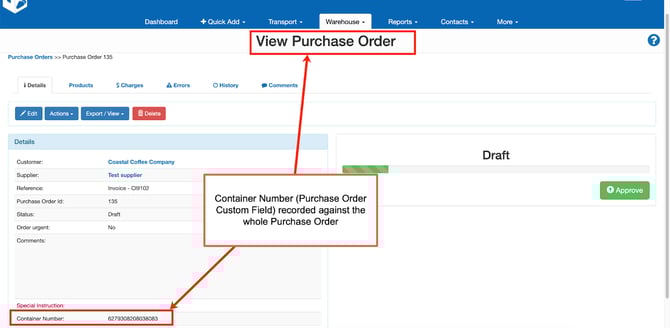
- That the Container Number is recorded against each order (the orders come to Nick’s warehouse via containers)
Nick knows that it is possible to record custom data against entities in CartonCloud; however, he isn’t sure what type of custom fields he needs to set up. He uses the below definitions to help him better understand where he needs to be recoding this information for his customer:
- Purchase Order Product Custom Field: allows you to record information directly against a line of stock on a Purchase Order. For example, Batch Number, SSCC, Pallet ID, or Production Date. Purchase Order Product Custom Fields are customer specific.
- Product Custom Fields: record information against the product record. It is usually used to record extra information related to that particular product. For example, shoe size could be a product custom field.
- Purchase Order Custom Fields: record information against the entire Purchase Order. For example, a container number or carrier information.
Using these definitions, Nick now knows what custom fields he needs to set up. Nick goes ahead and sets up the following custom fields:
1. A Purchase Order Product Custom Field for Batch Number and Production Date. This will be recorded against the individual line of stock.

2. A Product Custom Field for Roasting Facility.
3. A Purchase Order Custom Field for Container Number. This data is recorded against each individual Purchase Order.
Now that you know what a Purchase Order Product Custom Field is, we can start to create these fields in your CartonCloud account.
How to set up Purchase Order Product Custom Fields for your Customer
Purchase Order Product Custom Fields are customer specific, meaning you can have different custom fields for each customer or the same ones. You can have up to 10 different Purchase Order Product Custom Fields for each customer.
Follow along with Vincent, as he explains how to set up Purchase Order Product Custom Fields.
Let’s see how Nick would go about setting up his Purchase Order Product Custom Fields for his customer, Country Roasters.
- Navigate to the Customers Page, Contacts>Customers.
- Select the relevant Customer.
- Scroll down and click Edit.
- Select the Warehouse Management tab and then the Purchase Order Products tab.
-
Select +Add Custom Field 1.
-
Enter a name for the Custom Field in the Custom Field 1 Name text box, such as Serial Number.
-
Select a Configuration Type from the drop down. When you select a Configuration Type, the related settings will be selected. The behaviour of the settings will be explained in the blue text box on the side of the page.
Please note that the configuration type do not directly impact the behaviour of the custom fields, it is the settings that do. When you select a configuration type certain settings will be selected, however, this is just a template designed to simply the setup process. You can still change the settings even once you have selected a configuration type.
-
The available Configuration Types and their behaviour is defined below:
|
Configuration Type |
Behaviour |
|
Optional reference captured on inbound |
When recording a value against this custom field, the system will force the value to be unique among all onhand stock belonging to this customer. If a duplicate value is attempted to be captured, then an error will be displayed to the user to retry. |
|
Optional Reference captured on Outbound |
When recording a value against this custom field, the system will force the value to be unique among all onhand stock belonging to this customer. If a duplicate value is attempted to be captured, then an error will be displayed to the user to retry. |
|
Required Reference captured on Inbound |
When recording a value against this custom field, the system will force the value to be unique among all onhand stock belonging to this customer. If a duplicate value is attempted to be captured, then an error will be displayed to the user to retry. |
|
Required Reference captured on Inbound and Verified on Outbound |
When recording a value against this custom field, the system will force the value to be unique among all onhand stock belonging to this customer. If a duplicate value is attempted to be captured, then an error will be displayed to the user to retry. |
|
Required Reference captured on Outbound |
When recording a value against this custom field, the system will force the value to be unique among all onhand stock belonging to this customer. If a duplicate value is attempted to be captured, then an error will be displayed to the user to retry. |
|
Serial Number captured on Outbound |
When recording a value against this custom field, the system will force the value to be unique among all onhand stock belonging to this customer. If a duplicate value is attempted to be captured, then an error will be displayed to the user to retry. |
|
Serial Number captured on Inbound |
When recording a value against this custom field, the system will force the value to be unique among all onhand stock belonging to this customer. If a duplicate value is attempted to be captured, then an error will be displayed to the user to retry. |
|
Serial Number captured on Inbound and Verified on Outbound |
When recording a value against this custom field, the system will force the value to be unique among all onhand stock belonging to this customer. If a duplicate value is attempted to be captured, then an error will be displayed to the user to retry. |
|
SSCC captured on Inbound and Verified on Outbound |
When recording a value against this custom field, the system will force the value to be unique among all onhand stock belonging to this customer. If a duplicate value is attempted to be captured, then an error will be displayed to the user to retry. |
|
SSCC captured on Inbound |
When recording a value against this custom field, the system will force the value to be unique among all onhand stock belonging to this customer. If a duplicate value is attempted to be captured, then an error will be displayed to the user to retry. |
|
SSCC captured or Verified on Outbound |
When recording a value against this custom field, the system will force the value to be unique among all onhand stock belonging to this customer. If a duplicate value is attempted to be captured, then an error will be displayed to the user to retry. |
|
SSCC captured on Outbound |
When recording a value against this custom field, the system will force the value to be unique among all onhand stock belonging to this customer. If a duplicate value is attempted to be captured, then an error will be displayed to the user to retry. The user can optionally generate new SSCC Barcode numbers for this field when picking through the webapp. |
-
If you choose Custom as a Configuration Type you can then choose to select different settings. The settings are explained below.
|
Setting name |
Description |
|
Enforce unique values |
Enforce that each value recorded against the POP CF for that customer is unique. This means you can't record a value that is not unique against this custom field. |
|
Putaway / Inbound |
|
|
Enable Capture |
Enable the field to be captured on the inbound process |
|
Make this a required step |
Make capturing this field on the inbound required. With this setting enabled users will be required to capture this field on the inbound process. |
|
Split to lowest unit of measure |
When receiving, stock will be split into single units of the lowest unit of measure configured against the product. |
|
Picking / Outbound |
|
|
Enable capture |
Enable the field to be captures on the outbound process |
|
Make this a required step |
Make capturing this field on the outbound required. With this setting enabled users will be required to capture this field on the outbound process. |
|
Split to lowest unit of measure |
When picking, stock will be split into single units of the lowest unit of measure that is configured against the product. |
|
Verify when picking |
Enable this field to be verified upon picking the order. With this field enabled the custom field must be verified by the user upon picking it |
|
Retain custom field 1 selection when performing sale order stock optimization |
When the order is re-optimised the original custom field value will retain. This means when stock optimisation is conducted, CartonCloud will only look for stock with that same custom field value against it. For example, if the custom field is Batch Number and you want to ensure that once stock is assigned to an order with a certain Batch Number and you don't want that number changing during the stock optimisation, you would tick this option. |
-
You will then need to select an Input Type. This is the type of data being recorded against the Custom Field. You have the below options when selecting your Input Type. The Input Type will not change per the Configuration Type. You will need to select the Input Type yourself.
-
Alphanumeric: using both letters and numerals
-
Defined values (dropdown): define what values can be selected for the custom field
-
Date: a date field
-
SSCC: if using SSCC
-
-
Regex definition can be set up using the Regex Definitions page. If a regular expression is set up then it will be used to extract the matched data when capturing the POP custom field on the CartonCloud mobile application.
-
GS1 Barcode Field Identifier is required when using SSCC to specify the GS1 field identifier for the POP custom field. This will allow it to then be printed on the labels. See Enabling and using SSCC/GS1 Labels for more information.
-
If you wish to add another Custom Field, select the +Add Custom Field button below the existing Custom Field.
- Once all Custom Fields have been added, scroll down and select Save.
▶️ Follow along in the WMS Basic Set Up Trail...next up is Introduction to Products Unit of Measure 🎓