
Table of Contents
Purpose
Please note that if your CartonCloud account was created prior to 1 July 2019, you will be using Consignment Fields. If your account was created post 1 July 2019, you will be using Transport Products. If you would like to discuss migrating to the newer version of the CartonCloud TMS, please use CartonCloud Help and lodge a case with our Service Desk.
Auto-generated Consignment Items are created when a Product Unit of Measure (PUOM) is mapped to a Transport Product. This allows CartonCloud to automatically determine how products should be packed and shipped, without requiring manual entry from users.
Auto-generated items reduce data entry and streamline workflows for customers who ship standard product types in consistent formats, such as full cartons, pallets, or directly shippable units.
These items are particularly useful for non-eCommerce warehouses, where precise packing is not always required. However, for e-commerce operations using the Pack Screen, please see 'Auto-Generated Consignment Items and the Pack Screen'.
Prerequisites
- Automatic Consignment generation from Sales Order must be enabled. Please see Generating a Consignment from a Sale Order.
Example
| Unit of Measure | Product Type | Transport Product |
| Carton | Chilled |
Chilled Carton |
| Carton | Frozen |
Frozen Carton |
|
Pallet |
Chilled | Chilled Pallet |
|
Pallet |
Frozen |
Frozen Pallet |
How to set up Auto-Generated Consignment Items
-
Navigate to the Units of Measure page by typing Units of Measure into the Search for anything bar.
-
Select the relevant Product Unit of Measure.
-
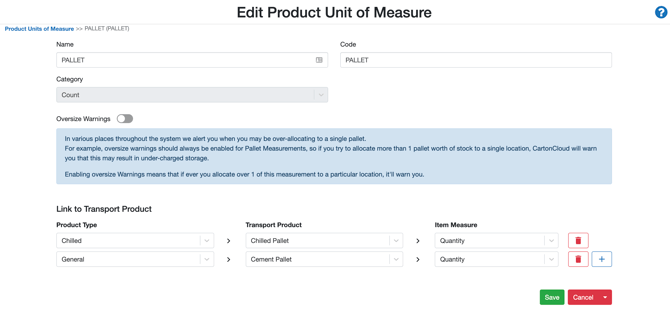
Scroll down to the Link to Transport Product section.
-
Select a Product Type or keep it as None if you do not wish to link the Product Type.
-
Select the Transport Product to link to the Unit of Measure from the Transport Product drop-down menu.
-
Select the Item Measure to link to the Unit of Measure from the Item Measure drop-down menu.
-
To add an additional link, select the plus icon.
-
Click Save.
From the products page
You can map the Products Unit of Measure to a Product Type and Transport Product upon adding a new Product Unit of Measure when creating a new Product.
-
Navigate to the Products page, Warehouse>Products.
-
Select + Add Product.
-
Fill in the applicable fields.
-
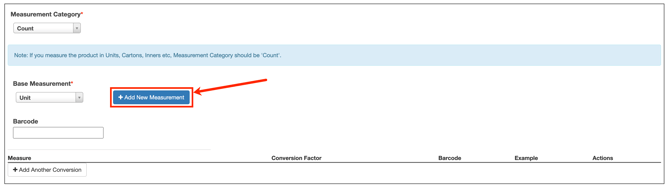
Within Measurement Category, select +Add New Measurement.
-
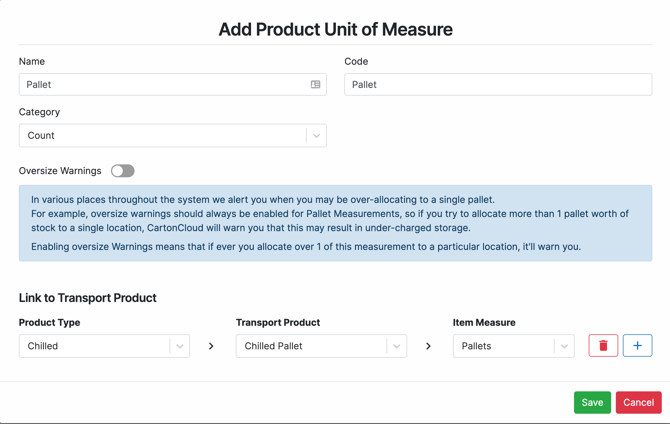
Fill in the fields for the new Product Unit of Measure and link the Transport Product and Product Type.
Auto-Generated Consignment Items and the Pack Screen
You can choose to hide or show Auto-Generated Consignment Items on the Pack Screen. By hiding Auto-Generated Consignment Items, you can utilise the Pack Screen to create Consignment Items, which at times can be a more accurate workflow. With the below settings, you have the flexibility to choose how you create your Consignment Items.
To enable at the organisation level:
-
Navigate to More > Organisation Settings.
-
Select Warehouse > Sale Order Settings.
-
Find the setting “Hide Auto-Generated Consignment Items”.
-
Choose Yes to hide or No to show auto-generated items on the Pack Screen by default.
-
Click Save.
To override for a specific customer:
-
Navigate to Contacts > Customers.
-
Select a customer and click Edit.
-
Go to the Warehouse Management > Sale Order tab.
-
Under Auto-Generated Consignment Items, select:
-
Use Organisation Setting
-
Yes (always hide)
-
No (always show)
-
-
Click Save.
Factors to consider:
Visibility
-
If hidden by settings, unverified auto-generated items will not appear on the Pack Screen.
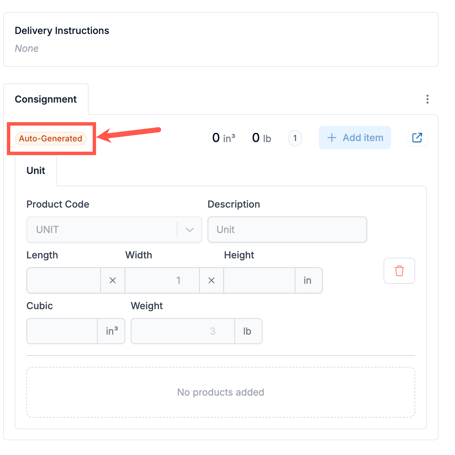
- If not hidden by settings, a badge labelled “Auto-Generated” appears next to the consignment.
-
You can toggle visibility at any time using the “Show Auto-Generated Items” control on the Pack Screen.
- If toggling from hidden → visible while editing, you will be prompted to confirm (existing changes may be overwritten).
Verification
-
Auto-generated items are created with a status of unverified.
-
When you pack the order:
-
All packed items become verified.
-
Any hidden, unverified items are deleted and replaced by the packed ones.
-
-
If you edit consignment items manually or update them via the Parser, they are also marked as verified.
Totals
-
When auto-generated items are hidden, all calculations (weight, volume, quantity) will exclude them.