
🔔 Note: this article is part of the CartonCloud Academy - WMS Basic Setup Trail. Please ensure you have read Introduction to WMS first. 🎓
What are Organisation Settings?
The first step in your CartonCloud journey begins with setting up your Organisation Settings! Organisation Settings is like the control centre of your CartonCloud account; it allows you to customise and manage how you utilise CartonCloud within your operations.
There are a number of different settings within CartonCloud, which is great because it means you can easily adapt CartonCloud to meet your operational and customer needs. However, this means it is important that you understand the different types of settings and where to find them. We will cover settings throughout later pages; however, for now, let's focus on Organisation Settings.
Organisation Settings relate to your whole organisation. This means changes to Organisation Settings will apply to all your Customers and aspects of your CartonCloud account. The only way to override these settings is to make changes at the Customer Settings. Customer Settings will only apply to that applicable customer.
For example, Nick is the Manager at Coffee Distribution and Warehousing. Coffee Distribution and Warehousing store and deliver coffee beans for a number of different customers with varying operational needs. Nick is in charge of setting up CartonCloud for the company. He wants to know what type of settings he can set up in the Organisation Settings and the ones he needs to set up in the Customer Settings. He refers to the below table to better understand the difference.
| Organisation Settings | Customer Settings |
|---|---|
| Settings applied will apply to the entire organisation | Settings applied will only apply to that particular customer |
| You can override Organisation Settings using Customer Settings | You can not override Customer Settings; what you apply at the Customer level will override what you set up at the Organisation level |
| Your basic organisation information needs to be set up here (including logo) | Only customer-specific information will be set up here (customer address, phone number, etc) |
| Some settings in Organisation Settings can only be set up at the Organisation level | Some settings in Customer Settings can only be set up at the Customer level |
With Organisation and Customer Settings your options for meeting customer and operational needs are endless. We will cover Customer Settings in more detail in a later page. For now, we will focus on Organisation Settings.
We will be covering the following topics:
- Navigating the Organisation Settings
- First step...your Organisation's name
- Add your company branding
- Add your Organisation's address
- Set up your Warehouse
Navigating the Organisation Settings
Let’s navigate to the Organisation Settings in your account.
- You can either select More>Organisation Settings or type Organisation Settings into the Search for anything! Box.
- You can move between each setting by utilising the tab headings at the top of the page.
Now, let’s start setting up your Organisation Settings! We will continue to use Nick from Coffee Warehousing and Distribution as our example. This is his first day setting up CartonCloud, so where should he start? To begin, Nick needs to update his company logo, name and address.
Follow along with Vincent, as he shows you how to set up your company logo, name and address from the Organisation Settings (only watch up to timestamp 4:00).
First step...your Organisation's name!
It’s time to add your organisation's name to CartonCloud. Let’s start by navigating to your Organisation Settings:
- Click the More tab in the top right corner.
- Select Organisation Settings.
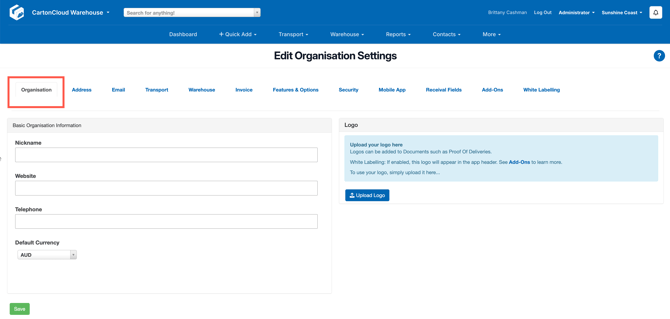
- Click the Organisation tab.
- Enter your Organisation name in the Nickname field.
- You can also enter your Website, phone number and default currency.
Add your company branding!
Next, let’s add your company logo! From within the Organisation Settings:
- In the far right panel under Logo, click Upload Logo.
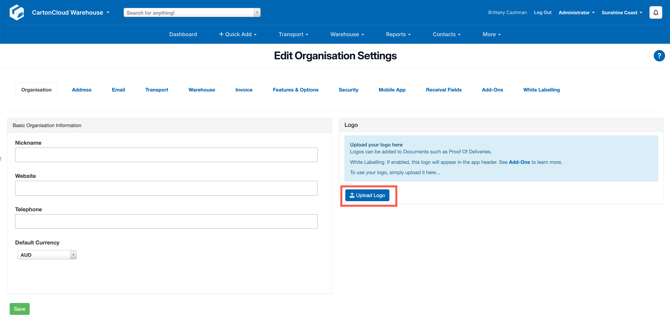
- Select Choose File. Select your logo.
- Click, Upload Logo
Add your Organisation's address
Now, it is time to add your Organisation’s address to CartonCloud, from within the Organisation Settings:
- Click the Address tab.
- Click Add New Address.
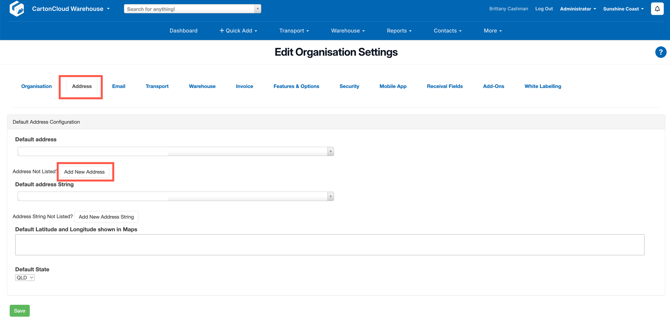
- Search for your organisation in the Company name field. If it does not appear, fill in the address manually in the other address fields.
- Scroll down and click Add Address.
- Click Add New Address String. For more information on Address Strings click here.
- Enter your Organisation's name in the Address String name field.
- Select your Organisation's address from the Allocated to address drop down field.
- Click Add Address String. For more information on Address Strings, please click here.
- Enter the Default Latitude and Longitude (which will be shown in maps) if you wish.
- Scroll down and click Save.
Will you be using international addresses or are your operations based outside of Australia?
If you are using addresses outside of Australia or your operations are based outside of Australia, you will need to enable the Allow International Addresses to be entered in CartonCloud setting.
Nick knows that some of his customer's ship to New Zealand, so he will need to turn this setting on.
To turn this setting on (within the Organisation Settings):
- Select the Features & Options tab.
- Under Address Configuration, tick Allow International Addresses to be entered in CartonCloud
- Select your Default Country Address from the drop-down.
- Scroll down to the bottom of the page and select Save.
Set up your Warehouse
Now that you have your basic Organisation Settings configured, you can set up your Warehouse. If you are only using the Transport Management System and don’t have a warehouse as such, you can think of this as your depot.
Nick knows Coffee Warehousing and Distribution have a warehouse in Sydney and also Melbourne. He will update the existing warehouse with the Sydney details and add another warehouse for the Melbourne warehouse.
Follow along with Vincent, as he sets up the Warehouse (watch from time stamp 4:00).
▶️ Follow along in the WMS Basic Set Up Trail...next up is Learn about Customers. 🎓