
🔔 Note: this article is part of the CartonCloud Academy - WMS Basic Setup Trail. Please ensure you have read Get started with Parsers - Warehouse first 🎓
Inbound Process with CartonCloud
CartonCloud’s inbound process is managed through the utilisation of Purchase Orders. Purchase Orders are inbound orders that allow you to receive stock into your warehouse.
Purchase Orders make the inbound process seamless and efficient. You will be able to record vital information against the order and the stock (such as batch numbers, SSCC etc.), ensure all charges relating to the order are captured and easily track stock. This makes stock and inventory management easier for you and your customers.
Once a Purchase Order is created (by yourself, your customer or integration with another software), you will be able to approve the order. Once approved and the order is at your warehouse, you can receive it, verify it, and allocate it to a warehouse location. Once allocated to a warehouse location, the Purchase Order will start accumulating storage charges and is then available to be assigned to an outgoing order (Sale Order). To better understand this process, you can refer to the below diagram. You will see the different statuses a Purchase Order moves through and what actions are completed at each stage.
Some great things you will love about Purchase Orders!
Throughout this process, you can set up specific notifications to be sent to your customers. For example, a notification can be sent to your customer once the order has been received and once it has been verified.
You can also record adhoc charges against the Purchase Order throughout the process. For example, the number of containers that had to be unloaded or the number of pallets wrapped. Don’t worry; your predetermined inbound rates and storage charges will also be automatically calculated; however, the adhoc charges are for charges that require input quantity and that vary for each order. This means you don’t miss any charges and can invoice your customers for all movements or add-ons that may arise through the process (charging will be covered in greater detail in another Trail).
Nick is super excited to use Purchase Orders in his warehouse inbound process! Nick believes by using Purchase Orders, the process will be streamlined, data accuracy will improve, and his customers will be provided with more up-to-date information automatically.
Creating a Purchase Order
Now that you know what a Purchase Order is, it is time to add one!
There are many different ways a Purchase Order can come into CartonCloud.
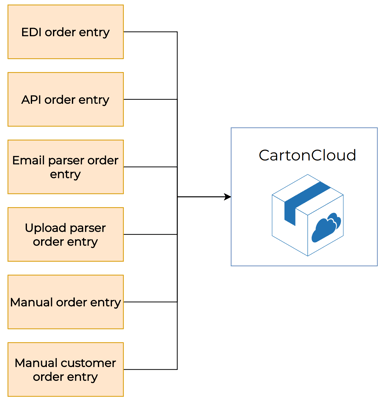
In this unit, we will focus on how to add a Purchase Order manually. Your customers can follow this same process using their CartonCloud login.
Follow along with Vincent as he steps through the process of adding a Purchase Order.
Nick wants to make his processes as automated as possible and already knows he will be encouraging his customers to use Parsers to email their orders through so that they are automatically created in CartonCloud.
Receiving a Purchase Order
Now that you have created a Purchase Order, it is time to learn how to receive it into your warehouse.
Follow along with Vincent as he steps through how to receive a Purchase Order on the web app.
Note that warehouse staff can complete the below process on the mobile app.
Photos and Documents on Purchase Orders
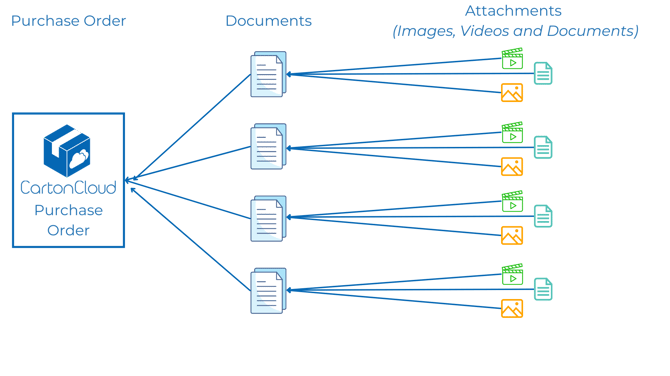
With Photos and Documents on Purchase Orders, users can attach photos, videos, and documents directly to Purchase Orders through both the mobile and web app. These attachments—whether photos, videos, or documents—are linked to the Purchase Order.
Check out the diagram below for a visual breakdown of how Purchase Orders, Documents, and Attachments are connected.
Key Points
- A Document has attachments and attachments can be videos, photos or other documents (ie: PDF).
- Documents have two different visibility options:
- Internal only: no customer access. Admins and packers can edit.
- Shared with customer: customer can view. Admins and packers can edit.
- Documents are split into two tiers, Essentials (available in all WMS plans), and Advanced (available through Warehouse Premium).
- Capture and upload photos at receipt on the mobile or from your device’s photo library.
- Users can add and edit Documents on the web app but only add (not edit) on the mobile app.
- On the Purchase Order Allocated and Verified email if there are Documents associated with the Purchase Order and they are Customer level visibility, a link to the Document will be included in the email. See Customer Settings - Email (Notifications) for more information.
Available Workflows
- Documents on the Mobile app - add Documents upon receiving stock in the warehouse.
- Documents on the Web app - add Documents to the Purchase Order at any stage in the order process (any status) from the web app.
Use Cases / Benefits
- Enables warehouse workers to provide photo (and video) evidence of received goods.
- Allows issues such as damages to be easily communicated and shared with customers.
- Provides greater transparency and visibility to customers.
- Provides greater transparency internally with photo visibility supplied at the time of receipt or damage and document history for who uploaded the attachment.
- Enables an advanced inbound process.
- Enables greater compliance and regulation standards for your customers.
- Increased service offering and value to your customers.
How to record Photos and Documents on Purchase Orders via the Web App
Documents can be created on Purchase Orders at any stage though the order process. The Purchase Order can be in any status for a Document to be created.
Follow along with Vincent as he shows you how to upload Photos and Documents to Purchase Orders via the web app.
▶️ Follow along in the WMS Basic Set Up Trail...next up is CartonCloud Outbound Process Explained 🎓