
🔔 Note: this article is part of the CartonCloud Academy - WMS Basic Setup Trail. Please ensure you have read CartonCloud Inbound Process Explained first. 🎓
Outbound Process with CartonCloud
CartonCloud’s outbound process is managed through Sale Orders. A Sale Order is the outbound order leaving your warehouse.
CartonCloud ensures accuracy and efficiency throughout the outbound process by utilising automatic rating, customisation, settings to enhance picking accuracy and seamless integrations with eCommerce platforms and shipping/dispatch software.
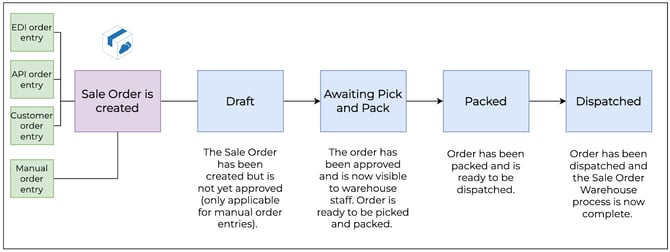
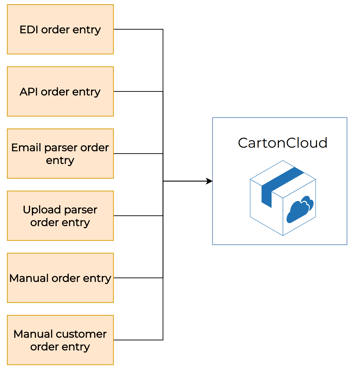
You or your customer will place the order through EDI, API, web upload, or a Parser. Once the order is approved (if it was added manually), it will be available for your warehouse staff to pick. Once the Sale Order has been picked and packed by your warehouse staff, it will then be dispatched from your warehouse. Depending on your operation workflow, the order may be picked up by a third-party transport company, or alternatively, you may manage the transport component and will deliver the goods yourself (stay tuned for the next unit where we will cover using CartonCloud WMS and TMS together for this exact use case!).
To better understand this process, you can refer to the below diagram. You will see the different statuses a Sale Order moves through and what actions are completed at each stage.
Some great things you will love about Sale Orders!
Using the CartonCloud mobile app, you can force your pickers to scan to confirm the warehouse location, product and custom fields (for example, Batch Numbers), ensuring the correct products are picked from the correct location matching the order specifications.
In addition, all picking and outbound charges are captured and automatically added to your customer’s invoice. You can even record adhoc charges against the order, such as labelling or wrapping fees.
You can set up Integrations with your customer’s eCommerce platform, such as Shopify, so that new Sale Orders are automatically sent through to CartonCloud, without you or your customer having to do a thing!
Creating a Sale Order
Now that you know what a Sale Order is, it is time to add one!
There are many different ways a Sale Order can come into CartonCloud.
Follow along with Vincent as he steps through the process of adding a Sale Order.
Learn about Sale Order Settings
Nick has specific operational workflows that must be followed and customers with varying requirements that must be met. To ensure these processes are followed, and his customer’s needs are met, Nick can use the settings in CartonCloud to enforce these processes and requirements. There are many different settings in CartonCloud; however, in this unit, we will focus on Sale Order Settings (located in the Customer Settings). Sale Order Settings are specific to each Customer, meaning each customer’s Sale Order Settings can be configured differently. This enables you to alter your processes or requirements for each customer, making it easier for you and keeping your customers happy!
Follow along with Vincent as he talks through some of the key Sale Order Settings.
How to Pack a Sale Order
Now that you have created a Sale Order and you understand the different settings associated with Sale Orders it is time to pack the order!
Follow along with Vincent as he steps through how to pack a Sale Order on the web app.
▶️ Follow along in the WMS Basic Set Up Trail...next up is Setting up CartonCloud for WMS & TMS 🎓