Table of Contents
Purpose
The process for creating Documents on Purchase Orders on the web app. In addition, how to edit and delete documents via the web app.
Note, Documents can only be edited via the web app not the mobile app.
Use Cases / Benefits
-
Provide greater transparency and updates to your customers on their stock.
-
Customers can view Documents from their CartonCloud login as long as the Document visibility is set to Shared with Customer.
-
Provide greater transparency internally with Document visibility on orders and the history of who uploaded the Document and attachment.
-
If you wish to take photos and record them against the Purchase Order once the stock is allocated to a warehouse location you can do so by taking a photo on the warehouse floor and uploading it on the web app.
-
Reduce communication between you and your customer by uploading images and files directly to the Purchase Order for them to view.
Process
Documents can be created on Purchase Orders at any stage through the order process. The Purchase Order can be in any status for a Document to be created. To create a Document on a Purchase Order:
-
Navigate to the relevant Purchase Order, Warehouse>Purchase Orders.
-
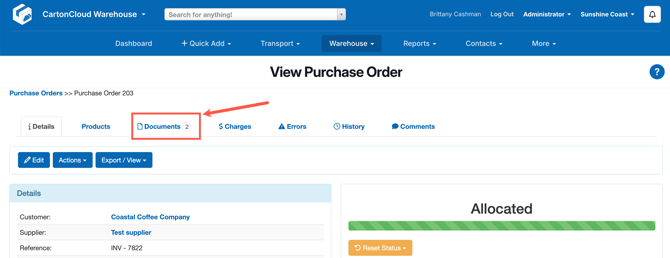
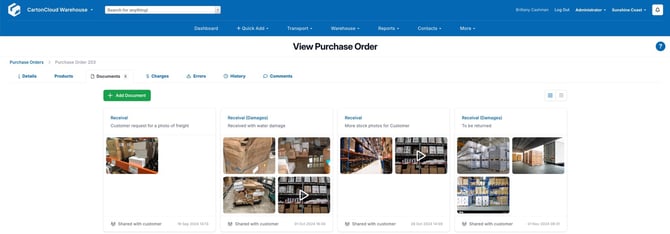
Select the Documents tab. If there is already a Document against the Purchase Order you will see the number of Documents next to the tab title.
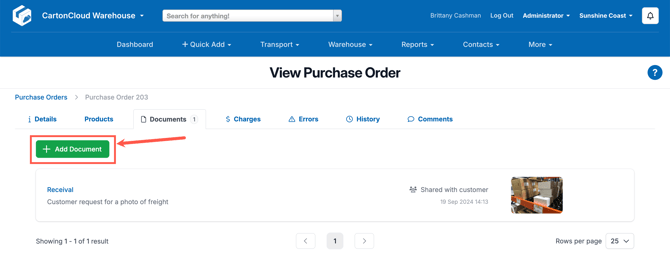
- Select the +Add Document button.
-
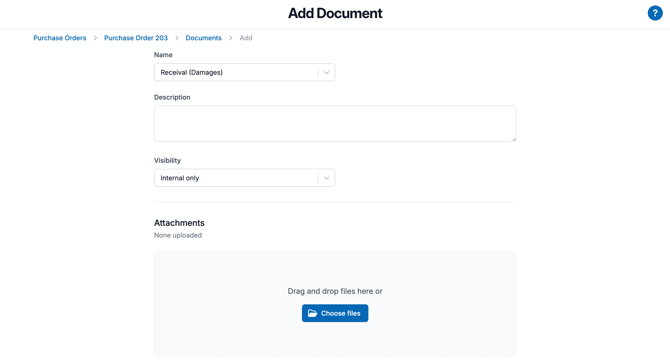
Select the Name for the Document from the drop-down. Note that names are not customisable, however, they will be in the future.
-
Receival: use this name when receiving stock that is not damaged.
-
Receival (Damages): use this name when receiving damaged freight.
- A default visibility option can be selected from the Organisation Settings. For more information click here.
-
-
Enter information related to the Document within the Description text box. This will be visible to anyone who has access to the Document.
-
Select the visibility option: (a default visibility option can be selected from the Organisation Settings. More information here)
-
Internal only: only internal users of your CartonCloud account will be able to see the Document. This includes all User types apart from Customers. Only Admin and Packers can edit the Document (Documents can only be edited via the web app).
-
Shared with Customer: all user types in your CartonCloud account including Customers can see the Document. Only Admin and Packers can edit the Document (Documents can only be edited via the web app).
-
-
Add attachments by selecting Choose files or utilise the drag and drop feature to upload the file.
-
Select the files you wish to upload and select Save.
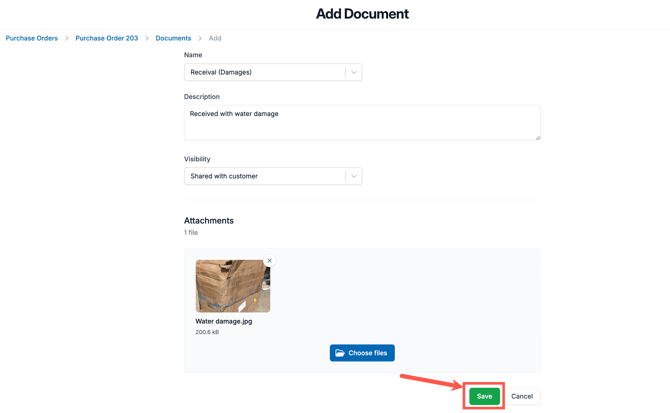
- The Document will now be visible against the Purchase Order.
Editing or deleting a Document
Once a Document is uploaded you can edit it to make changes, remove or add attachments and delete the Document. Note that Documents can only be edited via the web app.
To edit a Document:
-
Select the Document and you will be in edit mode.
-
Make any required changes and select Save.
To delete a Document:
-
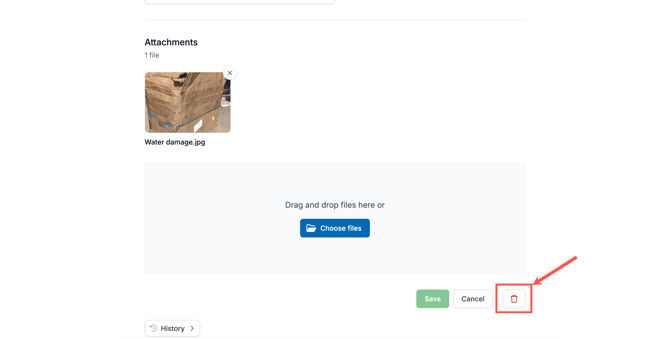
Select the Document you wish to delete to enter edit mode.
-
Scroll down and select the red bin icon.
Document History
To access the Document history:
-
Select the Document you wish to view the history for.
-
Scroll down and select the History button.
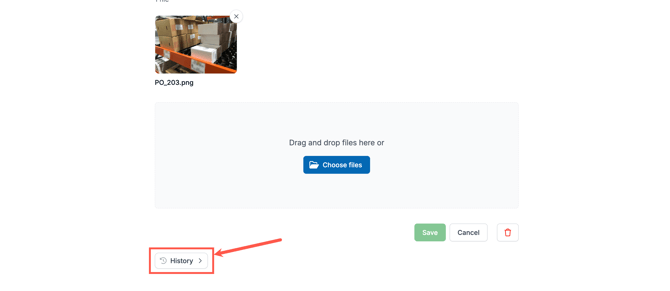
- You will now be able to see history related to the Document.
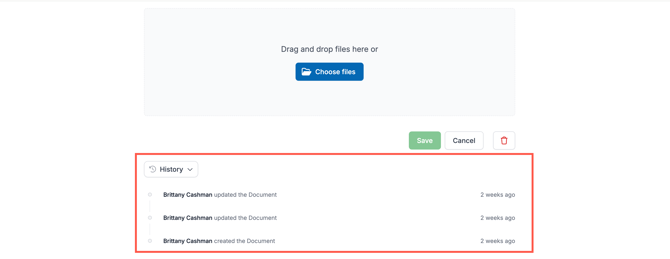
Image Metadata
Image Metadata is only included in Advanced Documents. See here for more information. Note: All accounts are able to trial Advanced Documents for free until June 2026. After this, only accounts with WMS Premium will maintain Advanced Documents and all other accounts will switch to Essentials Documents.
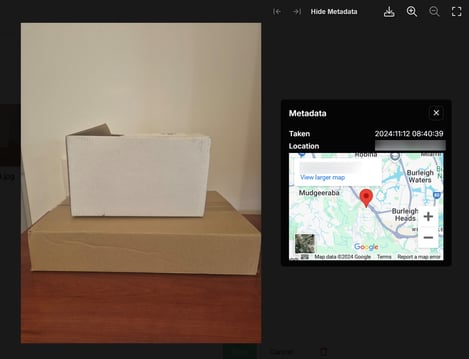
When uploading an image to a Document on the web app, if date, time and location Metadata is available it will show against the file. This can be useful as it provides the exact location and date/time the image was taken.
Considerations for Metadata to be available:
-
Only file types of images are able to store metadata. For example, a video will not show metadata.
-
At present, only files uploaded via the web app can show metadata. Images uploaded from the mobile app will not provide metadata. This is coming soon in an app update.
-
Only certain devices record metadata within an image and metadata is often removed when images are compressed (eg: images shared via WhatsApp generally get compressed and have location metadata removed).
How to access Metadata:
- Against the relevant Purchase Order, select the Documents tab.
- Select the relevant Document.
- Select the relevant attachment.
- Click Show Metadata.