
Table of Contents
Purpose
This guide gives you suggested areas to investigate when a parser has failed.
If after following the below steps you can still not resolve the Parser issue, please use CartonCloud Help and lodge a case with our Service Desk.
Troubleshooting Steps
1. Check the Email Import Log.
This is the best place to start when looking for what caused the error.
To navigate to the Import Log:
- Select More>Import Log.
- Here, you will see all the failed and successful import attempts.
- The below table steps through how to read the Import Log.
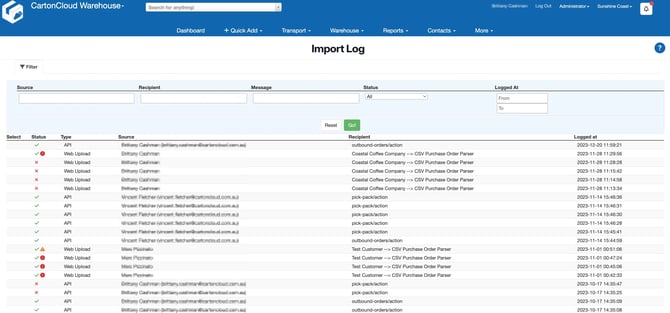
| Heading/Field | Explanation |
| Type |
How the file was imported. Email: the parser file was emailed to CartonCloud Web Upload: the parser file was uploaded through 'Parse a file' in CartonCloud. API: the file was sent through to CartonCloud via API. |
| Source |
Either the email address the file was sent from (if the file was emailed in), the user who uploaded the file via CartonCloud (if it was uploaded via parse a file) or the API Client that sent the file (If using an API connection to transfer the file). |
| Recipient |
If the file was uploaded via web upload or emailed in the recipient will be the 'To address' associated with the Parser. This will help you identify what Parser was used. |
|
Logged at |
The time the file was parsed in. |
| Status |
See error code status mapping for more information. |
- To see more information relating to the parsing log, click on the parsing log to open the details.
- You can then break down the information to find out why the Parser failed and confirm the Parser being utilised is the Parser you expected to be using.
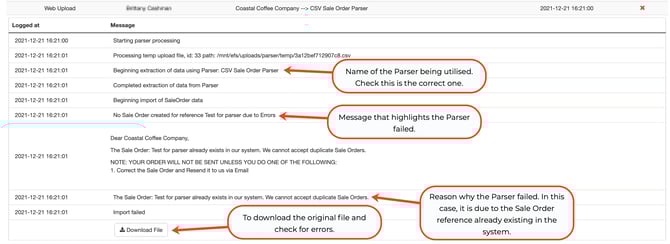
- The below outlines common error messages received in the Import Log.
| Common Issues and Error Messages | Where to Check |
| Error Message: "Parser can not be found with recipient email address" A customer is trying to parse a file to CartonCloud, and the email is incorrect |
|
| Error Message: "No attachments found in email message!" | The customer has not included the file in their email. |
| Error Message: "File ________ could not be Parsed. Attachment File Type: DAT is not supported by Parser. Supported file formats are: xls, ms-excel, xlsx" |
An incorrect file type is being sent. This is because parsers are built to read only one specific file type. See Check 3 for more information. |
| Error Message: "The match number does not exist in the matches array" | This is a data issue. One of the required fields (normally the Product Code) does not match any current products in the system. |
| Calling the Wrong Parser Type - e.g. may have tried to send an invoice parser template to a SO parser |
Look for the actual parser name (type) that the customer attempted to parse on the Email Parsing Log. If the wrong file is being parsed, then go to customer as above, click on edit, email and tick the correct parser type to email. You can download the sample template that was used to build the parser following the steps in Configuring Parsers for Customers. Using this file, compare the failed file from the Email Parsing Log to check if an incorrect file type is being used. |
| Error Message: "Failed to import anything from the file. Key field customer_reference cannot be empty" | This is a data issue. The required field (Customer Reference etc) has an empty cell in the file. Open the data file and check each entry to ensure that all data is populated. |
| No Stock Matching Conditions |
Below this message will display the conditions specified for this parser. Common conditions are often "Expiry Date" Things to check:
|
| The order/consignment created by a Parser is missing a delivery address | See the article: Address not appearing on a new Sale Order or Consignment |
Error code status mapping
Sale Order
| Error | Status (Success with warning or error) |
|
Remove lines with blank product codes |
Warning |
|
Remove lines with not enough stock |
Warning |
|
Remove lines with zero quantity |
Warning |
|
Remove lines with failed conversions |
Warning |
|
Remove lines with invalid conversions |
Warning |
|
Unit of measure adjusted to default UOM |
Warning |
|
Remove lines with invalid UOM |
Warning |
|
Line item has expired |
Warning |
|
Before expiry threshold |
Warning |
|
After expiry threshold |
Warning |
|
Not enough stock use available stock |
Warning |
|
MLOR per address expiry multiple address for address code found |
Error |
|
MLOR address not found |
Error |
|
MLOR expiry threshold |
Error |
|
Unable to parse |
Error |
|
Multiple products found for line item |
Error |
|
Missing product code reject |
Error |
|
Not enough stock reject |
Error |
|
Invalid quantity (non-positive number) |
Error |
|
UOM conversion failed reject |
Error |
|
UOM invalid reject |
Error |
Purchase Order
| Error | Status (Success with warning or error) |
|
Product code available (item removed) |
Warning |
|
Product code available (reject order) |
Error |
|
Product expiry invalid |
Error |
|
Product quantity invalid |
Error |
|
PUOM unit invalid (item removed) |
Warning |
|
PUOM unit invalid (reject order) |
Error |
|
PUOM unit invalid (substitute with default UOM) |
Warning |
|
Warehouse location invalid |
Error |
|
Warehouse location cannot handle product type |
Error |
|
Custom field invalid type |
Error |
|
Custom field non unique |
Error |
2. Check the Parser's 'Allowed From Address(es)' and 'To Address' email addresses are correct
If the Parser has been emailed in, you will need to check that:
- The email address it was sent from is associated with the Parser.
- The email address the file was emailed to is the correct email associated with the Parser.
To check:
- Navigate to the Parsers page by typing in Parsers into the Search for anything bar.
- Select the Parser you are utilising.
- Scroll down to the bottom and under Customers check the Allowed Email Addresses match the email address that emailed the Parser in.
- Under To Address, check the address matches the one to which the file was emailed.
If the email address is not on the 'Allowed Email Addresses' list, please see Configuring Parsers for Customers step two.
3. Ensure the parser file matches the sample file format
To view the sample file associated with the Parser:
- Navigate to the Parsers page by typing in Parsers into the Search for anything bar.
- Select the Parser you are utilising.
- Select the blue Download button under Sample File.
- Ensure the excel file is the correct Type; for example, the file is csv format.
4. Ensure the customer attempting to parse the file is associated with the Parser
-
Navigate to the Customers page, Contacts>Customers.
-
Select the relevant Customer and click Edit.
-
Select the Parser tab.
-
Check that the Parser you or the Customer is attempting to use is listed on the Parser tab.
If you can not see the Parser listed, you will need to add the Parser to the Customer. See Configuring Parsers for Customers step one.
Address Allocation and Parsers
When importing orders with addresses (for example, a Sale Order) via a Parser there is certain requirements that must be met in order for the address to allocate to an existing address. These requirements are listed below:
-
The existing address record has to be active and not in a draft format.
-
Street Address has to be specified in the Parser file and it must match the existing address record.
-
Postcode has to be specified in the Parser file and it must match the existing address record.
-
If the Country is specified in the Parser file, the existing address record has to be the same Country.
-
If the Company name is specified in the Parser file, the existing address record has to be the same Company name.
-
If the Contact name is specified in the Parser file, the existing address record has to be the same Contact name.
-
Either the Company or Contact name has to be specified in the Parser file.
-
If Street Address 2 is specified in the Parser file, the existing address record has to be the same Street Address 2.
-
If Street Address 2 is not specified in the Parser file, the existing address record should not have a Street Address 2 Value.