Table of Contents
- What is a Purchase Order
- How to create a Purchase Order
- Purchase Order Process Flow in CartonCloud
- Purchase Order List View
What is a Purchase Order
For a stock to come into your Warehouse, a Purchase Order must be created.
How to create a Purchase Order
The below pages outline how to create a Purchase Order and how to navigate the Purchase Order page within CartonCloud.
Purchase Order Process Flow in CartonCloud
The below process flow outlines the different statuses a Purchase Order moves through in CartonCloud. 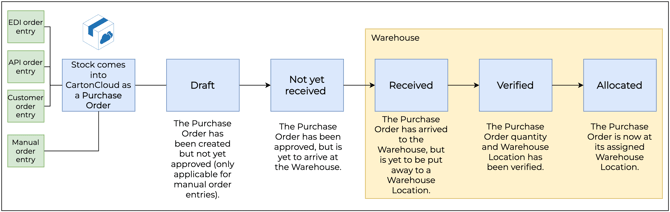
- Draft: The Purchase Order has been created but is not yet approved. This status is only applicable for orders that have been manually added to CartonCloud. To progress to the next status of Not yet Received the Purchase Order must be approved and this can be done manually within the Purchase Order.
- Not yet received: The Purchase Order has been approved but is yet to arrive at the Warehouse.
- Received: The Purchase Order has arrived at the Warehouse but has not yet been put away to a Warehouse Location or checked off. To move to the next status of Verified, you must click Verify Purchase Order Products.
- Verified: The Purchase Order quantity and warehouse location have been verified.
- Allocated: The Purchase Order is now at its assigned warehouse location, and storage will begin on the Purchase Order.
For more information on the Purchase Order Process, please see the Purchase Order Procedures page.
Purchase Orders List View
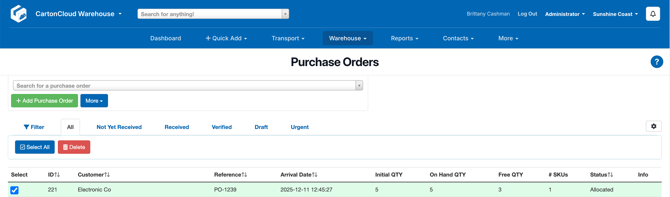
From the Purchase Orders page, you can view a list of Purchase Orders. This list can be filtered, and the columns displayed on the list can be customised.
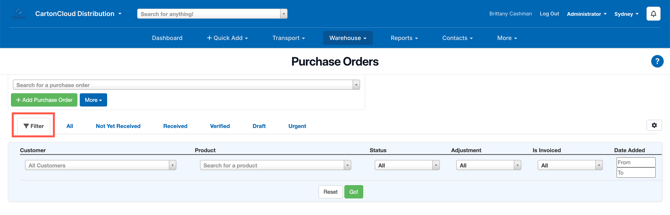
To filter the list:
- Select the Filter tab.
- Select the filters you wish to apply - Customer, Product, Status, Adjustment, Is Invoiced and Date Added.
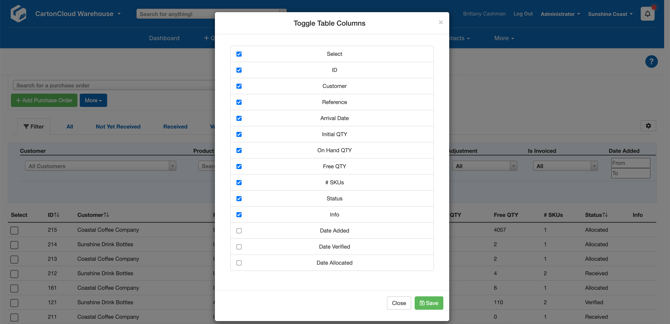
To update the columns displayed on the list:
- Select the cog gear icon in the top right.
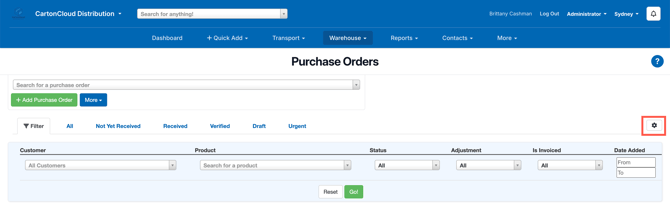
- Tick the columns you wish to display and click Save.
To delete Purchase Orders in bulk:
-
Click Select All or select individual Purchase Orders using the tick selection.
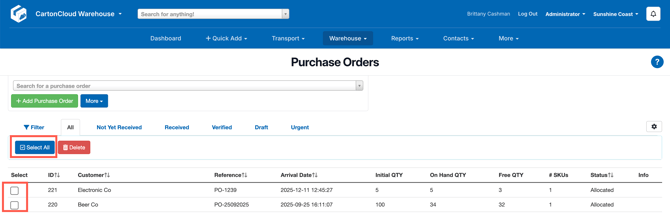
- Click Delete.