
Table of Contents
Purpose
Parsers allow your customers to upload or email files into CartonCloud and the order be automatically created. In order for your customers to be able to do this, you will need to configure the Parser to the customer.
Steps to configure Parsers for Customers
- Add Customer to the Parser
- Download the Parser template
- Provide the To Email Address to your customer
Add Customer to the Parser
-
Navigate to the Parsers page by typing Parsers to the Search for Anything bar.
-
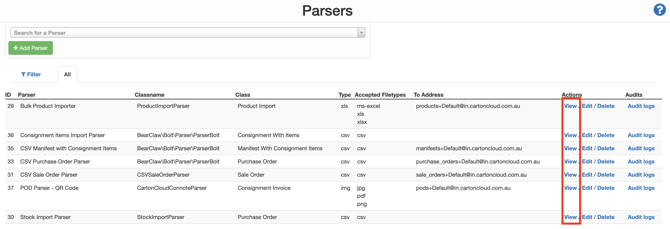
Click View against the Parser you wish to connect to the Customer.
-
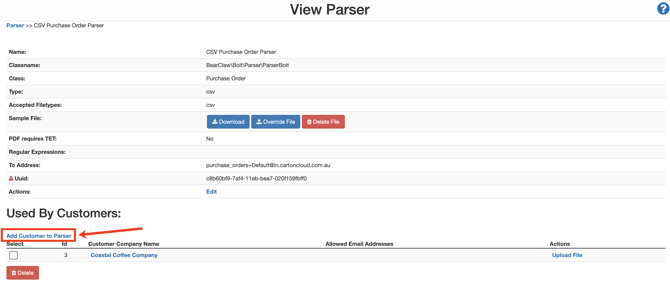
Click Add Customer to Parser.
-
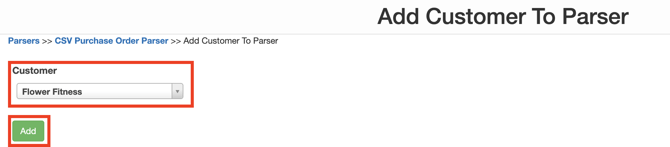
Select the relevant Customer from the dropdown Customer menu.
-
Click Add.
Connecting the Customers Email Addresses to the Parser and setting up error email notification
You will now need to add the Customer's email address to the Parser. You can also optionally select if you wish the email address to receive an email if the Parser fails to upload.
It is recommended that you enable the Parser failure email notification. This will help ensure you are notified if an order fails to upload and are able to rectify it as soon as possible.
-
Navigate to the Customers page, Contacts>Customers.
-
Select the relevant Customer and click Edit.
-
Select the Email tab.
-
Type the email address into the New email field.
-
Click Add new email.
If you don't wish to use a single email address and instead allow multiple email addresses with the same domain, such as '@cartoncloud.com.au', please see the Wildcard Email Addresses section. 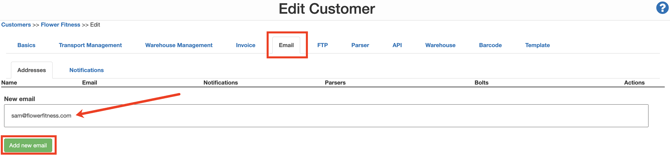
-
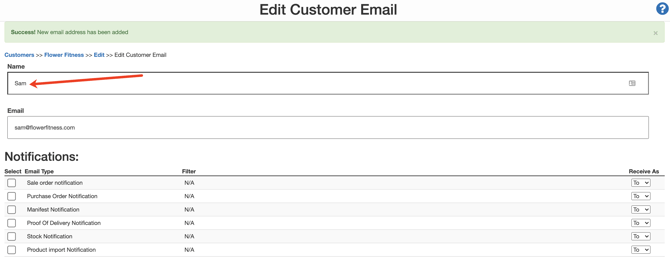
Enter the name for who will be using the email address into the Name field.
-
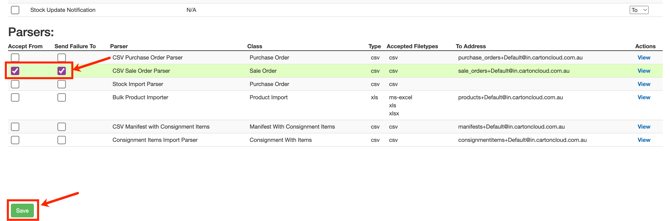
Tick the box next to the Parser you wish to associate to the email address. You can also tick Send Failure To if you wish the email address to receive an email if the Parser fails to upload.
-
Click Save.

Never link two parsers to a single email address which have the same To Address.
This will cause problems because, upon import, the system will not know which Parser to use and will go with whichever Parser it finds first. This leads to unpredictability in how the data is parsed.
Wildcard Email Addresses
Wildcard email addresses allow you to configure a particular domain to work with a given parser.
For example, for the above customer Flower Fitness, several people in the business may need to send through the Parser from their email address. In this case, you could set up a wildcard email address for the domain @flowerfitness.com. With this setup, anyone from Flower Fitness with the domain @flowerfitness.com in their email address will be able to send through the Parser.
Wildcard email addresses are added by using a * character before the @ symbol. For example:
*@flowerfitness.com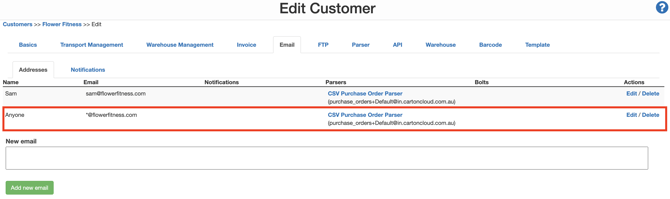
Download the Parser template
Once you have set up the Parser for the customer, you will need to download and provide your customer with the Parser template. Your customer must use this template to be able to successfully parse an order into CartonCloud.
-
Navigate to the Parser page by typing Parsers into the Search for anything bar.
-
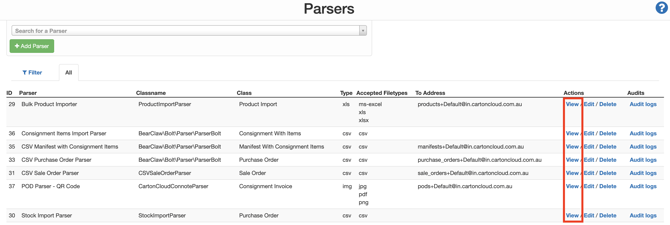
Click View against the relevant Parser.
-
Click the Download button.
Provide the To email address to your Customer
Once you have provided the Parser template to your customers you will also need to provide them with the To Address and ensure their email address is listed in the Allowed From Address(es). Your customer must use the To Address to send through their parser file.
-
Navigate to the relevant Customer, Contacts>Customers.
-
Click Edit.
-
Select the Parser tab.
-
Within the relevant Parser, you will see the Allowed From Address(es) and To Address.
-
Allowed From Address(es): the addresses that are allowed to send the Parser in.
-
To Address: the email address the user must send the Parser to.
-

Understanding To Email Address Formats within Parsers:
Typically, email addresses for parsers are in the format:
{type}+{slug}@in.cartoncloud.com.au
i.e., sale_orders+bruce_transport@in.cartoncloud.com.au
type:
This is the type of email being loaded in. The type can be anything; however, we generally make it clear as to what the Parser is designed to import because this helps when you have multiple parsers, for example:
sale_orders+bruce_transport@in.cartoncloud.com.au
purchase_orders+bruce_transport@in.cartoncloud.com.au
manifests+bruce_transport@in.cartoncloud.com.au
invoices+bruce_transport@in.cartoncloud.com.au
For this reason, using a type such as "orders" would be a poor choice because when you have clients sending you both Sale Orders and Purchase Orders it is not apparent which email address to send to.
slug:
The slug is the tenant's name as specified in the URL at the top of the page. Email addresses are case-insensitive, so you can use whatever case you want in the email address.
In this example, the slug in the URL is Bruce_Transport. Therefore, the slug in the email address can be bruce_transport, Bruce_Transport, BRUCE_TRANSPORT or any other case variation.