
Table of Contents
- Purpose
- Prerequisites
- Steps to create a Transport Lane
- Using the Transport Lanes page
- Example Delivery Run Mappings
Purpose
Please note that if your CartonCloud account was created prior to 1 July 2019 the below functionality may not be available at this stage. If you would like to discuss migrating to the newer version of the CartonCloud TMS, please use CartonCloud Help and lodge a case with our Service Desk.
To create your Transport Lane follow the below steps and ensure you have met the specified prerequisites.
Prerequisites
-
Ensure there is no other Delivery Run Mappings that will force the Transport Lane mapping to be overridden. See When Delivery Run Mapping is overridden for more information.
Steps to create a Transport Lane
1. Add a new Transport Lane
-
Select Add Transport Lane from the top left corner.
-
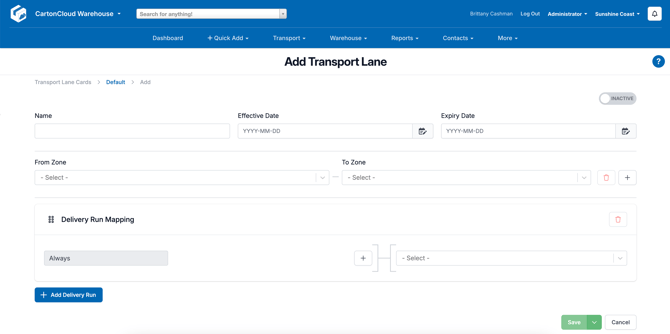
A new screen will appear (as seen below). From here, you will be able to set up your Transport Lane.
2. Set up your Transport Lane
To set up your Transport Lane follow the below steps:
-
Fill in the below fields:
-
Name - we suggest using a descriptive name, for example, Sydney South to Sydney North.
-
Effective Date - to use this lane immediately, use today's date.
-
Expiry Date.
-
-
Select the From and To zone that you wish to map to a Delivery Run.
-
If you wish to have multiple zone combinations mapped to a single Delivery Run select the plus icon next to your first zone combination. There is no limit to the number of zone combinations you can associate with a Delivery Run.
3. Map the Transport Lane to a Delivery Run
Once the From and To zones have been selected you then need to map the Transport Lane to a Delivery Run using the Delivery Run Mapping tool.
With this tool, you will be able to specify different conditions to determine which consignments will be allocated to which Delivery Runs. It is important to configure the correct conditions as when a consignment is created and it matches the conditions you have specified, CartonCloud will assign it to that mapped Delivery Run.
To map a Transport Lane to a Delivery Run follow the below steps:
-
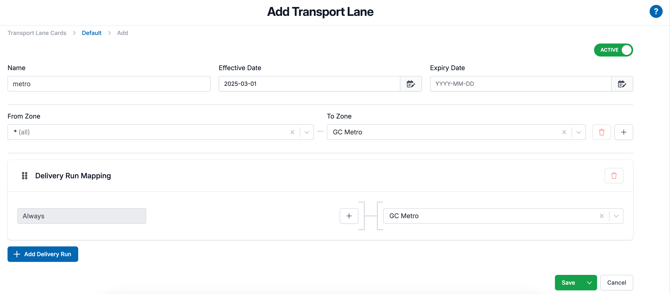
The first Delivery Run Mapping will be set to the default condition of 'Always'. This is the simplest form of mapping and means that the consignment matching the specified zones will always be assigned to the mapped Delivery Run.
-
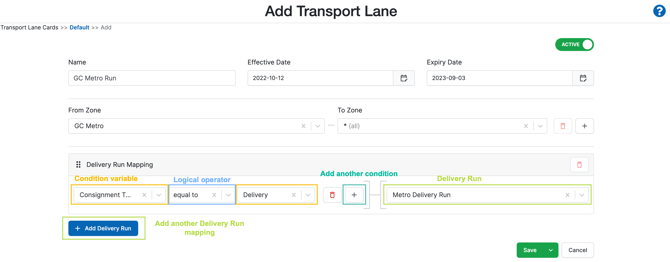
To change the condition variable and create more specific Delivery Run Mappings select the blue plus icon in the middle of the window.
-
Select a condition variable from the drop-down menu. Choose the one that is most appropriate for the condition you are creating.
-
Select the logical operator that should be applied. For example, equal to or greater than. The type of logical operators you have to choose from will depend on what condition variable you selected in the previous field.
-
Next, select the second condition variable to complete the condition equation.
-
Then, select the Delivery Run that you wish to apply to the condition. When a consignment meets this condition CartonCloud will allocate it to this Delivery Run.
Multiple conditions within the one Delivery Run Mapping
You can have multiple conditions within the one Delivery Run mapping.
To add an additional condition:
-
Select the plus icon next to the current condition.
-
You will be prompted to select either And or Or.
-
And will inform CartonCloud that both conditions must be met before a consignment is allocated to the specified Delivery Run.
-
Or will tell CartonCloud that either condition can be met for the consignment to be assigned to the specified Delivery Run.
-
Multiple Delivery Run Mappings within a single Transport Lane
You can have multiple Delivery Run Mappings within the one Transport Lane.
To add an additional Delivery Run Mapping:
-
Select Add Delivery Run at the bottom of the screen.
CartonCloud will attempt to match each Delivery Run Mapping by starting from the top of the page, then proceeding to the bottom.
Once a matching condition is found, the Consignment will be assigned to that Delivery Run and no further mappings below that condition will be checked. 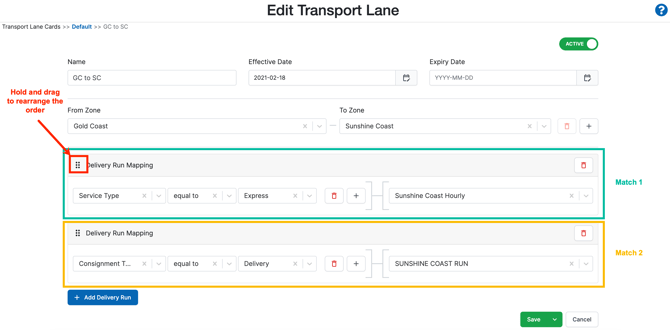
To order the Delivery Run Mappings, simply grab the four-dot square icon in the Delivery Run Mapping window you wish to move and slide it into the desired order.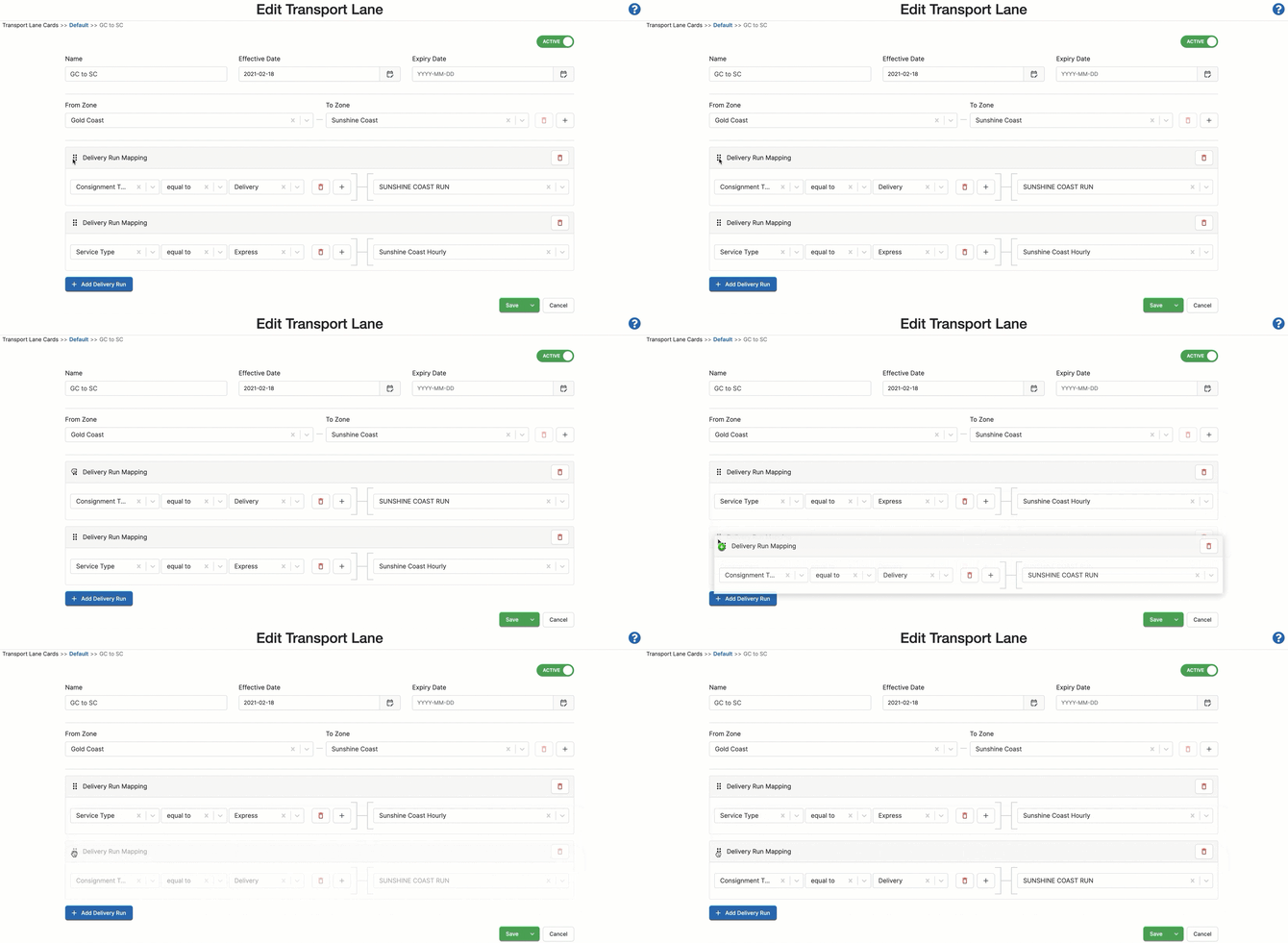
It is important that your last Delivery Run Mapping (below all other Delivery Run Mappings) on your Transport Lane has the configuration of 'Always'. This Delivery Run Mapping will act as a fall-back if a consignment does not meet the previous Delivery Run Mapping requirements. Without this fall-back, consignments can be left without a Delivery Run allocation as they do not meet any of the defined requirements.
Using the Transport Lanes Page
To navigate to the Transport Lanes page, type 'Transport Lanes' into the Search for anything bar at the top of the CaronCloud application.
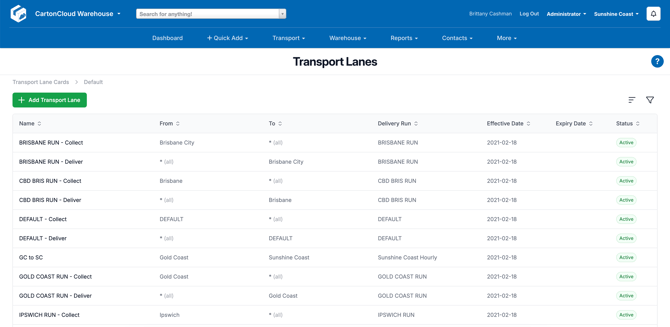
The below screen will appear. From here, you can add new Transport Lanes and sort and filter existing lanes.
For information on how to use the advanced sort and filter functions please read the Advanced sorting and filtering article.
Example Delivery Run Mappings
Example 1 - Consignment Type
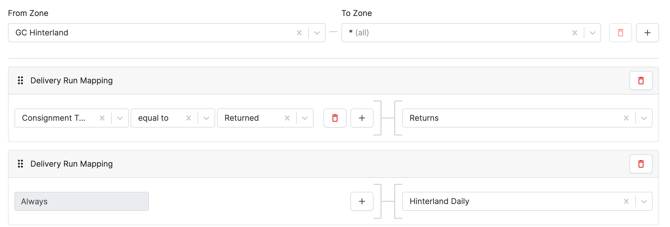
In this Delivery Run Mapping, if a consignment is of the type 'Return' and traveling from the GC Hinterland then it will automatically be allocated to the 'Returns' Delivery Run.
If this requirement is not met then any other consignment traveling from the GC Hinterland will be assigned to the 'Hinterland Daily' Delivery Run.
Example 2 - Weight Based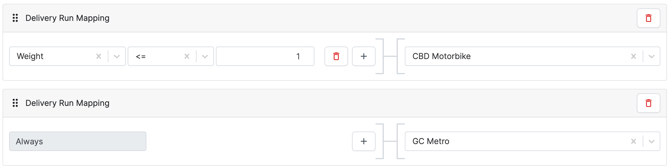
In this Delivery Run mapping, if a consignment is traveling within the GC Metro area, and the consignment weight is 1kg or less, then the consignment will be allocated to the 'CBD Motorbike' Delivery Run.
For all other consignments traveling within the GC Metro area that are not less than 1kg in weight, they will be assigned to the 'GC Metro' Delivery Run.
Example 3 - Service Type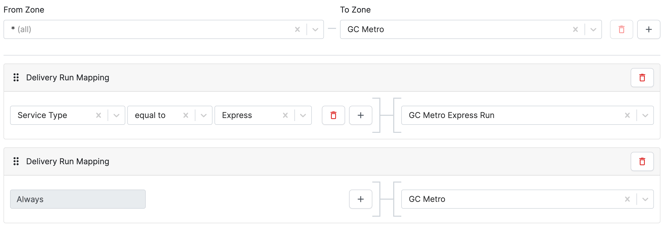
In this Delivery Run Mapping, if a consignment is traveling from Brisbane Metro to the Northern Gold Coast, and has a service type of 'Express', then it will be allocated to the 'North Coast Priority' Delivery Run.
For all other service types, the consignment will be allocated to the 'North Coast Daily' Delivery Run.
Example 4 - Pallet quantity 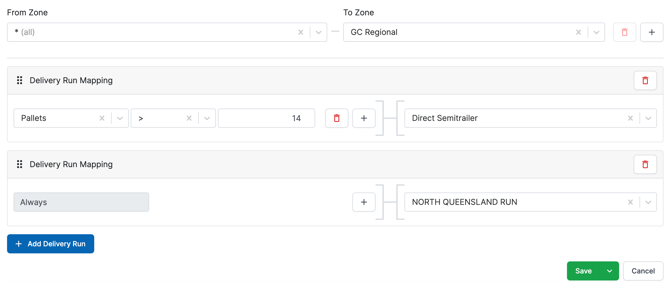
In this Delivery Run Mapping, if a consignment is traveling from Brisbane Metro to the Northern Gold Coast, and it contains more than 14 pallets, then it will be allocated to the 'Direct Semitrailer' Delivery Run.
For all other pallet quantities (14 or less), the consignment will be allocated to the 'North Coast Daily' Delivery Run.
The below video explains what a Transport Lane is and provides examples of the different ways in which you can configure your Transport Lanes.
When Delivery Run Mapping is overridden
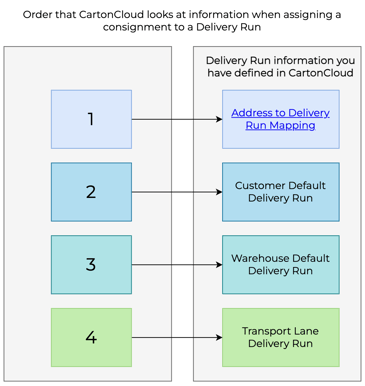
Before CartonCloud utilises the Delivery Run mapping logic defined in the Transport Lane it will check that there are no other Delivery Run mapping configurations defined elsewhere in CartonCloud that should take precedence over the Transport Lane. The below diagram highlights the other ways in which a consignment can be mapped to a Delivery Run and the order in which CartonCloud prioritises them. As you can see, Transport Lanes will only be used once all other mapping configurations have been checked.
For more details on how CartonCloud prioritises information when assigning a consignment to a Delivery Run please see the article: How a Consignment determines its Delivery Run
Duplicate Transport Lanes
The system will not allow duplicate Transport Lanes containing the same From zone and To zone combinations to be active at the same time.
While it is possible to create two Transport Lanes containing a delivery run Mapping from 'Brisbane' to 'Gold Coast', only one of those transport lanes can be made active at a time.