Table of Contents
Purpose
Please note that if your CartonCloud account was created prior to 1 July 2019 the below functionality may not be available at this stage. If you would like to discuss migrating to the newer version of the CartonCloud TMS, please please use CartonCloud Help and lodge a case with our Service Desk.
Transport Zone Sets are the zones your operation uses for allocating consignments. These zones will work in conjunction with Delivery Runs and Transport Lanes to enable CartonCloud to automatically assign consignments to the appropriate Delivery Run. Only one Transport Zone Set can be created.
Creating Transport Zone Sets
To create your Transport Zone Set follow the below steps:
-
Create your Zone Set and zones - create your Zone Set and the applicable zones within each Zone Set
-
Create location entries - add or import the suburb and postcode combinations for the locations you service
-
Assign location entries to zones - associate location entries with the applicable zones
The below video helps to explain what Zone Sets are and how to set them up within your CartonCloud account.
Checking Transport Zones on a Consignment
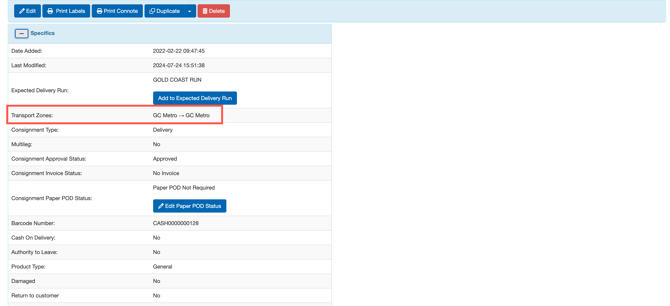
Once you have set up your Transport Zones you can check which Transport Zones are applied to a Consignment from within the Consignment itself.
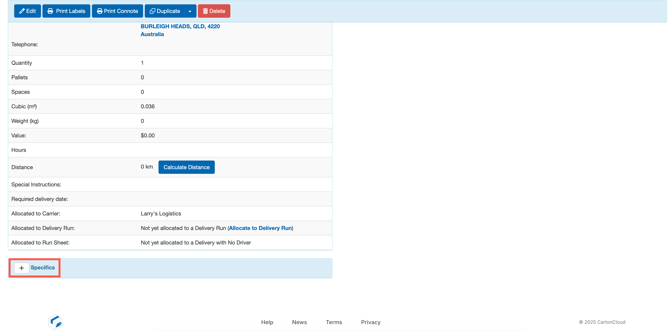
- Navigate to the relevant Consignment, Transport > Consignment and select the relevant Consignment.
- Scroll down to Specifics.
- Scroll down to Transport Zones to see which Transport Zones have been applied to the Consignment.