
Table of Contents
- Purpose
- Advanced sort and filter functions
- Filtering
- Example filters
- Removing a filter configuration
- Sorting
- Example sort configurations
- Removing a sort configuration
Purpose
Please note that if your CartonCloud account was created prior to 1 July 2019 the below functionality may not be available at this stage. If you would like to discuss this further, please use CartonCloud Help and lodge a case with our Service Desk.
On select pages within CartonCloud, there is the option to utilise advanced filtering and sorting functionality. Simple sort functionality is still available, however, the advanced options are customisable and create a more efficient search process. This is particularly useful if you have large amounts of data to filter and sort through.
Advanced Sort and Filter Functions
Zone Sets page: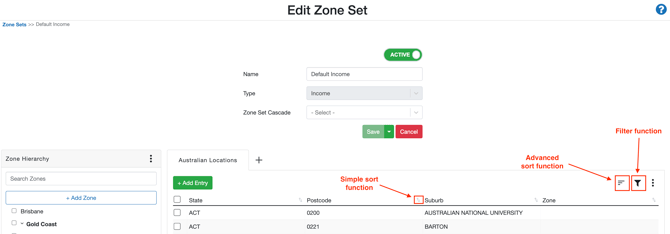
Transport Lanes page:
Transport Rates page: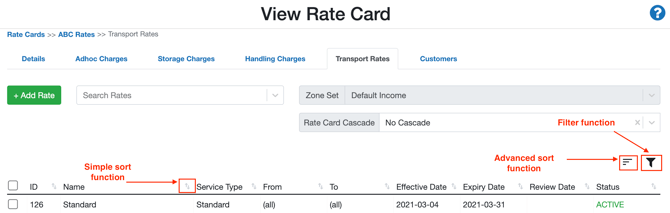
Filtering
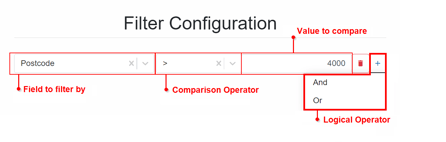
To use the filter configuration function:
- Select the filter icon at the top right of the page.
- Select the field to filter by.
- Select the comparison operator to filter against.
- Enter the value you wish to compare against.
- If you wish to filter by multiple fields, select the plus icon then select the logical operator (and/or).
- Select Save.
Note, when selecting a Zone or Delivery Run to filter by a drop-down menu will appear with all available Zones and Delivery Runs you can select to filter by.
Example Filters
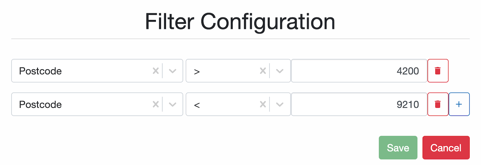
Example 1 - Zone Sets: postcodes within a range
The below configuration is useful to find postcodes with a range (some carriers will use postcode ranges to define their income zones).
This filter will find all postcodes within the range 4200-9210.
Example 2 - Zone Sets: finding a specific suburb
The below configuration is useful to find a specific suburb. 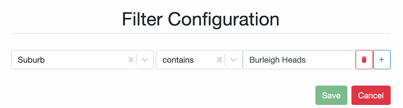
Example 3 - Transport Lanes: filtering for all active Transport Lanes
The below configuration is helpful to find all current active Transport Lanes. 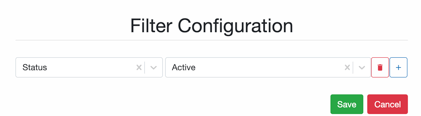
Removing a filter configuration
To remove a filter, you have two options. You can either (a) remove filters individually using the filter configuration window or (b) remove all filters using the x in the top right corner. 
(a) Remove filters individually
-
Select the filter icon in the top right corner.
-
You will see all the current filter configurations you have applied.
-
Click the delete icon next to the filter configuration you wish to delete.
(b) Remove all filters
- Select the x icon next to the filter function icon to delete all filter configurations.
Sorting
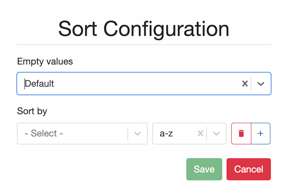
To use the advanced sort configuration function follow the below steps;
- Select the sort function icon in the top right corner.
- Select if empty values should show first or last.
- Select the field to sort by.
- Select the sort order (a-z or z-a).
- If you wish to sort by more than one column at a time, select the plus icon.
- Select Save.
Example sort configurations
Example 1 - Zone Sets: location entries without an assigned zone
The below configuration would be utilised when you are wanting to find all Location Entries that you have not yet assigned to a Zone. 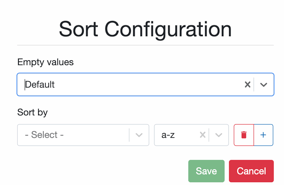
Removing a sort configuration
To remove a sort configuration, you have two options. You can either (a) remove sort configurations individually using the sort configuration window or (b) remove all sort configurations using the x in the top right corner. 
(a) Remove sort configurations individually
-
Select the sort icon in the top right corner.
-
You will see all the current sort configurations you have applied.
-
Click the delete icon next to the sort configuration you wish to delete.
(b) Remove all sort configurations
-
Select the x icon next to the filter function icon to delete all sort configurations.