
Table of Contents
Purpose
To create a single Product or to create multiple products in bulk.
Adding a single product
-
Navigate to the Products page, Warehouse>Products.
-
Select +Add Product.
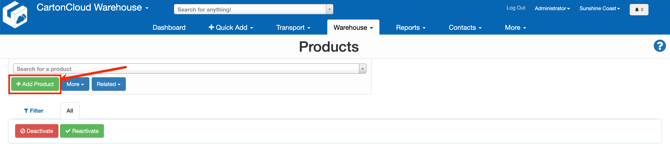
- Using the below field descriptions, fill in the relevant information.
Product Fields
| Field | Required | Description | Example |
|---|---|---|---|
|
Customer |
Yes |
The Customer associated with the Product. A Product can only be used and associated with one single Customer, however, you can create multiple products (one for each customer) with the same name and code. |
Yatala Pie Shop |
|
Name |
Yes |
The name of the product. |
Beef Pie 1 x 110gm |
|
Product Code |
Yes |
The code / SKU for the product that your customer refers to. This is used for matching when importing orders via Parsers or through Available Integrations Please note, each Product Code for a Customer must be unique. You can not have the same Product Code for Products for the same Customer. Only UTF-8 Special characters are supported in the product code. For a list of supported special characters please click here |
BEEF110 |
|
Tags |
No |
If you wish to associate any Tags with the Product. See Tags for more information. |
|
|
Product Description |
Optional |
Additional information about the product can be displayed on documents such as picking slips, consignment notes, and other exports. |
Made from 100% premium quality grass-fed Angus beef |
|
Product Type |
Yes |
The product type of this product. This is often used to restrict where in the warehouse the product can be stored (i.e., Temperature Zones or Dangerous / Non-Dangerous goods). However, it is also used to control Storage Charges, see View Rate Card - Storage Charges for more information. |
Chilled |
|
Storage Charge Method |
Yes |
How Storage Charges are applied to this product. See View Rate Card - Storage Charges for specific details on how each Storage Charge Method works. |
Per Location |
|
Product Volume |
No |
The volume of the product in cubic meters (L x W x H). This can be used to control Storage Charges (see View Rate Card - Storage Charges for more information) and can also be used to automatically populate the cubic of a Consignment |
0.0034 |
|
Product Weight |
No |
The weight of the product is in kilograms. This can be used to control Storage Charges and can also be used to automatically populate the weight of a Consignment. |
0.110 |
|
Product Group |
No |
If you wish to add the Product to a Product Group. See Product Group for more information. |
|
|
Product Group |
No |
The Product Group is utilised to filter the Product List and in the Customer Stock Report. See Product Group for more information. |
|
| Product Unit of Measure | |||
| Measurement Category | Yes | The way in which the product will be measured. For example, if you measure the products in Units, Cartons, Inners etc, the Measurement Category will be Count. | Count |
|
Base Measurement |
Yes |
The smallest pickable unit of measure for this product (or can be the measurement the client wants to see the product measured in). For example, we may sell them individually as units with our Beef Pie example, so the Base Measurement is "Unit". See Products Units of Measure for more information. |
Unit |
|
Barcode |
|
The barcode for the Base Measurement (i.e., the Barcode on a single unit). Note you can define different barcodes for the different size packs using the Conversion Measurements below. The barcodes can the be used on the mobile app for scan picking and putaway. |
10003998392 |
|
+Add New Measurement |
|
If you wish to add a new Product Unit of Measure upon adding conversions, you can do so by clicking +Add New Measurement.
|
|
| + Add Another Conversion |
By clicking Add Another Conversion you can add conversion measurements. For example, with the Beef Pies example, you have may have 10 pies in 1 Carton. You would add a Conversion Measurement of Carton with a Conversion Factor of 10. Ensure you take note of the Example column when adding the conversion to ensure you have set it up correctly. If you wish to add another conversion you can select +Add Another Conversion. With the Beef Pie example, you may add a pallet conversion, you have 48 cartons per pallet so you would have 480 units per pallet. |
Measure: Carton Conversion Factor: 10 Example: 10 Units per Carton |
|
|
Random Weight Product |
|
A random weight product is a product whereby the weight of each unit that's picked needs to be recorded. For example, this is common when packing cartons of meat, in which each carton is a slightly different weight, and the customer charges per Kilo. For example, you may have boxes of expensive sirloin steaks; each weighs approximately 20kg; however, each box varies. By making a product random weight, when picking items, the user must enter the exact weight of each item (i.e., 19.45kg); this information is then sent back to the customer in their Pack Notification Email to bill the receiver for exactly 19.45kg. |
No |
|
Warning Threshold |
|
The number of days before expiration in which CartonCloud will send out an automated email advising the stock will be expiring in x number of days. This is useful for advising clients that their stock will expire soon and should be cleared out (possibly through a discount or promotion). This email can be configured through the Configuring Outgoing Notification Emails to Customers |
10 |
|
Expiry Threshold |
|
The number of days before expiration that the product will no longer be automatically selected on import. For example, products within 2 days of expiration probably shouldn't be sent out to customers as they won't last long enough once they arrive. Therefore, if an expiry threshold of 2 was used, the stock will no longer be selected automatically if the order is within two days of expiration. |
2 |
|
Product Custom Fields |
|
If you have Product Custom Fields enabled, fields you have defined will appear on the screen for entry. For example: "Supplier Code." |
|
|
Low Stock Threshold |
|
This is the quantity in which the stock levels are considered low and requires attention. When the stock on hand hits this number, a Low Stock Notification will be sent. This email can be configured through the Configuring Outgoing Notification Emails to Customers |
|
|
Initial Status of Purchase Order Product |
Yes |
When assigning stock to a Purchase Order, this value sets the Product Status of that stock. For example, if you selected "Quarantine", all stocks created would default to Quarantine Status. You can modify and create your own Product Status if required. |
OK |
|
Stock Selection Method |
Yes |
When assigning stock for a Sale Order, this determines how the system will pick a stock. See the article: How CartonCloud chooses outgoing stock - Stock Selection Methods for more information.
|
FIFO |
|
If finished Bill of Material products (BOMs) are out of stock, take from individual components during Sale Order import. |
|
This setting is only relevant for the Bill of Material Products - Products made up of other products (such as a Hamper).
See the Bill of Materials (BOM) article for further details. |
|
|
Reallocation |
|
To turn reallocation on or off for this product. By default the reallocation setting applied at the customer level will be applied to the product. See Reallocation for more information. Drop down options
Scannable Field: if using reallocation you will need to select a field that can be used to reallocate with |
|
|
Purchase Order Product Expiry Date Required? |
|
Determines whether the expiry date field is required for Purchase Order Products that use this product (see Purchase Order Products Settings). |
|
|
Purchase Order Product Custom Fields Required? (per field) |
|
Determines whether each custom field is required for Purchase Order Products that use this product (see Purchase Order Products Settings). |
|
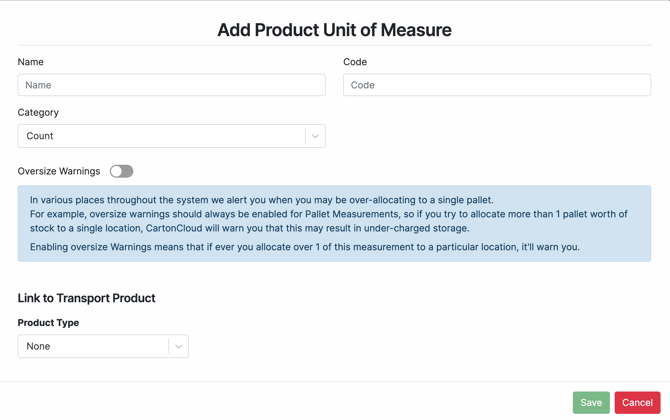


- Click Save.
Bulk Importing Products (Export/Import CSV)
Once you have created your first Product, you can create Products in bulk using the export/import function.
See Exporting and Importing Products for steps on creating Products in bulk.
Video Guide