
Table of Contents
- Purpose
- Prerequisites
- How to turn on sale order reallocation
- Use cases
- Benefits
- Limitations
- Criteria for reallocation
- How to use Sale Order Reallocation
- Video Guides
Purpose
Reallocation allows the picker to pick and scan an alternative POP label or unique POP Custom Field, such as a serial number, and CartonCloud will automatically switch which stock is allocated to the order. Reallocation can be configured at both the Customer and Product level.
Prerequisites
- Reallocation works best when utilising a scan picking
- You will need to turn on Sale Order Reallocation in the Customer and/or Product settings.
How to turn on Sale Order reallocation
Customer Settings (this can be overridden at the product level via the product settings)
- Navigate to the Customer Settings, Contacts>Customers.
- Click on the relevant Customer and click Edit.
- Select the Warehouse Management > Product tab.
- Update the Enable Product Reallocation field to one of the below Yes options to enable Reallocation:
- Yes - Optional Confirmation
- Yes - Confirmation Required: Packers must complete the reallocation step before continuing in the mobile picking workflow.
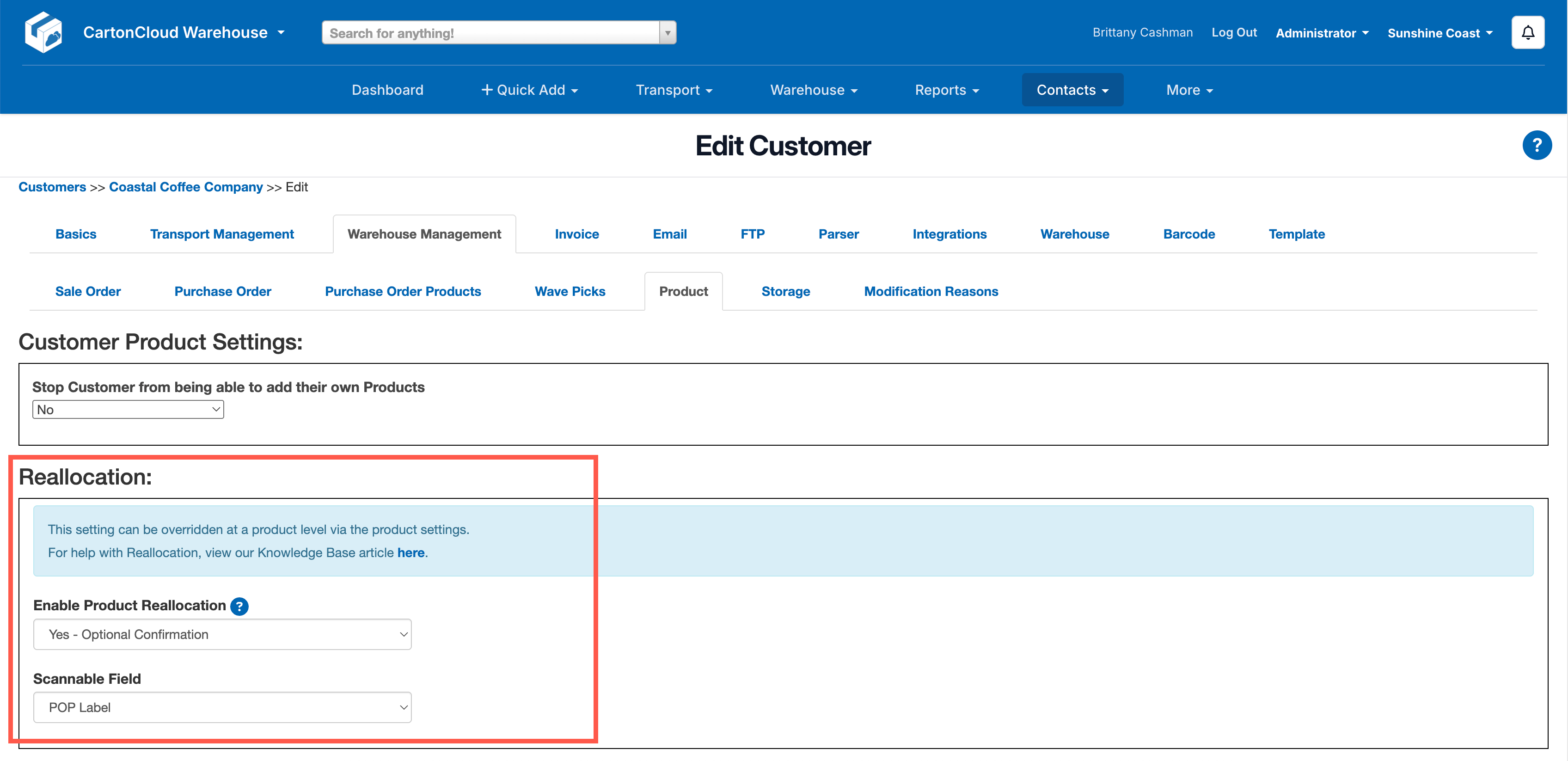
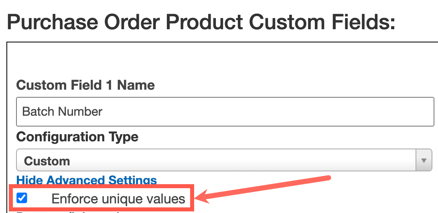
- You will then need to select a scannable field. This is the field you will scan to confirm what stock you have picked for the order. To have a field appear in the drop-down it needs to be marked as unique against the Purchase Order Product Custom Field.
Product Settings (if you wish to override the settings configured at the Customer level)
- Navigate to the Product settings, Warehouse>Products.
- Select the relevant Product and click Edit.
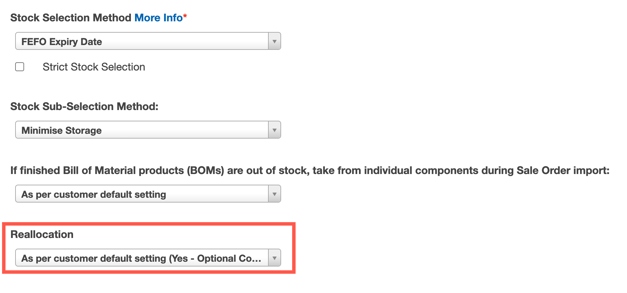
- Scroll down to the bottom of the screen to Reallocation and select one of the following options:
- As per customer default setting: will apply the same setting applied at the customer settings level
- No: reallocation will not be enabled for this product
- Yes - Optional Confirmation: reallocation will be enabled for this product
- Yes - Confirmation Required: packers must complete the reallocation step before continuing in the mobile picking workflow.
- Click Save.
Use Cases
- If you have a line of pallets stacked behind each other in multiple pallet bulk locations, they are all the same product code and custom fields, and CartonCloud allocates a POP ID which is located in the 5th line; you will want to instruct CartonCloud that you would like to pick from the front of the pallet. By reallocating the POP ID to one that is at the front of the pallet allows you to more easily and efficiently pick the order without sacrificing the data integrity.
- If you have a carton of mobile phones, all the same product code with unique serial numbers for each unit of stock, and you wish to pick the first unit from the carton, you can do so by scanning the serial number of the first item you pick and the correct POP ID will be reallocated to the order.
Benefits
- Creates more flexibility in the picking process dependent on where the stock is located
- Increase efficiency in the picking process by allowing pickers to pick the most efficient item from the location
- Maintains data integrity by being able to update data relating to what unit was picked
- Allows stock with serials (or similar unique custom fields) to be tracked from arrival to dispatch without forcing pickers to specifically pick an assigned serial.
Limitations
Situations where reallocation will not be possible:
- Incorrect barcode scanned (not a valid serial or POP barcode)
- POP label scanned is already allocated to another order and there is insufficient suitable stock to replace the POP being used
- Scanned POP not available due to the status of the Purchase Order
- Scanned POP does not meet the selection criteria of the Sales order item (i.e. Expiry date is not in the valid range)
- Scanned POP not available due to the status of the POPs not matching (i.e a POP with the status "Quarantine" can not replace a POP with the status "OK")
- Stock allocated to the order has “Prevent Changes” enabled, effectively locking the designated stock to the order.
- Sale Orders that are assigned to a Wave Pick
Criteria for Reallocation
- Same Product
- Same Sales Order product criteria (e.g expiry date)
How to use Sale Order Reallocation
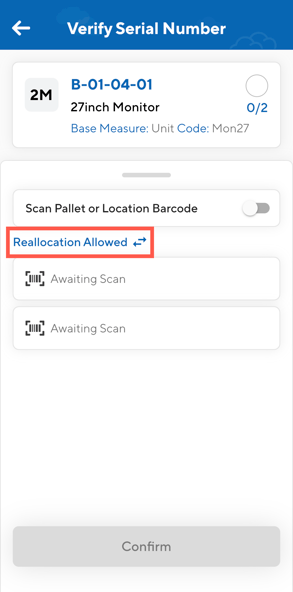
If reallocation is available for the order you are picking (meets the above criteria) a Reallocation available text will appear on the Verify Products page. Depending on your Customer Settings and what your scannable field is, the reallocation arrows will appear against that field and you will need to scan that field on the stock you wish to pick.
You can also toggle on ‘Scan Pallet or Location’ during reallocation. This is especially helpful when the POP being scanned does not match every SOP’s criteria. Rather than requiring multiple attempts, CartonCloud can reallocate the scanned POP to one of the compatible SOPs in the list. This significantly improves efficiency in complex stock scenarios.
Reallocation process:
- Select the item you wish to pick.
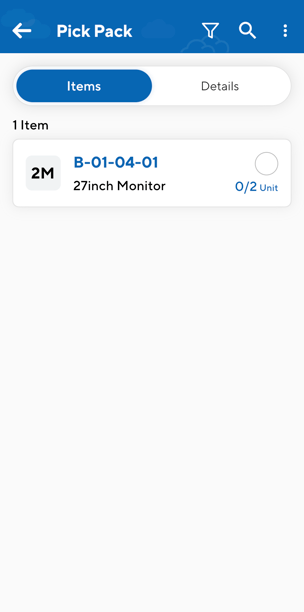
Grouping for serial number (unique reference) verify/capture
Note, if an order contains multiple items with similar attributes, they will be grouped together in the items list in order to allow for more efficient picking. The criteria which items must meet in order to be grouped together is as follows:
- Same product
- Same location(Unallocated included)
- Same Expiry date (Blank included)
- A single POP Custom Field set up with Serial number Capture or Verify as a required step
- Same non-unique custom field values
- Items with a value for a custom field must all have the same value in order to be grouped together.
- Items without a value for a custom field must all have the no value in order to be grouped together.
- No additional custom fields that require a value to be captured
- If you can see the Reallocation available text you will have the option to perform reallocation. This means you don't have to scan the serial number listed against the Sale Order. If another item is closer / easier to access and meets the product requirements you can scan that serial number instead and it will update the serial number against the order.
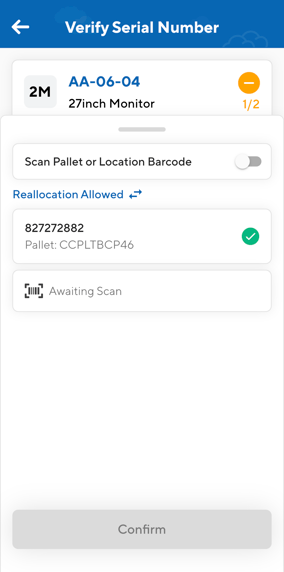
- In this example, the serial number that was scanned was not the serial number listed against the Sale Order, however, because it met the product requirements it was verified and the serial number was updated against the Sale Order.
- Once you select the stock to be picked for the order CartonCloud will record the item that was picked for the order and it will no longer be available for other orders.
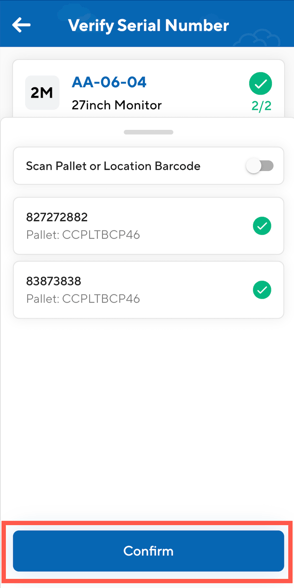
Note, if you wish to scan a pallet barcode or location barcode slide the Scan Pallet or Location Barcode toggle. This is useful when the pallet / location has the stock you wish to verify and allows you to verify items in bulk. For example, instead of having to scan both serial numbers, you could scan the pallet and both lines of of stock will be marked as verified.
-
Once all lines of product have a serial number recorded against it click Confirm.
- Click Complete Task.
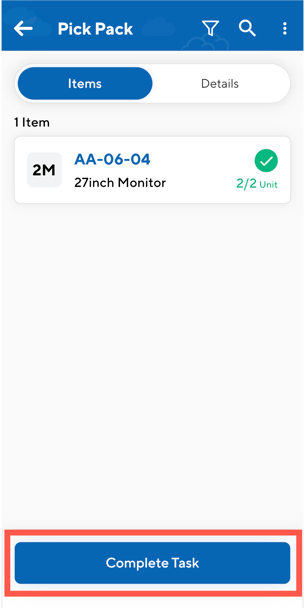
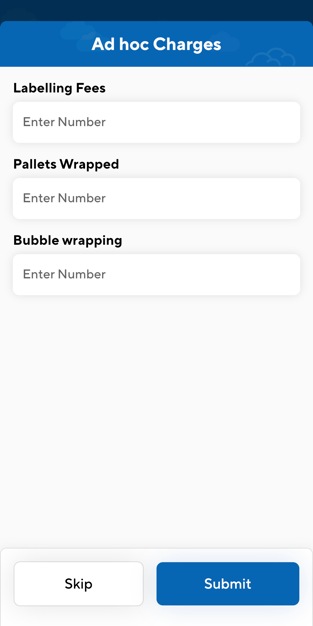
- Record any Adhoc Charges if required.
Video Guides
Reallocation Explained
Reallocation with serialised product
Reallocation with non serialised product