
Table of Contents
What is a Sale Order
When stock leaves your warehouse, a Sale Order is the name of the document that records that stock's movement within CartonCloud.
How to create a Sale Order
For information on how to create a Sale Order, please see the Add a Sale Order page.
Sale Order Process Flow in CartonCloud
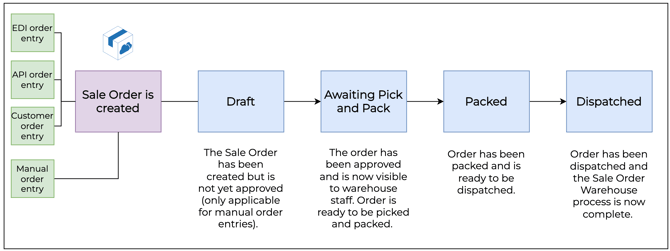
The diagram below steps through the Sale Order Process and the different statuses a Sale Order will move through in CartonCloud.
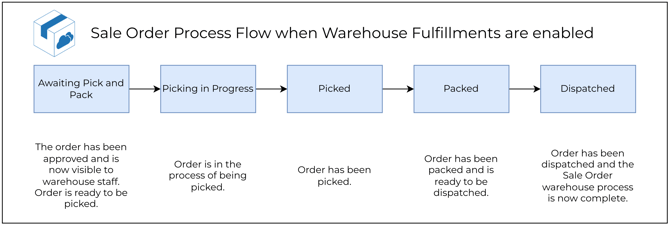
If Warehouse Fulfilments are enabled, the Sale Order will move through different statuses to complement the Pack Screen workflow:
Awaiting Pick and Pack
The order has been approved, is now visible to warehouse staff, and is ready to be picked and packed. To begin packing the Sale Order you must click Pack Sale Order.
- For packing a Sale Order through the mobile application see Packing a Sale Order.
- For packing a Sale Order using the web application please see Packing a Sale Order.
Awaiting Stock
Products are unassigned and awaiting stock. Please see Backorder Management for more information.
Packing in Progress
The order is currently being packed.
Picking in Progress (Warehouse Fulfilments enabled only status)
The order is currently being picked.
Picked (Warehouse Fulfilments enabled only status)
The order has been picked.
Packed
The order has been packed and is ready to be dispatched. By default, this status is turned off so that when a Sale Order is packed it will move straight from Awaiting Pick and Pack to Dispatched. To enable this status and manually move the order to Dispatched you will need to configure this in the Customer Settings (see Automatically updating Sale Orders to Dispatched).
Dispatched
The Sale Order has been dispatched and the Sale Order Warehouse process is now complete. If you have the CartonCloud Transport Management System and the correct setting is configured the Sale Order will automatically create a Consignment and the transport component of the process can begin (see Generating a Consignment from a Sale Order).
Rejected
When a Sale Order fails to import into CartonCloud. See Rejected Sale Orders for more information.
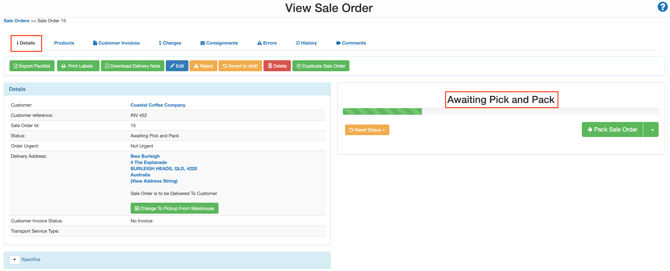
To view the Sale Orders' current status
-
Navigate to the Sale Orders page by searching Sale Orders in the Search for anything bar.
-
From the list view, you will be able to see the Status column.
-
You can also view the status from within the Sale Order itself by selecting the relevant Sale Order and selecting the Details tab.