
Table of Contents
- Purpose
- How to pack a Sale Order on the mobile app
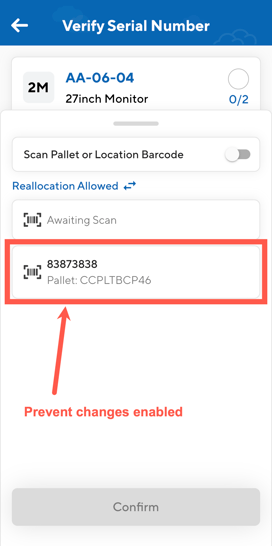
- Verifying unique references with 'Prevent changes' enabled
- How to revert a task that is currently in progress of packing
- Video Guides
Purpose
To pick and pack a Sale Order on the mobile app. Through this process, you will need to confirm quantities, verify fields such as SSCC or batch numbers and capture fields if required.
How to pack a Sale Order on the mobile app
- From the Task list view, select the Task you need to action (The sale Order you wish to pack).
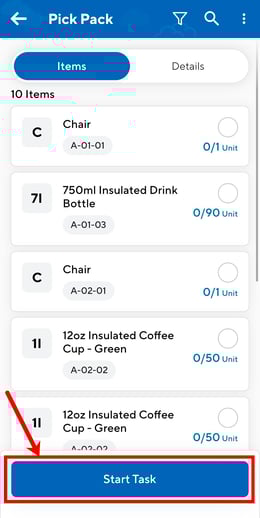
- Start the Task by clicking Start Task.
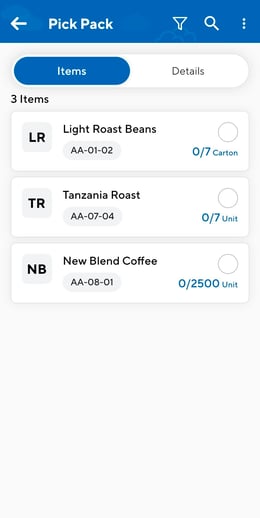
- Click on the Product you wish to start packing first.
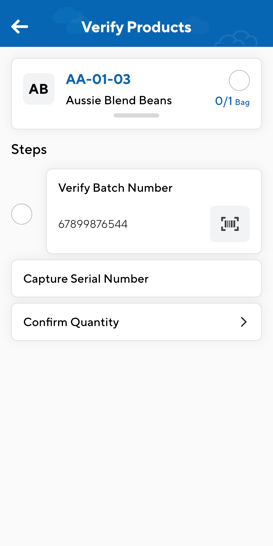
- You will then reach the verification page. Your Purchase Order Product Custom Fields configurations for that customer will dictate what steps appear here.
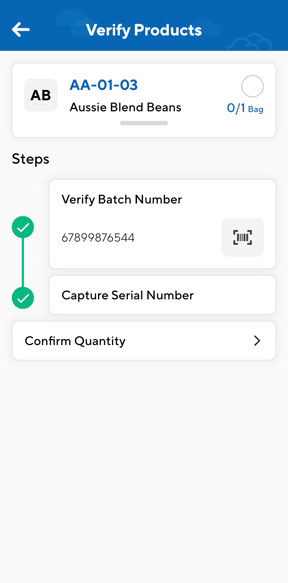
- Click on the first step to verify the field. You can either verify by scanning or manually typing the field in. To scan, click the scan icon in the bottom right.
Scan to verify or verify using the keyboard: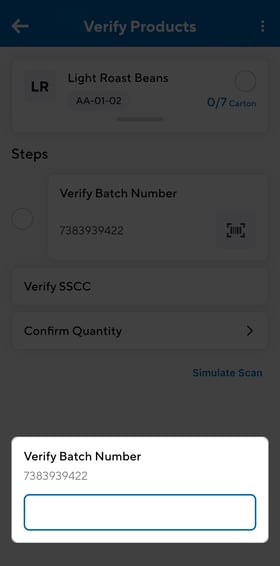
- Continue the same process for each verification step.
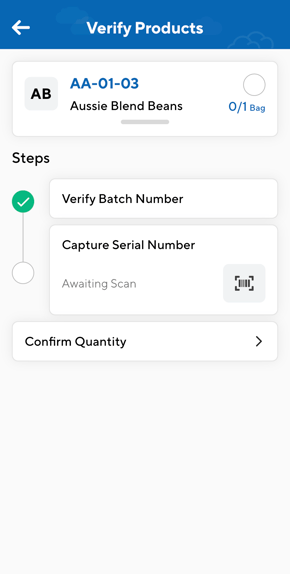
Note: if the Purchase Order Product Custom Field is marked as required, you will not be able to skip the verification step.
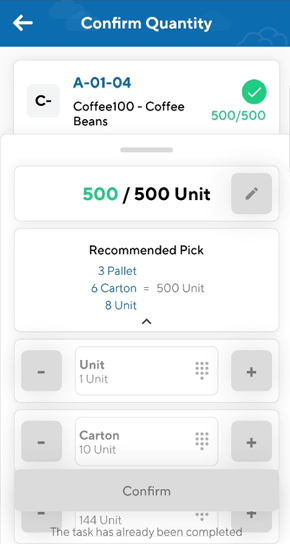
- You will now need to confirm the quantity. The quantity confirmation screen will appear automatically once you have finished the verification steps.
- Before confirming the quantities, you can slide the bar down to reveal the recommended unit to pick in, the option to perform a Quick Confirm and additional information related to the line of product (product code, base unit of measure, expiry date if applicable).
To perform Quick Confirm:
- Slide the bar down.
- Click Quick Confirm. The quantities will all be confirmed and will return you to the other lines that need to be picked for the order.
- You can also click Complete Task. This will perform a Quick Confirm for each line of product on the order.
To confirm quantities using the plus and minus icons:
You can use the plus and minus icons to increment the quantity by the unit of measure options available. A recommended pick will appear which does the unit of measure conversions for you and shows you what is the most optimal pick.
To confirm quantities using the calculator view:
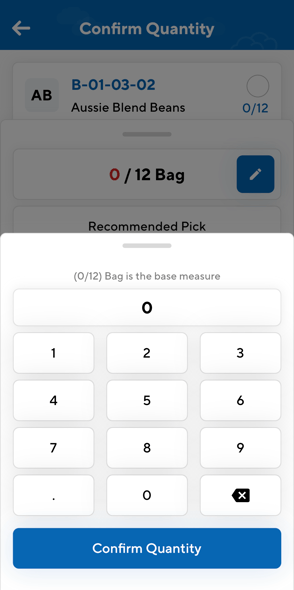
You can confirm quantities using the calculator view, which allows you to enter the quantity manually.
- Select the pencil icon next to the units you need to pick or the middle button for each respective unit of measure.
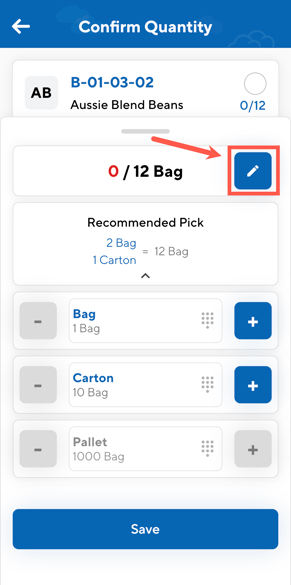
- Use the calculator to enter the quantity you wish to pick and click Confirm Quantity.
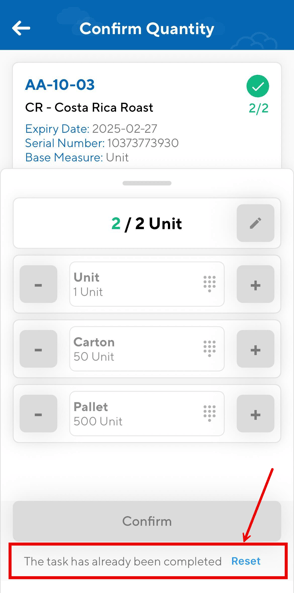
To reset once the item has been completely picked
Once you have completely picked an item on a order you have the option to reset it by clicking the Reset button. This will take the order back to 0 items picked. This is useful if you make a mistake when picking the order and provides greater control in the picking process.
- Click Reset at the bottom of the screen (this will only appear once the item is completely picked).
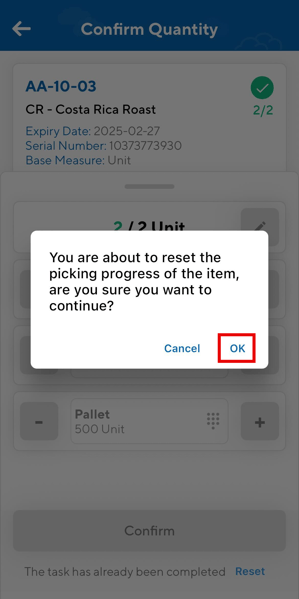
- Click OK when prompted.
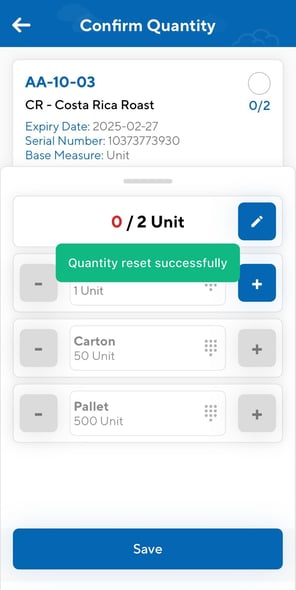
- The item now has 0 items picked.
To perform Complete Task (when units are still not yet confirmed)
If you do not need to update and scan each individual product line of an order you can complete Quick Confirm at a Task level using the Complete Task button at the bottom of the order screen.
Criteria to use Quick Confirm Complete Task:
-
The product is not weight based
-
The product does not have required custom fields
Use cases for Quick Confirm Complete Task:
-
User has several items on an order and they do not want to individually confirm the picked quantity for each item, they are able to tap the complete task button and the order will be completed.
-
User is using a printed pick list to pick the items in the warehouse and then wanting to make the order as **packed** on the mobile app, they can just tap complete task rather than working through the list of items.
Complete task will complete all items that don't require further information such as specific weights or custom field information. Tapping complete task will complete all other items and then filter the list to show just items that need further user input.
Scanning to Quick Confirm
Scanning an item barcode or unit of measure barcode will increment the picked quantity by that amount, if that meets the required quantity on the order the item will automatically be marked as picked.
Verifying unique references with ‘Prevent changes’ enabled
If you have ‘Prevent changes’ enabled, the stock selection criteria will remain, including custom fields (unique references). With this option selected you will have to verify and pick the exact reference recorded against the line of stock. However, on the other hand, if you do not have this option enabled then you can utilise the Reallocation feature.
How to revert a task that is currently in progress of packing
Users are able to revert orders back to Awaiting Pick and Pack if the order is in Packing in Progress status and they are assigned to the order.
When a user has started a task and the task is assigned to them they can revert the order by:
- Select the back button.
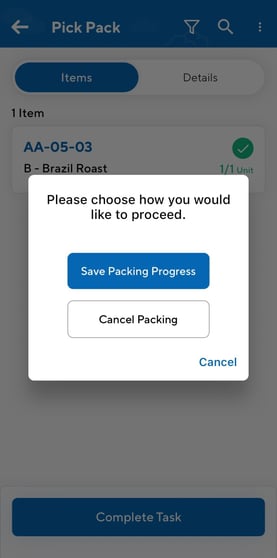
- You will be prompted with a 'Save Packing Progress' pop up. You can select to:
- Save Packing Progress: saves the packing progress and the order remains in a 'Packing in Progress' status.
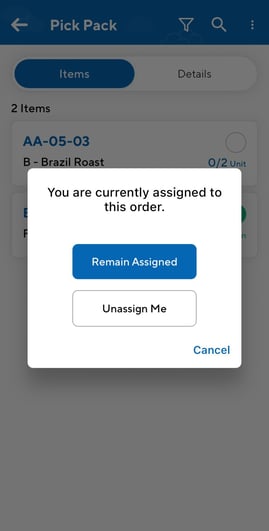
- Cancel Packing: the order reverts to 'Awaiting Pick and Pack' status. The user is prompted to choose to stay assigned to the task or be unassigned.
- Cancel: cancel the option to go back and continue working on the order.
Video Guides
Picking a Sale Order using Picking
Picking a Sale Order using Task Mode with unique references