
Table of Contents
Purpose
When a Sale Order fails to successfully import into CartonCloud the order will move to a rejected status. The status of 'Rejected' will be visible in the status column on the Sale Orders page. 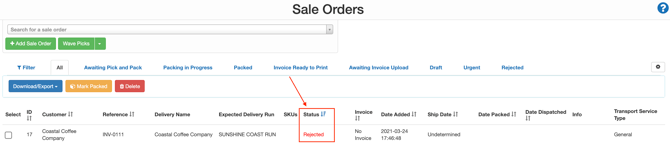
When an order is rejected, there will be an error reason for why the order failed. For example, there could be insufficient stock quantities, the product could not be found (product doesn't exist in CartonCloud) or there is no stock that matches the required expiry date. To view this error, you will need to select the relevant Sale Order and navigate to the errors tab (see View Sale Order). 
The way CartonCloud determines if a Sale Order should be rejected can be configured in the Customer Settings. For example, if the Sale Order imported has products with insufficient stock you can choose to reject the entire Sale Order or only the product lines that have insufficient stock. See Edit Customer or Customer Settings for more information.
The below video explains what a rejected Sale Order is and how to manage it.
Resolving rejected Sale Orders
How to resolve a rejected Sale Order will depend upon the error type that prevented the Sale Order data from importing successfully. Some errors require manual intervention whilst others are more straightforward and can be re-processed once all conditions are met.
For example, if there is insufficient stock available the order will move to a rejected status and can be re-processed once the stock becomes available (see Reprocessing rejected Sale Orders in Bulk). On the other hand, some errors, such as 'Product not found' will require changes to be made before they can be re-processed. This prevents the re-processing of incorrect Sale Order data.
Resolving 'Product not found' error
If you receive this error message when attempting to import a Sale Order, it means that CartonCloud could not find a match for some or all of the requested products. This could be because the product does not exist in CartonCloud or there was an error with the Product Code (SKU) data (e.g spelling mistake).
To resolve this error message follow the below steps:
- Via the Import Log, check that there are no spelling errors for the Product Code (SKU) on the Sale Order.
- If there are no errors on the Product Code, create a new product within CartonCloud (see Add a Product).
- Add the product to the Sale Order with the required quantities.
- Mark the error as resolved within the Sale Order errors tab.
- The Sale Order can now be re-processed once stock is available.