Table of Contents
Purpose
To create Unit of Measure barcodes on a Purchase Order Product (POP) label to allow the scanning of a Unit of Measure barcode to verify the quantity when following the scan picking, putaway, or Scan Move process.
Use cases
- It helps to ensure the correct quantity is picked, put away and moved.
- It helps to improve order accuracy.
How to steps
To set up Unit of Measure Barcode Scanning, you will need to follow the below steps:
- Create a Product Custom Field for each Unit of Measure the Products are using. You will need to repeat this for each Customer.
- Add the Unit of Measure barcode to the Product Custom Field.
- Edit the Purchase Order Product PDF Label
Before completing the below steps, please ensure you have set up all Unit of Measure conversions for each Product and that each Unit of Measure has a barcode associated with it.
Step 1: Create Product Custom Fields
-
Navigate to the Customers page, Contacts>Customers.
-
Select the relevant Customer.
-
Click Edit.
-
Select the Warehouse Management tab and then the Product tab.
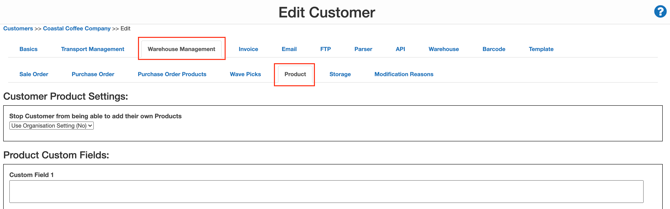
- Enter the name of each Unit of Measure that the Customer will be using for its Products (apart from the base Unit of Measure). For example, if the base Unit of Measure is a Unit, you have a Carton and then a Pallet; you would only need to create a Custom Field for Carton and Pallet.
- Scroll down to the bottom of the page and click Save.
Step 2: Add the Unit of Measure barcode to the Custom Field
-
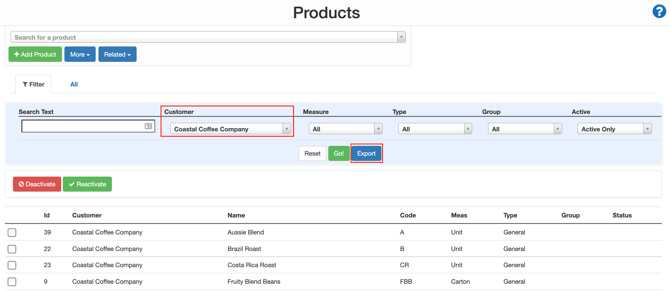
Navigate to the Products page, Warehouse>Products.
-
Filter the Products for the relevant Customer and click Export.
-
Select the bell icon in the top right and download the product file.
-
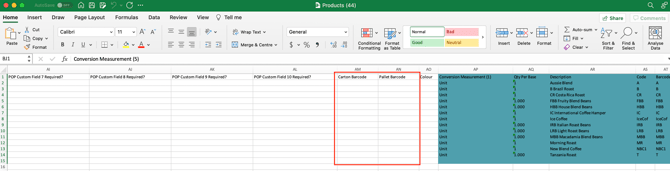
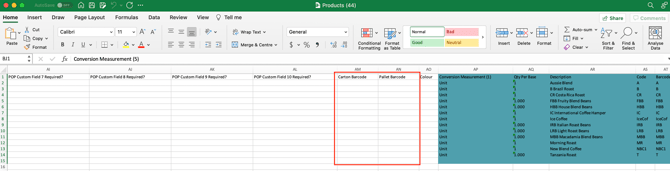
Open the downloaded file and navigate to the Custom Field column you added in step 1.
-
Copy and past the barcode from the relevant Unit of Measure column into the Custom Field.
-
Save the file.
-
Navigate back to the Products page in CartonCloud.
-
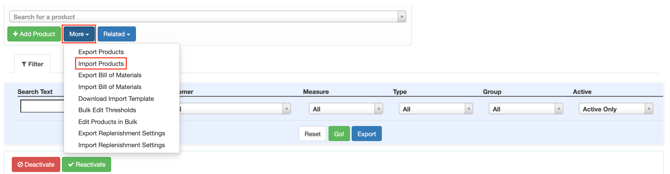
Click More>Import Products.
-
Choose the relevant file and then click Upload File.
Step 3: Edit the Purchase Order Product PDF Label
It is suggested that you set this label up at a Customer level; as not, all your Customers may be using Unit of Measure barcode scanning. If you change the Document Template at the Organisation level, it will apply to all Customers.
-
Navigate to the Customers page, Contacts>Customers.
-
Select the relevant Customer and click Edit at the bottom of the page.
-
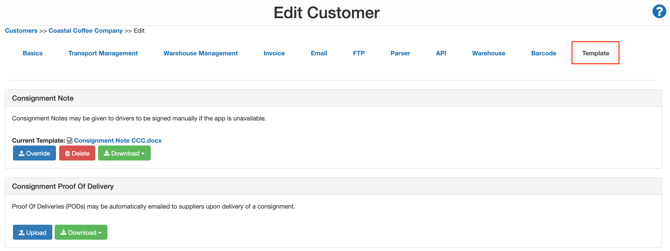
Select the Template tab.
-
Scroll down to the Purchase Order Product PDF Label: click Download and then Default Template.

-
Open the Word Document.
-
Copy and paste the existing barcode box on the document and rearrange the template accordingly. Ensure you have enough barcode box's to match the number of Units of Measures the Customer will be using.
Ensure you place the barcode box in the middle of the document to make space for the barcode.
-
You will need one barcode box for the base Unit of Measure and one for each Product Unit of Measure used.
-
You will now need to modify the barcode box so that the correct barcode appears on the label.
-
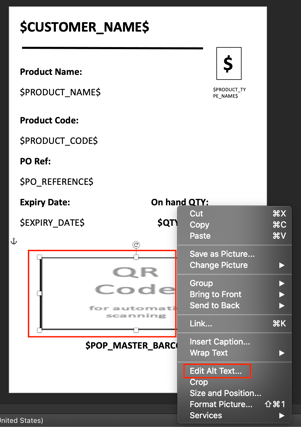
Right-click the barcode box and select Edit Alt Text.
-
Enter the field name you wish to see in the barcode followed by a colon, then the barcode format.
-
For the base Unit of Measure, enter: $PRODUCT_BARCODE:BC128$
-
For the other Unit of Measures, enter: $PRODUCT_CF_X_VALUE:BC128$
-
Where X is the number of the Product Custom Field, the Unit of Measure is using.
Ensure you do not have a trailing space in the alt text; otherwise, it will not work. 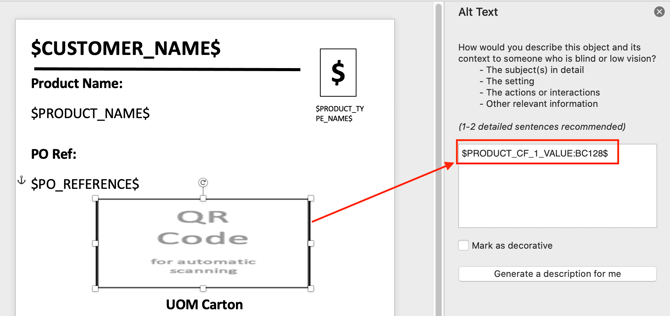
-
Repeat the above process for the number of Unit of Measures the Customer is using.
-
Save the file.
-
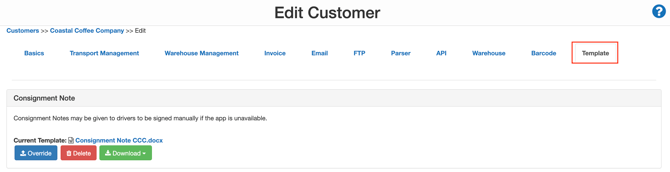
Navigate back to the relevant Customer and select the Template tab.
-
Scroll down to the Purchase Order Product PDF Label and click Upload.
-
Select the relevant file and click Upload File.
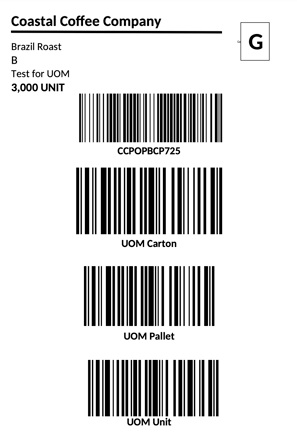
Example label with UOM barcodes: