
🔔 Note: this article is part of the CartonCloud Academy - WMS Mobile App Trail. Please ensure you have read Putaway process on the mobile app (Purchase Orders) first. 🎓
Now that you know how to use the Putaway mode on the CartonCloud warehouse mobile application, it is time to start learning about the Picking mode.
The Picking mode on the mobile application is designed to assist you and your team during your warehouse's picking, packing and dispatch process. Using the Picking mode will enable you to pick Sale Orders, verify specific custom fields (for example, batch numbers) upon picking items, and ensure the correct items are picked with the correct quantities and that the order is successfully dispatched from the warehouse. Throughout the process, your customer will be updated with milestone specific notifications (depending on what customer notifications they have set up), and the status of the order will be updated and reflected in the web application. In addition, all associated charges will be automatically calculated, and you can record any necessary adhoc charge data against the order.
How to access Picking Mode
- Select the hamburger menu icon and select Switch Mode.
- Click the Picking icon.
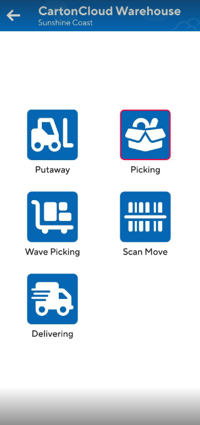
- You will now be on the Sale Order List.
Using the Sale Order List
Once on the Sale Order List page, you will see all the Sale Orders in the given warehouse that are in a status of:
- Awaiting Pick and Pack
- Packing in Progress
The Sale Order must be approved from ‘Draft’ to be visible on the mobile application, and once in a status of ‘Dispatched’, the Sale Order will no longer appear on the mobile application.
The Sale Order status will appear on the far left with a different letter and colour (depending on its status) for each Sale Order.
You can also filter the list by searching for a Sale Order reference, or you can sort the list and split it by customer name, ship date or run sheet.
Why can’t I see a Sale Order on the Sale Order List?
- Check if the Sale Order has been approved
- Check you have the correct Warehouse selected (from the mobile application settings)
Picking Process
Now that you understand what the picking process on the CartonCloud mobile app aims to achieve let’s step through how to pick a Sale Order on the mobile app.
Follow along with Vincent as he picks an order in the CartonCloud warehouse using the mobile app.
Reallocation
Nick from Coffee Warehousing and Distribution is starting to understand how the picking process works on the CartonCloud mobile app. However, Nick would still like to understand how he can substitute stock when picking particular items. In Coffee Warehousing and Distribution pallets are often staked behind each other that are of the same product and they need the ability to take the first pallet from the stack even if CartonCloud instructs them to take the one fifth from the front. With Reallocation, Nick can do just that! Reallocation allows you to change the specific POP (Purchase Order Product) ID that has been allocated to a Sale Order when picking the order via the mobile app. In addition, you can change the unique custom field (for example, the serial number) that is allocated to a Sale Order. This can be configured at both the Customer and product level.
Follow along with Vincent to understand what Reallocation is.
▶️ Follow along in the WMS Mobile App Trail...next up is Introducing Wave Picking on the mobile app. 🎓