
Table of Contents
Issue
When allocating stock to a Warehouse Location, the Warehouse Location does not appear in the search, or the allocation/stock movement fails.
Why the issue has occurred
The Warehouse Location only accepts certain Product Types, and the stock attempting to be allocated to the Warehouse Location does not match the specified Product Type.
Example scenario
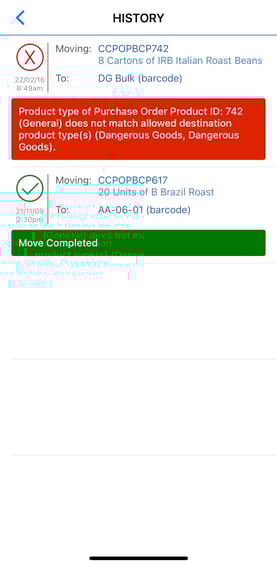
You have stock that is General Product Type, and you are attempting to allocate it to the DG Bulk Warehouse Location. However, the DG Bulk Warehouse Location only accepts stock with the Product Type of Dangerous Goods.
On the Web App: the Warehouse Location will not show when you search for it. 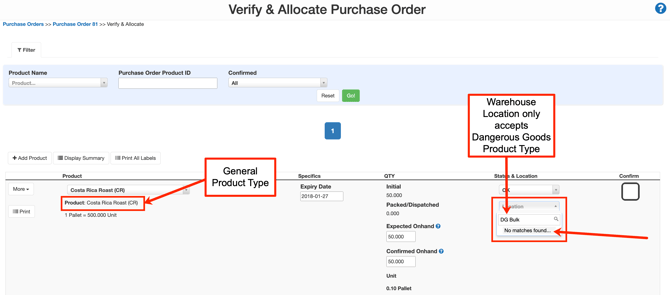
Failed move
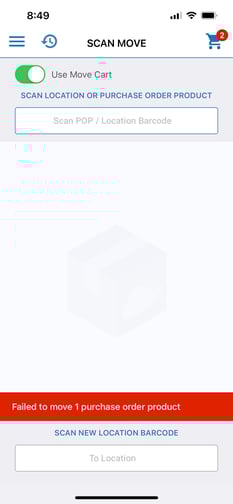
Error message
How to resolve the issue
To resolve the issue, you will need to either allocate the stock to a different location (that accepts the Product Type) or update the allowed Product Types for that location.
You will need to check the stock's Product Type and the accepted Product Type of that Warehouse Location.
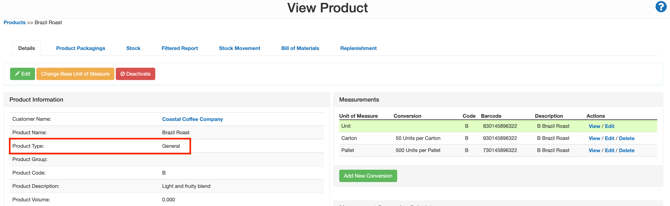
Check 1 - Check Product's Product Type
-
Navigate to the relevant Product, Warehouse>Products.
-
Check the Product Type against the Product.
Check 2 - Check the Warehouse Location accepted Product Types
-
Navigate to the Warehouse Location you want to allocate the Product to, Warehouse>Warehouse Locations.
-
Check the Product Type against the Warehouse Location.
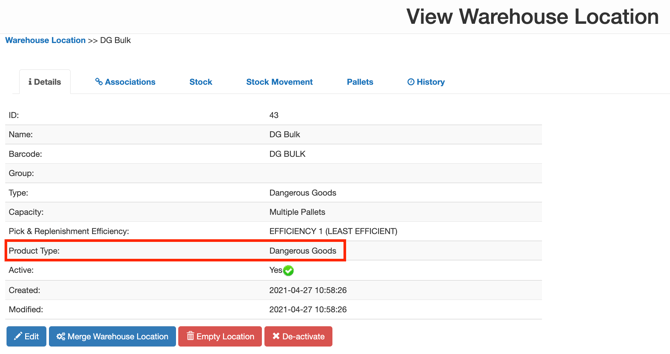
If the Product Type against the Product is not listed as an allowed Product Type against the Warehouse Location. In that case, you will need to allocate the Product to a different location OR update the Warehouse Location allowed Product Types.
Update Warehouse Location allowed Product Types
You can edit the Warehouse Location's allowed Product Type by either editing a single Warehouse Location or editing multiple locations in bulk.
To edit a single Warehouse Location click here.
To edit Warehouse Locations in bulk click here.