
Table of Contents
Purpose
This guide covers how to edit Warehouse Locations in bulk via the Web Interface. You can also check out the article Setting up Warehouse Locations.
How to edit warehouse locations in bulk
- Navigate to the Warehouse Locations page, Warehouse > Warehouse Locations.
- Select More > Edit Locations in Bulk.
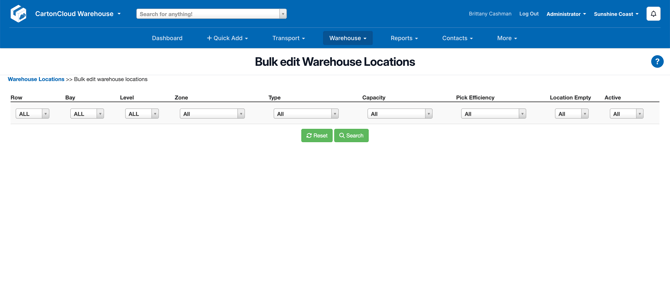
- Using the searching and filtering options, define specific ranges of locations or just search for all.
- Using Select All to highlight all locations to change, you can then Bulk Activate or Bulk De-activate, or Bulk Edit to change features of the locations.
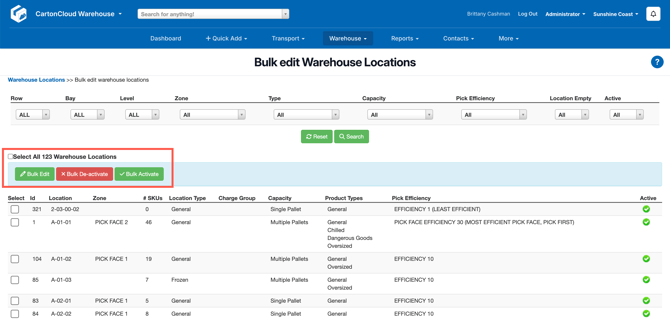
Bulk Edit Options
- If selecting Bulk edit, a new box will appear.
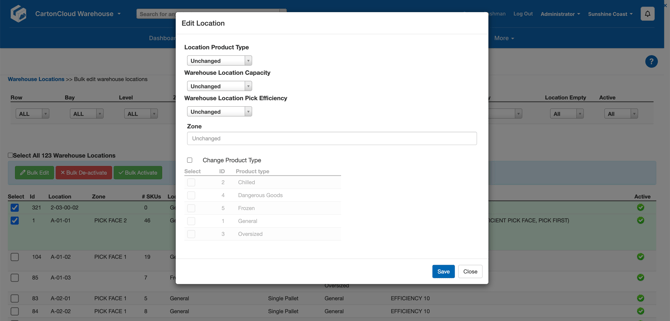
- Changing these values will change the corresponding fields of the warehouse locations you have selected.
- An explanation of the fields is provided in the table below,
|
Setting |
Explanation |
|
Location Product Type |
This will set the Warehouse Locations Product Type, this can affect the fees you charge for that warehouse location. (For example, you might charge a different fee for frozen space than you do for general) |
|
Warehouse Location Capacity |
This can be set to either single or multiple pallets. The multiple pallets option would be used in bulk locations where more than one pallet is stored within that location code. |
|
Location Pick Efficiency |
This value allows CartonCloud to make the picking process more efficient by |
|
Change Product Type (Associated) |
This will change the associated product type of the warehouse location. These are the product types that the warehouse location is allowed to hold. For example, a warehouse location may have a Location Product type of "Chilled", however, you may want the system to allow both chilled AND general stock to be stored in it. In this scenario, the location should be set with Associated Product types of "Chilled" and "General". |
- Select Save and the changes will be applied.