
Table of Contents
- Purpose
- How to identify storage charge errors
- How to resolve storage
- Common storage charge errors
- Other Tools
Purpose
Storage Charge errors will appear on your invoice when CartonCloud is unable to calculate charges for the Storage Period.
To troubleshoot Storage Charge Errors, there are certain checks you can complete to find the issue and resolve it.
How to identify Storage Charge Errors
-
Navigate to the Invoices page, More>Invoices.
-
Identify the Invoice with Charge Errors and select it.
-
Select the Storage Periods tab (it should have a numbered circle indicating an error exists).
-
Click View against the Storage Period.
-
Select the Charges tab.
-
Read the Charge Error and resolve the error using the below checks and common charge error types.
How to resolve Storage Charge Errors
Most Storage Charge errors occur when there is no charge within the Customer's Rate Card for that Product Type or Storage Charge Method specified within the Product.
Check 1 - Check the Storage Charge Method set up against the Product is used in the Rate Card
-
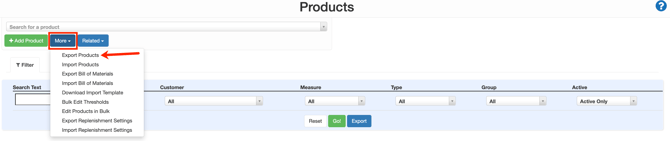
Navigate to the Products page, Warehouse>Products.
-
Select More>Export Products.
-
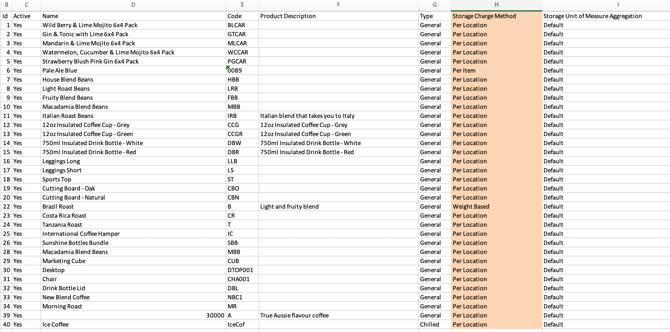
Open the downloaded file and check column H for the Storage Charge Method.
-
Check the Rate Card has Storage Charges using the Storage Charge Methods selected for the Products.
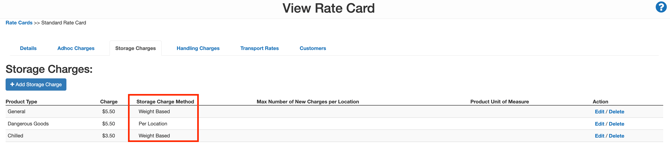
- If there are no Storage Charges for that Storage Charge Method, you will need to add them. Click here for steps on how to add Storage Charges.
If you select Per Pallet Storage Charge Method, ensure you set up the correct pallet conversions.
Check 2 - Check the Charge Product Type Option
-
Navigate to the relevant Customer's Rate Card.
-
Select the Details tab.
-
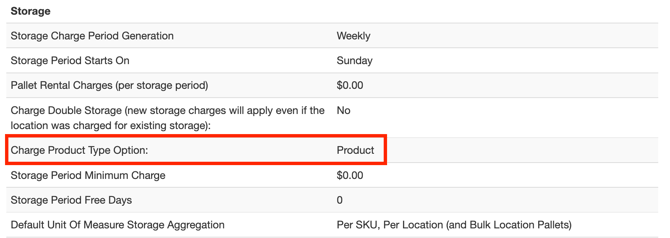
Scroll down to the Storage section and check the Charge Product Type Option.
-
There are two options;
-
Product: charges storage based on the Products Product Type.
-
Warehouse Location: charges storage based on the Warehouse Locations Product Type.
-
Check 3 - Check that there is a charge set up for the Product Type
Depending on the results from Check 2, you will need to check the Product's Product Type or the Warehouse Location's Product Type to ensure there is a charge configured for the Product Type.
Product's Product Type:
-
Navigate to the Product (that had the Storage Charge error).
-
Select the Details tab.
-
Check the Product Type and the Storage Charge Method.
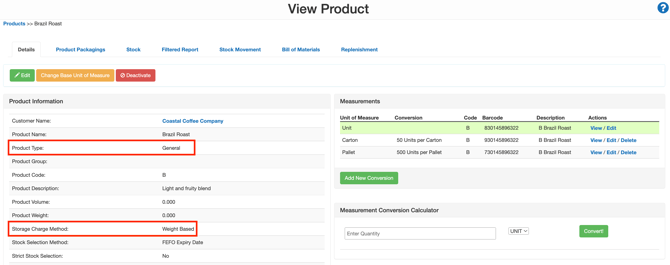
Warehouse Location Product Type:
-
Navigate to the relevant Warehouse Location.
-
Check the Product Type.
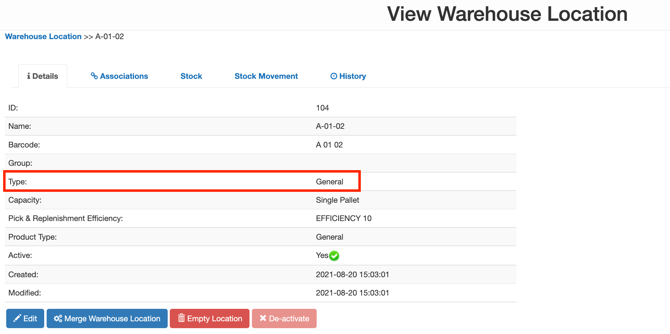
Check there is a charge set up for that Product Type
-
Navigate to the Customer's Rate Card.
-
Select the Storage Charges tab.
-
Check there is a charge set up for the relevant Product Type.
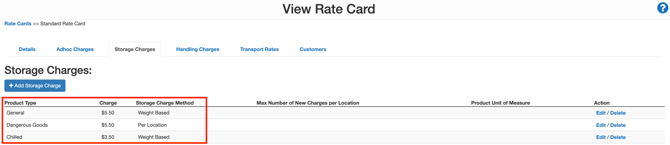
If there are no charges set up for the Product Type, follow the instructions here to set up a new storage charge for that Product Type.
Common Storage Charge Errors
To resolve an error, you will have to go to the Customer's Rate Card or Product settings.
|
Error Type |
Resolution |
|
No General Per Pallet Qty rates loaded |
Resolved at: the Rate Card Add General + Per Pallet Qty rates to the Storage Charges tab of the Customer's Rate Card.
|
|
No Frozen Per Pallet Qty rates loaded |
Resolved at: the Rate Card Add General + Per Pallet Qty to the Customer Storage Charges Tab |
|
No Per-Location Charges exist |
Resolved at: the Rate Card. |
|
No Per Item Storage Charge |
Resolved at: Product settings Products have been set up using the "Per Item" charge method, but no charge has been set. To resolve:
|
|
No Standard Pallet Volume rates loaded |
Resolved at: the Rate Card. Add Standard Pallet rates to the Customer's Rate Card. |
|
Error calculating charge for product id (1077). Oversize unit not defined |
Resolved at: Product settings To identify the product ID in question, head to the Products page. View any product. In the webpage address bar, you can now enter the Product ID from the charge error and view: Check the Product for the Storage Charge Method (Check 1). Per Location Check your Product Settings to allow for "Oversize" items. This setting, when enabled, will notify you when you may be over-allocating to a single pallet. For example, oversize warnings should always be enabled for Pallet Units of Measure. This will prevent you from allocating more than one pallet worth of stock to a single location. In addition, CartonCloud will provide you with a warning message that you may be under-charging for storage. To enable this setting:
Per Pallet (based on qty) Charge Method If Storage Charges are set to "Per Pallet (based on qty)", check that you have set up the conversion for the base unit of measure to a pallet. If you want your Product to charge per pallet qty, you must state how many units are on a pallet, i.e. 256 per pallet or 126 per pallet.
|
|
Storage & Invoice periods are not aligned. |
Resolved at: Organisation Settings
|
|
My pallet location is charging twice even though I have selected 'Per Location' charging. |
Resolved at: the Rate Card By default, when stock is received, it is always charged as 'new' storage even if it is allocated to a location already containing stock. If you do not want to charge new storage, you need to set Double Charge Storage to No (this setting can be found in the Rate Card under the Details tab). |
|
Storage has not been charged for backdated Purchase Orders. |
The system will always generate the Storage Period charge based on the "Date Added" purchase order by default. This means that if you have backdated the purchase order to be "Date Allocated" in the week previous, the Storage Period will need to be manually created and added to your invoice. However, suppose the invoice has already been approved and sent to the customer. In that case, you can create Storage Periods manually and add these to a new invoice to calculate the extra revenue. |
|
No Product Type Charge for Non Dangerous Goods |
Resolved at: the Rate Card Add a charge to the Rate Card for the Product Type Non-Dangerous Goods. |
|
No Product Type Charge for (General, Bottle, Keg etc.) which is currently being stored in the Warehouse |
Resolved at: the Rate Card Add a charge to the Rate Card for the Product Type specified. If this product type should not be in use or if you want to check which products are using this product type, you can review the products by Exporting and Importing Products. |
|
Changing Storage Settings within Invoice Period |
Suppose you have changed the Storage Settings for a customer within a Storage Period. In that case, you must create a Storage Period and re-calculate your invoice totals to reflect the change. For example, you now wish to charge your customer for Daily Storage, where previously they were on a weekly storage invoice. As this is during the current invoice period, the system will no longer automatically generate the invoice for the previous weekly charge and, in this case, hasn't yet reached the schedule to start the daily storage creation. So instead, follow the steps above to create the missing storage periods for each day (Daily Charging), and then go into your invoices and add these periods in. Once you have completed this, you must re-calculate the totals to reflect the additional days. |
|
Daily Charged Storage is not generating for each day of the week, only for the first day. |
Resolved at: Organisation Settings and Rate Card In CartonCloud, two settings determine when and how the Storage Charges are calculated. (Some tenants of CartonCloud may have this set to "7" by default. If you do not wish to charge storage periods less than weekly, you do not need to change this) Rate Card Settings If you wish to override the settings configured at the Organisation Settings level, you can modify the settings at the Rate Card level within the Rate Card settings. |
|
Storage Periods are not attaching themselves to the invoice (They have to be manually added) |
Resolved at: Organisation Settings This is because the Storage Periods and the Invoice Periods are not aligned.
Once you have aligned the dates, you will need to then either:
|
|
The product does not allow zero storage charge, however, the storage charge has come out as $0. For example, 'Per pallet rates for Ambient zone are zero, but product: Coffee beans does not allow zero storage charges'. |
Resolved at: Product Settings
|
|
|
Resolved at: Product Unit of Measure Settings This error is due to the mentioned Product ID having Multiple Oversize Units assigned to the location which is not allowed when charging Per Pallet Based on QTY storage charge method. You will need to either remove one of the products with an oversize unit from the location or you will need to to turn off the Oversize Warning field. To turn off the Oversize Warning you will need to:
|
Other Tools
In addition to the above you can also use the Stock Movement Report to reconcile storage charges by select the report movement type of Storage Charges. See Stock Movement Report for more information.