
Table of Contents
Purpose
Some of these settings can be overridden on a per-Customer basis if required, by editing that Customer's invoice settings. There are also extra fields in the Customer's invoice settings which are not available at all within the default (Organisation) invoice settings.
There are a number of settings which allow for fine-control over the way your Invoices are generated, and the way they are presented to your customers.
These are the default settings Invoices behaviour.
Invoice Reply Email Content
CartonCloud allows you to customize the content of the email that is sent out to your customer when a new invoice is available for them.
Click on the 'Invoice' tab where you will be able to edit 'Invoice Reply Email Content'.
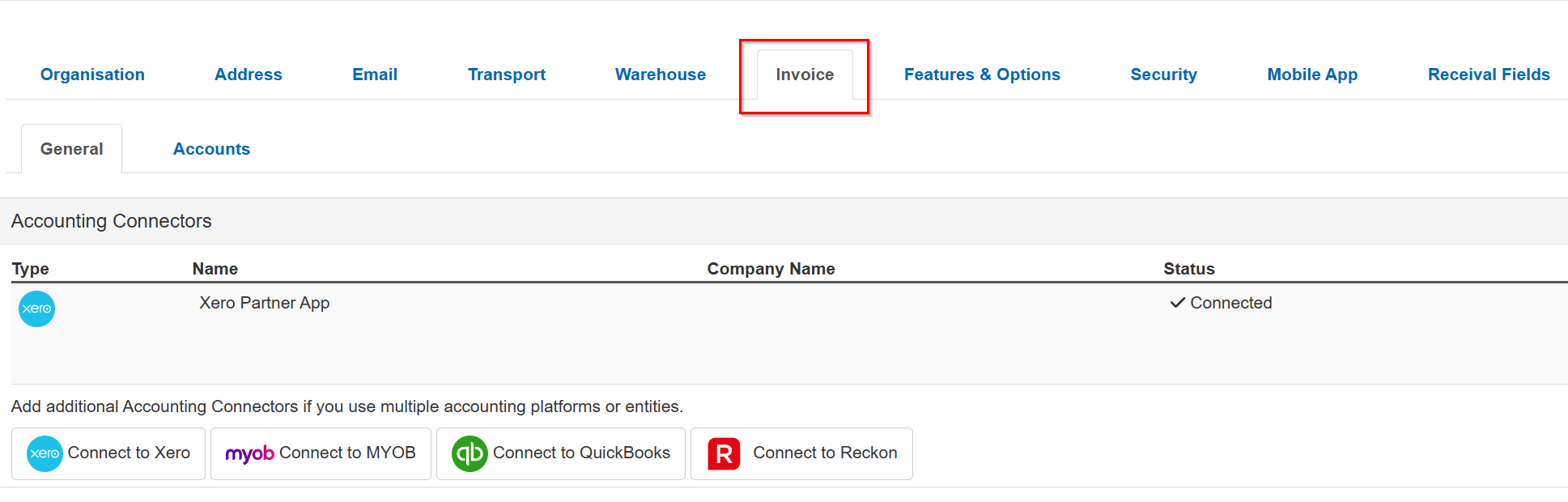
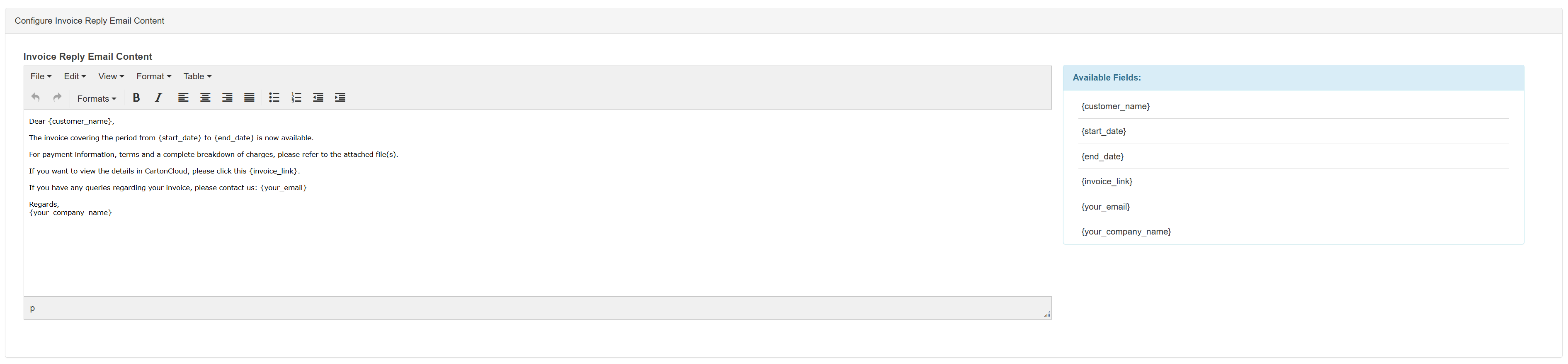
You will find that there are a number of pre-determined 'Available Fields' that will be used to automatically populate your invoice email with the relevant customer and invoice details. Include these fields in your email text as required - they will be replaced by the actual data before being sent to the customer. The available fields are listed in the Settings and Descriptions table below.
After finishing your changes, select Save at the very bottom of the page.
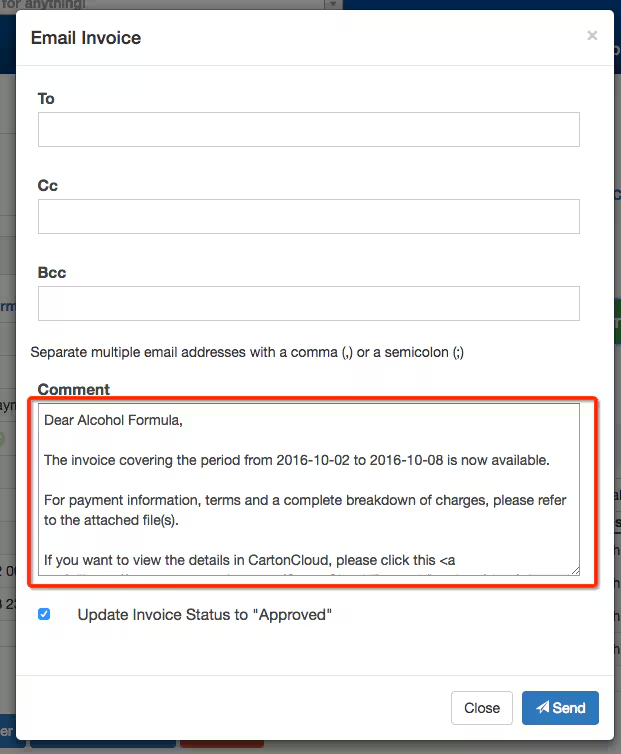
Example Invoice Message
Settings and Description
|
Setting |
Description |
|
Account Connectors |
Connect to Accounting application for handling Invoices. Refer to Accounting Connectors for more details |
|
Invoice Reply Email Content |
Email content that will be sent to the Customer once the Invoice is generated. Place holders are provided under the Available Fields heading. These place holders are replaced with the actual data value of the placeholder before the email is sent to the customer.Available field placeholders - the surrounding curly braceholders tell CartonCloud to see them as a placeholder instead of normal text.{customer_name} - The Customer's name{start_date} - The start date of the period covered by this invoice.{end_date} - The end date of the period covered by this invoice.{invoice_link} - A link to the invoice in the CartonCloud Web App, allowing the customer to view the invoice details.{your_email} - Your contact email address, used for customers enquiries about invoices.{your_company_name} - Your company name. |
| Default Next Invoice Date |
Default date to generate the next Invoice. |
| Repeat Every |
Interval in which Invoices are generated. (x Days/Weeks/Months) |
|
Default First day of week |
Define which day of the week is considered as the first day of the week. This helps the system to determine the starting of repeating interval in order to generate Invoices. |
| Due Days |
Once the invoice is pushed to accounting application from CartonCloud, these are the number of days in which the Customer will have to pay the Invoice before over-due charges are applied. |
|
Use CartonCloud's Invoice Number as MYOB's Invoice Number. For Example CC-{CartonCloud invoice number} |
Specific to MYOB. Uses CartonClouds Invoice number as MYOB's Invoice number. |
| Default Invoice Reference |
Default text to reference Invoices in accounting applications. Following fields are set for the accounting applications by this option:
Text in '{ }' are tags, that are replaced to actual value when pushing Invoice to Accounting Application. For example for Invoice with id 1234, the field "W.E. {invoice_id}" is replaced with "W.E. 1234" |
|
When Uploading, default Email Invoice to Customer Checkbox to be Checked |
As explained by setting name. |
|
Send Consignments information as part of summary when uploading an invoice to Accounting Connector |
As explained by setting name. |
|
Aggregate Fuel Levy into a single line item per invoice |
When enabled, all Fuel Levy charges will be consolidated into a single line item. |
| Storage Charge Period Generatio |
Length of the storage period (Daily, Weekly, Fortnightly, Monthly) |
|
If Storage Charge Period Generation is set to Monthly and there will be additional setting options. These settings are only valid if using per pallet or per location storage charge method |
|
|
Day of Month to Charge on |
Day of the month to charge on |
|
Split Month Discount Enabled |
With this enabled, you have the option to provide customers a discount for if/when stock comes into a warehouse location later in the first month. |
|
Days before split occurs |
The number of days into the storage period after which the split should occur. This will define when stock is considered in the split period and the discount is applied. For example, if you set the days to 20, any stock that comes in after 20 days of the month will be considered in the second split period and receive the percentage discount off the storage rates. |
|
Discount applied for |
|
|
Percentage discount |
The percentage discounted from the storage rates. The percentage is only applied to stock that is allocated to a warehouse location post the day the split occurs. |
|
Storage Starts On |
Day the storage period begins |
|
If any Per Location Storage Charge Methods are used - Should all stock on Single Pallet Locations be combined into a single charge? |
Yes - If using Per Location or Per Location (and bulk pallets) storage charge method and stock is in a single pallet capacity warehouse location, then storage charges will be calculated on the assumption that there is only 1 pallet in the location, even if multiple pallets are present. This means there will be only one pallet charge for the location even if there are multiple pallets in the location. No - If using Per Location or Per Location (and bulk pallets) storage charge method and stock is in a single pallet capacity warehouse location and there are more than 1 pallet in the location, treat each pallet individually and charge for each pallet in the location. This means that each pallet that is in that location will be charged. |
|
Rates Precision |
The number of decimal places that are allowed in setting charging rates (eg. Handling Rates). Line totals, etc, are rounded to the nearest cent. Currently, only item handling charge rates are supported for this setting. |
|
Default Customer Charge |
The Default Rate Card is the one that will be used by newly created Customers until a specific Rate Card is set on the Customer. |