
Table of Contents
- Purpose
- How to export and import products
- Editing the file (import file field descriptions)
- Video guide
Purpose
By utilising the export/import Product Master functionality you are able to add new Products or update existing Products in bulk.
How to export and import products
- Navigate to the Products page, Warehouse>Products.
- Select More>Export Products.
- Select the bell notification in the top right corner and click Download Here.
- Open the downloaded file.
- In this file, you can edit the existing Products or add new Products.
When adding new Products, ensure you keep the id column blank.
- Save the file.
- Navigate back to the CartonCloud Product page.
- Select More>Import Products.
- Click Choose file and select the relevant file.
- Select Upload File.
- You will then receive a notification once the import has been processed and a link to view the import. Click the notification bell and then View Results here.
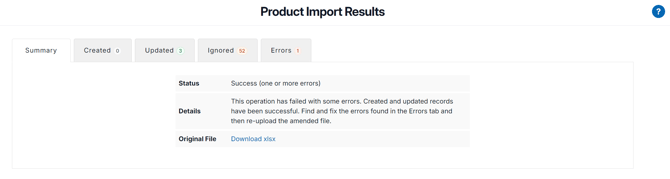
- From here you will be able to view the products that were created, updated, ignored and the ones with errors. If there was an error in the file, the products without errors will still be updated and created successfully.
-
- Summary: a summary of the import and access to the original file.
- Created: the new products that were created
- Ignored: the products that remained unchanged
- Errors: the products that had errors and did not import. The fields that errored will be highlighted red.


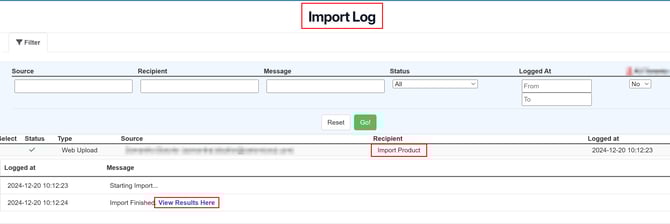
- You can also access and view the Product Import results via the Import Log if needed.
- Navigate to More>Import Log>Click View Results Here.
Editing the file (Import file field descriptions)
The table below explains what each field on the file is for and what can be entered into each field.
|
Field |
Description |
Options |
Required |
|
Customer |
The customer of the Product. |
|
Yes |
|
Id |
Leave this column blank if you are creating a new Product. This is automatically generated by CartonCloud when a new Product is created. |
|
|
|
Active |
If the Product is active or not. |
Yes, No |
Yes |
|
Name |
The Product Name |
|
Yes |
|
Code |
The Product Code |
|
Yes |
|
Tags |
Tags associated with the Product. See Tags for more information. |
|
No |
|
Product Description |
Additional description about the Product. |
|
|
|
Type |
The Product type. For example, Chilled, Frozen, Ambient. |
Refer to your Product Types |
Yes |
|
Storage Charge Method |
The method for how the storage should be charged, refer to View Rate Card - Storage Charges |
Per Location |
Yes |
|
Storage Unit of Measure Aggregation |
If you have selected the Storage Charge Method Per Unit of Measure you will need to select an Aggregation option. For more information see View Rate Card - Storage Charges Aggregation options:
|
Default Warehouse Location |
Yes |
|
Allow Zero Storage Charge |
Allows storage to be charged at $0. This means no charge error will come up if storage charges equal $0. |
Yes No |
|
|
Per Item Storage Charge |
Amount to charge per item if Per Item Storage Charge Method is selected |
|
|
|
Volume (cubic meters) |
The Volume of the Product in m3, ie: 0.0025 |
|
|
|
Weight (kilograms) |
The Weight of the Product in KG, ie: 6.25 (for 6.25kg) |
|
|
|
Country of Origin |
The Country of Origin of the product. This is useful if needing the Country of Origin for import/export purposes. |
|
|
|
Harmonised System Code |
The Harmonized System Code (HS Code) is an international standard for classifying products in cross-border trade. Adding the correct HS Code to your products ensures compliance with customs regulations and accurate calculation of duties and taxes. |
|
|
|
Measurement Category |
The measurement category for the Base Measurement, normally this is Count |
Count |
Yes |
| Base Measurement |
The Code for the Base Unit Of Measure |
Refer to your Products Units of Measure |
Yes |
|
Random Weight |
Whether the product is a Random Weight Product or not, refer to: Products for information on Random Weight |
0, 1 |
|
|
Stock Selection Method |
When assigning Sale Order Products, this determines the automatic stock selection algorithm used to calculate the best stock to assign. Options are:
|
Location Efficiency
|
Yes |
|
Strict Stock Selection |
With Strict Stock Selection turned on the stock selection method is enforced even if it means splitting a full pallet or picking from a part pallet to build a full pallet. |
Yes No |
Yes |
|
Ignore Expiry Date during Stock Selection |
The expiry date will not be taken into consideration during stock selection. |
Yes No |
Yes |
|
Stock Sub-Selection Method |
Once you have selected a Stock Selection Method you must then choose a Sub-Selection Method. This means that if after the system uses the stock selection method if multiple locations meet that method's requirement the sub-selection method will be used to further optimise how you select stock. This logic is secondary to the Stock Selection method, and will never override it. The available Stock Sub-Selection Methods:
See How CartonCloud chooses outgoing stock - Stock Selection Methods for more information. |
Location Efficiency Minimise Storage Minimise Picks |
|
|
Split BOM on insufficient stock |
With this setting turned on, if there is no built Bill of Materials products CartonCloud will assign stock to the Sale Order from the individual products rather than the built stock. |
Default, Yes, No |
Yes |
|
Warning Threshold |
The number of days prior to expiration that the Expiration Warning Email is sent |
|
|
|
Expiry Threshold |
The number of days prior to expiration that the product will no longer be able to be sent |
|
Yes |
|
Low Stock Notifications |
Are Low Stock Notifications (emails) enabled with this product? |
Yes, No |
Yes |
|
Low Stock Threshold |
The low stock amount that should trigger an email, ie: 80, will trigger when the stock drops below 80. |
|
|
|
Product Group |
The Product Group the Product belongs to. The Product Group is utilised to filter the Product List and in the Customer Stock Report. See Product Group for more information. |
|
|
|
POP Initial Status |
When assigning stock to a Purchase Order, this value sets the Product Status of that stock. For example, if you selected "Quarantine", then all stocks created would default to Quarantine Status. |
OK, Quarantine (see Product Statuses for full list) |
Yes |
|
POP Expiry Date Required? |
Whether the product requires an expiry date to be entered. |
No |
Yes |
|
Is Reallocation Enabled? |
To enable reallocation for the product |
No Yes |
No |
|
Reallocation Scannable Field |
The field you wish to be able to reallocate with |
custom_field_1 [insert number] |
No |
|
POP Custom Field [ x ] Required? |
Whether or not a particular Custom Field is required to be recorded for this product. |
[ blank ] - Use the Customers setting, |
|
|
Custom Field [ x ] |
What to insert into each of the Custom Fields defined within the Products themselves. |
|
|
|
Product Unit of Measure Conversions |
|
|
|
|
Conversion Measurement |
The Products Units of Measure for the conversion qty. For example, if your products base unit of measure is Cartons, and there are 48 cartons per pallet, then you would put PLT here. |
|
Yes |
|
Qty Per Base |
To use the example above, converting from CTN to PLT you would enter the number 48 into this field so the system knows you have 48 cartons per pallet. |
|
Yes |
|
Description |
The product name that is displayed on Pick Slips. Often used if the Product Description of a specific Unit Of Measure differs significantly from the Product Name. |
|
|
|
Code |
The product code for the Conversion Measurement. |
|
Yes |
|
Barcode |
The barcode for the unit of measure, allowing for Scan Picking. Typically each unit of measure will have its own Unit Of Measure, allowing Cartons to be scanned independently of Units etc. |
|
|
|
Gross Weight |
The gross weight of the Product Unit of Measure (this is total weight including the product and packaging) |
|
|
|
Length |
Length of the Product Unit of Measure |
|
|
|
Width |
Width of the Product Unit of Measure |
|
|
|
Height |
Height of the product unit of measure |
|
|
|
Directly Shippable |
If the Product is Directly Shippable. Directly Shippable Products automatically create their own Consignment Item when using the Pack Screen and/or Auto-Generating Consignment Items. |
Yes No |
|
Video Guide
Follow along with Vicent as he explains how to create products via the export/import function.