
Table of Contents
- Overview
- Prerequisites
- What is SSCC?
- How SSCC Scanning Works in Putaway Mode?
- Scanning from the Purchase Order Product list
- Scanning from within a specific Purchase Order Product
- What Happens When a Product is Not Found?
- How CartonCloud Resolves Product and Quantity from a GS1 Barcode
- Secondary SSCC Unique Identifier Scan
- Settings — Auto Create Product from Scan
- Notes and Limitations
Overview
CartonCloud now supports SSCC barcode scanning directly within Putaway Mode on Android devices. This means warehouse operators can capture GS1 barcode data — including Batch or Lot, expiry, and quantity — at the point of putaway, without any manual data entry.
With this feature, warehouse operators can:
- Scan the GS1-128 barcode for the variable shipment details on the label to automatically populate Purchase Order Product Custom Fields.
- Have the system match the scanned barcode to the correct Purchase Order Product, split quantities where needed, and mark the POP as confirmed — all from a single scan.
- Be prompted for a secondary scan to capture any required fields that were not encoded in the first barcode — such as SSCC, Batch or Lot or expiry.
- Optionally allow the system to automatically create a new Purchase Order Product if the scanned product does not yet exist on the Purchase Order — reducing manual data entry for unexpected stock.
Note: This feature is available on the CartonCloud Android app only. iOS is not supported at this time.
Prerequisites
Before using SSCC scanning in Putaway Mode, ensure the following are in place. If you are unfamiliar with SSCC, see What is SSCC? first.
- SSCC is enabled for your tenancy. Contact your CartonCloud account administrator if this feature is not active.
- SSCC Application Identifiers are configured against the relevant Purchase Order Product Custom Fields. This is done in the customer settings within CartonCloud (Customers > [Customer Name] > Purchase Order Products).
- The Purchase Order has been created and received in CartonCloud before beginning Putaway.
- You are using CartonCloud Android mobile app 6.48.0 or higher and are logged in with an account that has Packer user role permissions.
- A compatible barcode scanner is available.
Note: Some Bluetooth HID scanners cannot pass through GS1 control characters (e.g. FNC1) directly. Many support replacing these with a substitute character such as |. Check your scanner's configuration settings and ensure the split character is configured correctly in the CartonCloud app's Barcode Scan Tester settings.
What is SSCC?
An SSCC (Serial Shipping Container Code) is a GS1-standard barcode used in logistics and warehousing to uniquely identify a physical unit of trade — such as a pallet, carton, or case — as it moves through a supply chain.
SSCC barcodes (also called GS1-128 or GS1 barcodes) can encode multiple data fields within a single scan. Each field within the barcode is identified by an Application Identifier (AI) — a short numeric code prefixed to the data:
|
GS1 Application Identifier (AI) |
Description |
|
AI 00 |
SSCC |
|
AI 01 |
Global Trade Item Number (GTIN) |
|
AI 02 |
Content |
|
AI 10 |
Batch or lot number |
|
AI 11 |
Production Date |
|
AI 13 |
Packaging Date |
|
AI 15 |
Best Before Date |
|
AI 16 |
Sell By Date |
|
AI 17 |
Expiration date |
|
AI 21 |
Serial Number |
|
AI 37 |
Quantity |
Note: SSCC is an add-on feature that must be enabled for your account before it will appear in the app. Contact your CartonCloud Administrator if SSCC is not available to you.
How SSCC Scanning Works in Putaway Mode?
SSCC barcode scanning in Putaway Mode is available from two entry points: the Purchase Order Product list screen, and from within an individual Purchase Order Product record.
Scanning from the Purchase Order Product List
When you are on the Purchase Order Product list screen in Putaway Mode, you can scan an SSCC barcode at any time. The app will automatically:
- Extract the product code (from the barcode's Application Identifier field) and any other encoded fields (batch, expiry, quantity, etc).
- Search the Purchase Order for a matching unconfirmed Purchase Order Product where the product code matches and there are no conflicting field values (e.g. the batch is the same as what was scanned, or no batch has been set yet).
- If a match with sufficient quantity is found: split the scanned quantity into its own POP record, apply all extracted Application Identifier fields, and mark the POP as confirmed. You remain on the list screen — no navigation required.
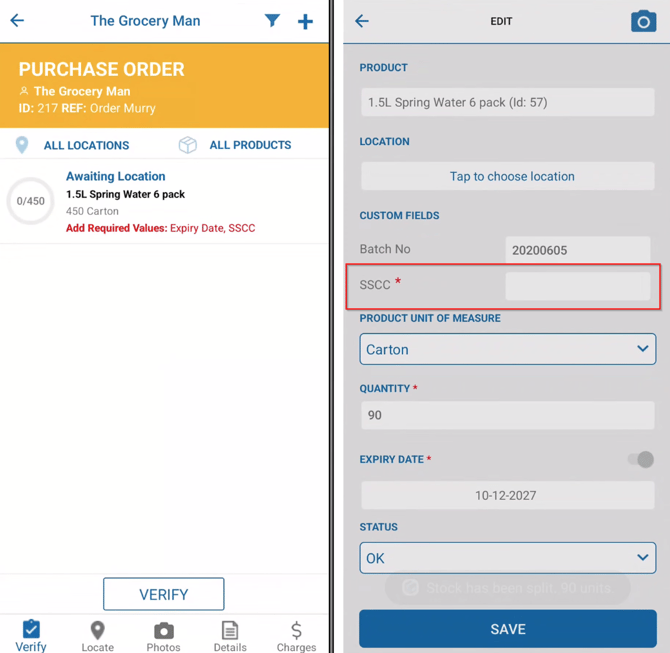
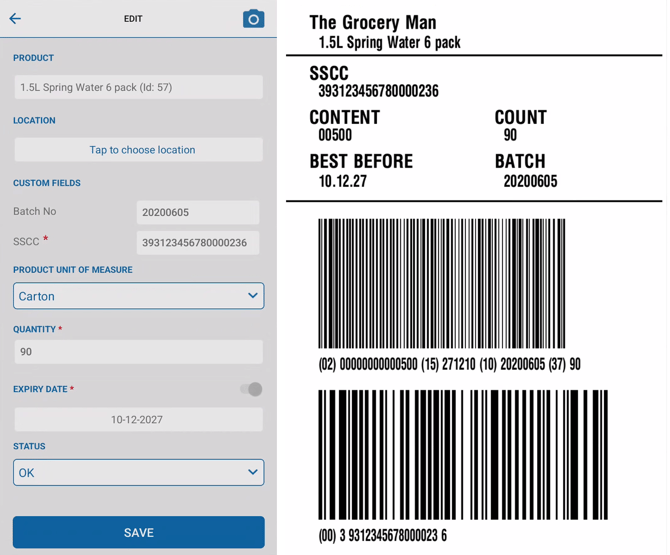
Note: If the scanned quantity exactly matches the entire unconfirmed quantity on the POP record, no split is performed. The Application Identifier fields are applied directly to the existing POP record.
Scanning from within a Specific Purchase Order Product
If you navigate into a specific POP record before scanning, the same scanning flow applies — however, splitting is limited to that POP only.
- If there is not enough quantity on that POP to match the scanned amount, or if there are conflicting custom field values, an error message is displayed explaining why the split cannot proceed.
- After a successful split and confirmation, you are returned to the same POP you were working in — the app does not navigate away.
What Happens When a Product is Not Found
If the scanned SSCC barcode contains a product code that cannot be matched to any existing POP on the Purchase Order — or if all matching POPs have conflicting field values — the app will prompt you:
- "Create product from GS1 Barcode?"
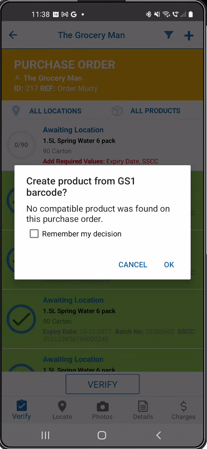
- Tap Yes to automatically create a new POP record for the scanned product, pre-populated with all details extracted from the barcode. The new POP is then treated as if it was split from an existing record, and the secondary SSCC scan prompt (if applicable) is displayed.
- A "Don't ask me again" toggle is available. Enabling this setting means the app will automatically create a new POP without prompting — useful for high-volume putaway operations where new products on the order are common.
Note: The "Don't ask me again" / auto-create setting can be configured in the app settings. Ask your administrator if you are unsure whether this should be enabled for your workflow.
Secondary SSCC Unique Identifier Scan
If your customer's Purchase Order Product setup includes an SSCC Unique Identifier mapped to Application Identifier AI 00, the app will apply the following logic after the initial GS1-128 barcode is processed:
- If AI 00 is not mapped to a SSCC Unique Identifier in the customer's configuration, no second scan is requested at all — regardless of what data the barcode contains.
- If AI 00 is mapped and the first scan already contains AI 00, the app writes the SSCC Unique Identifier value automatically and completes the putaway step — no second scan is required.
- If AI 00 is mapped but the first scan does not contain AI 00, the app enters a second scan prompt and requires you to scan a barcode that contains AI 00 to complete the SSCC Unique Identifier write.
- If the second scan is invalid (i.e. the scanned barcode does not contain AI 00), an error message is displayed and quantity confirmation is blocked until a valid scan is provided.
How CartonCloud Resolves Product and Quantity from a GS1 Barcode
When a GS1-128 barcode is scanned, CartonCloud reads all Application Identifiers (AIs) in the barcode and uses them to determine two things: which product was scanned, and how many units it represents.
Product lookup
CartonCloud resolves the product by first searching for a match against the PUOM (Product Unit of Measure) barcode field on the product. If no match is found, it falls back to the product code. This means a single product can be identified by multiple barcodes — one per unit of measure — and the correct UOM will be applied automatically based on whichever barcode was scanned.
For example, if a product has a base unit barcode and a carton barcode set up as separate PUOMs, scanning the carton barcode will match the carton PUOM and apply the carton quantity — without any manual selection required.
Quantity resolution
How quantity is calculated depends on which AIs are present in the barcode:
|
Barcode contains |
Product resolved from |
Quantity |
|
AI 01 only |
PUOM barcode or product code matching AI 01 |
1 x UOM of the matched PUOM (e.g. 1 carton = 12 units) |
|
AI 02 + AI 37 |
PUOM barcode or product code matching AI 02 |
UOM of matched PUOM × AI 37 value |
|
AI 01 + AI 02 + AI 37 |
PUOM barcode or product code matching AI 02 (AI 01 ignored) |
UOM of matched PUOM × AI 37 value |
|
AI 02 only (no AI 37) |
❌ Error |
❌ Error |
|
AI 01 + AI 02 (no AI 37) |
❌ Error |
❌ Error |
|
AI 01 + AI 37 (no AI 02) |
❌ Error |
❌ Error |
Why AI 01 is ignored when AI 02 and AI 37 are present
On a case or carton label, AI 01 typically identifies the outer packaging GTIN while AI 02 identifies the product contained inside. CartonCloud uses AI 02 and AI 37 in this scenario because they represent what the warehouse actually needs to receive — the contained product and its count.
Example — scanning a carton barcode
A product is set up in CartonCloud with two PUOMs: a base unit (1 unit) and a carton (12 units), each with their own barcode. If a GS1-128 barcode containing only AI 01 is scanned and it matches the carton PUOM barcode, CartonCloud resolves the quantity as 1 carton — which equals 12 base units. No manual conversion is needed.
Settings — Auto Create Product from Scan
The auto-create setting controls whether the app automatically adds unrecognised products to the Purchase Order when scanned, without prompting. This setting can be found in the app settings screen.
- Open the CartonCloud Android app and navigate to Settings from the main menu.
- Locate the “Unmatched GS1 scan action” setting.
- Choose one of the following options:
- Create a new line – Automatically create a new POP record when an unrecognised barcode is scanned, without prompting for confirmation.
- Ask every time – Display a confirmation prompt before creating a new POP record from an unrecognised barcode scan.
- Show an error – Advise that the product does not exist on the order.
Note: This setting is managed per-device.
Notes and Limitations
- Android only: SSCC scanning in Putaway Mode is supported on Android devices only in this release.
- Bluetooth scanner compatibility: Some Bluetooth HID scanners cannot transmit GS1 control characters (FNC1) directly. Configure your scanner to replace these with a recognised substitute character (e.g. |). The CartonCloud app's Barcode Scan Tester allows you to verify your scanner's output and configure the split character.
- SSCC must be enabled: This feature is part of the SSCC / GS1 add-on. Tenants without SSCC enabled will not see this functionality in the app.
- Application Identifier configuration required: POP Custom Fields must be mapped to the relevant GS1 Application Identifiers in the customer's settings before SSCC scanning will populate field data correctly.
- Quantity matching: If a scanned quantity is greater than the remaining unconfirmed quantity on a POP, and the product cannot be found on another POP, you will be prompted to add the product as a new POP or the scan will be rejected with an error message.