Table of Contents
iOS-
No keyboard displaying when trying to manual enter data: Keyboard Not Showing (iOS)
-
A short delay of 0.1 sec is enabled between barcode reads when using a barcode scanner in the CartonCloud app. Please be aware that scanning barcodes any faster than this may cause barcodes to be read incorrectly.
Android
- No keyboard displaying when in manual entry alert: This normally happens when your device favours a hardware input method, e.g. barcode scanner, over soft keyboard.
- Normally a click on the input field will bring up the keyboard. If not, try to double click or long click on the input field. The keyboard may come up or a notification will pop up on the top of the screen, prompting you to “Select keyboard input” or “Choose input method”. Click on that: disable the hardware input method or choose the soft keyboard one.
- After clicking on the input field, check whether a keyboard symbol shows up in the bottom menu area. Click on that and choose the right keyboard.
- An alternative is to temporarily disable the barcode scanner and then click on the input field. Some barcode scanners allow to be temporarily disabled with simple steps.
- If nothing works, unpair the scanner to remove this hardware input method.
- Scanned barcode does not appear: Ensure your Bluetooth barcode scanner is connected to your mobile device. Alternatively, try manual entry.
Troubleshooting with the Barcode Scan Tester
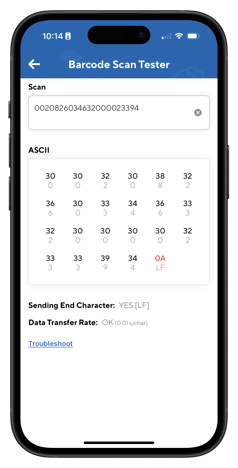
The Barcode Scan Tester is a diagnostic tool in the CartonCloud mobile app that allows users to view exactly what characters are received when scanning barcodes. It’s designed to simplify barcode troubleshooting, particularly where device-specific scan profiles might affect the data received.
- When scanning a barcode, all characters received are displayed in the ASCII section in their Hex codes, including any non-printable characters.
- ASCII (American Standard Code for Information Interchange) code is the numerical representation of characters such as 'a', as computers can only understand numbers.
- Any characters that are highlighted red are non-printable.
- The transfer speed is tested and the result posted under 'Data Transfer Rate'.
- If the transfer speed is fast it will show as OK.
- If the transfer speed is slow, it will show as Too Slow. The threshold for “Too Slow” is 0.08 sec/character
To use the Barcode Scan Tester:
- On the CartonCloud mobile app select the menu navigation bar and then Settings.
- Scroll down to Support and select BARCODE SCAN TESTER.
- From here, you can test the barcode by scanning it.