
Table of Contents
- Purpose
- Requirements
- SSCC limitations
- How to enable SSCC for your customer
- How to add and delete SSCC number ranges
- How to enable SSCC POP Custom Fields
- How to link custom fields to GS1 Barcode Field Identifiers
- How to generate an SSCC when receiving a Purchase Order
- How to generate SSCC in bulk on a Purchase Order
-
Purpose
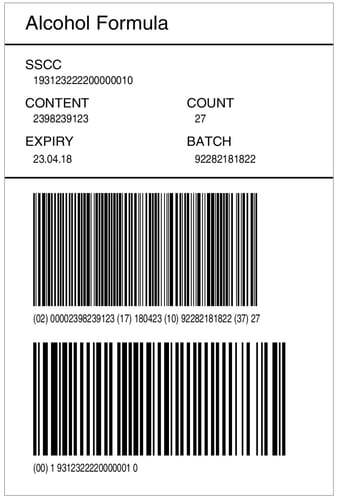
An SSCC (Serial Shipping Container Code) is an 18-digit number that uniquely identifies one logistics unit, such as a pallet or carton, as it moves through the supply chain. The SSCC is printed on a GS1 logistics label as a GS1-128 barcode. Your trading partners, retailers and freight handlers scan that barcode to identify the unit.
For information in regards to the breakdown of a GS1 barcode, please click here.
For more information in regards to what an SSCC is, please click here.
CartonCloud gives you two separate GS1/SSCC capabilities:
-
Scanning and capturing GS1 barcodes and SSCC numbers. For example, you use this when your Customer's supplier provides products that already carry GS1 labels.
-
Generating and printing your own GS1 labels and SSCC numbers. For example, you use this when a retailer requires SSCC labels on every pallet you dispatch.
This article explains how each capability is turned on, how to set up a Customer for SSCC, and how to generate SSCC labels when you receive Purchase Orders and pack Sale Orders.
Example SSCC label from CartonCloud
New in October 2026
If you already use SSCC in CartonCloud, your existing Customer settings, custom fields and number ranges are unchanged and keep working. What has changed:
- GS1/SSCC is now turned on for your whole organisation through the GS1/SSCC feature. With this enabled, GS1 scanning, GS1 Barcode Field Identifier mapping and SSCC custom fields are available for every Customer in the web app.
- The SSCC setting on each Customer is now called Generate and Print SSCC Barcodes. It controls only whether SSCC numbers and labels are generated and printed for that Customer.
- Users with permission to edit Customers can now turn Generate and Print SSCC Barcodes on or off, and add or delete SSCC number ranges, without contacting CartonCloud.
Requirements
- Your organisation has GS1/SSCC functionality. GS1/SSCC is included in Professional, Professional Plus and Enterprise plans. To turn it on, contact CartonCloud Support.
- Please note, before you can begin using SSCC barcodes you must first obtain a GS1 Company Prefix from GS1 Australia.
- You have permission to edit Customers in CartonCloud.
SSCC Limitations
- Each SSCC label can only contain a single product / SKU. Therefore, CartonCloud does not currently support multi-SKU SSCC labels.
- While SSCC labels may be generated on either incoming or outgoing, stocks cannot be combined into a single SSCC label (even if they are the same SKU). Each SSCC label is for a single Purchase Order Product (POP) record.
- You can only generate an SSCC when using the web application, not the mobile application.
How to Enable SSCC for your Customer
GS1/SSCC is controlled at two levels:
|
Level |
Setting |
What it controls |
Who turns it on |
|
Organisation |
GS1/SSCC feature |
GS1 barcode scanning in the web app, linking custom fields to GS1 Barcode Field Identifiers, SSCC custom fields, and required SSCC checks when packing |
Available on the Professional, Professional Plus and Enterprise plans. To turn it on, contact CartonCloud Support. |
|
Customer |
Generate and Print SSCC Barcodes |
Generating SSCC numbers, printing SSCC labels, and SSCC number ranges for that Customer |
Users with permission to edit Customers |
To enable GS1/SSCC for your customer:
- Navigate to the Customers page, Contacts > Customers.
- Select the relevant Customer.
- Click Edit.
- Select the Barcode tab.
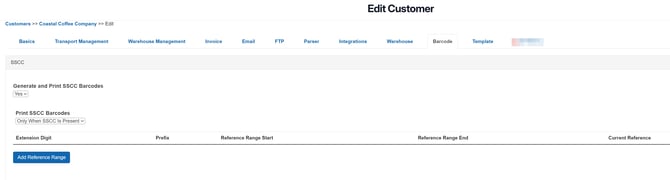
- Set Generate and Print SSCC Barcodes to Yes.
- In Print SSCC Barcodes, select when CartonCloud prints SSCC labels:
-
- Always Generate and Print: every time you print a label for this Customer's stock, CartonCloud generates an SSCC if one does not exist yet and prints the SSCC label.
- Only When SSCC is Present: CartonCloud prints the SSCC label only for stock that already has an SSCC. Stock without an SSCC prints the standard label, and no SSCC is generated.
- Click Save.
Once saved, add an SSCC number range for the Customer. CartonCloud generates SSCCs only when the Customer has a number range.
When “Generate and Print SSCC Barcodes” is set to No, SSCC custom fields can still be configured and scanned / manually entered.
How to add and delete SSCC number ranges
An SSCC number range is the block of serial numbers CartonCloud uses to build SSCCs for a Customer. Each SSCC combines an extension digit, your GS1 Company Prefix, a serial number from the range, and a check digit that CartonCloud calculates for you.
The SSCC number range section displays only after you set Generate and Print SSCC Barcodes to Yes and click Save.
To add a number range:
- Navigate to the Customer's Barcode tab (Contacts > Customers, select the Customer, click Edit, then select Barcode).
- Click Add Reference Range.
- Enter the details in the table below.
- Click Add Range.
|
Field |
Description |
|
Extension Digit |
A single digit (0 to 9) that you assign. GS1 uses it to increase the capacity of the serial reference within the SSCC. |
|
GS1 Company Prefix |
Your company prefix issued by GS1. GS1 Australia allocates Company Prefixes of 7 to 9 digits. |
|
Start Range and End Range |
The first and last serial numbers (6 to 9 digits) assigned to this Customer. You do not need to enter your entire available range. |
To delete a number range:
- On the Customer's Barcode tab, click Delete against the range.
- Click Save.
Under the GS1 General Specifications, an SSCC must not be reused within one year of the shipment date, and some industry rules extend this period. Before you delete a range or enter a new one, check that the new range does not overlap serial numbers you have already used.
How to enable SSCC POP Custom Fields
An SSCC Purchase Order Product (POP) custom field is the field where CartonCloud records the SSCC number against each line of stock. Create one for each Customer that uses SSCC:
-
Navigate to the Customers page, Contacts > Customers.
-
Select the relevant Customer.
-
Select Edit.
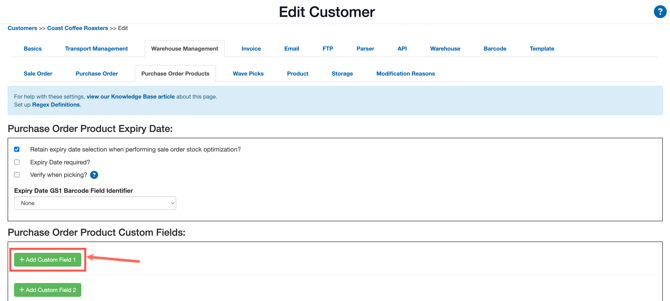
- Select the Warehouse Management tab and then the Purchase Order Products tab.
- Click +Add Custom Field.
- Enter the Custom Field Name as SSCC and select either of the below Configuration Types:
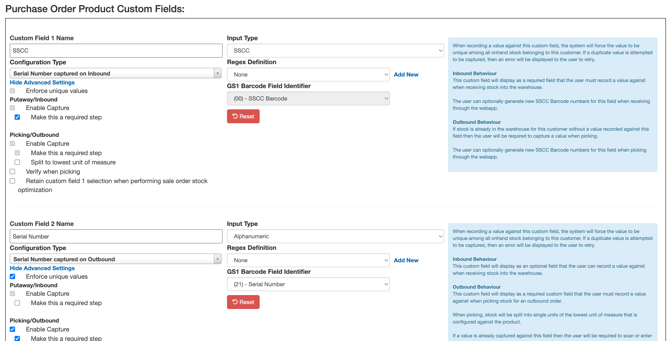
| Configuration Type | Description |
| SSCC captured on Inbound and Verified on Outbound | When recording a value against this custom field, the system will force the value to be unique among all onhand stock belonging to this customer. If a duplicate value is attempted to be captured, then an error will be displayed to the user to retry. Inbound Behaviour This custom field will display as a required field that the user must record a value against when receiving stock into the warehouse. The user can optionally generate new SSCC Barcode numbers for this field when receiving through the webapp. Outbound Behaviour If stock is already in the warehouse for this customer without a value recorded against this field then the user will be required to capture a value when picking. The user can optionally generate new SSCC Barcode numbers for this field when picking through the webapp. If a value is already captured against this field then the user will be required to scan or enter it when picking to verify that they have taken the correct stock. |
| SSCC captured on Inbound | When recording a value against this custom field, the system will force the value to be unique among all onhand stock belonging to this customer. If a duplicate value is attempted to be captured, then an error will be displayed to the user to retry. Inbound Behaviour This custom field will display as a required field that the user must record a value against when receiving stock into the warehouse. The user can optionally generate new SSCC Barcode numbers for this field when receiving through the webapp. Outbound Behaviour If stock is already in the warehouse for this customer without a value recorded against this field then the user will be required to capture a value when picking. The user can optionally generate new SSCC Barcode numbers for this field when picking through the webapp. |
| SSCC captured or Verified on Outbound | When recording a value against this custom field, the system will force the value to be unique among all onhand stock belonging to this customer. If a duplicate value is attempted to be captured, then an error will be displayed to the user to retry. Inbound Behaviour This custom field will display as an optional field that the user can record a value against when receiving stock into the warehouse. The user can optionally generate new SSCC Barcode numbers for this field when receiving through the webapp. Outbound Behaviour This custom field will display as a required custom field that the user must record a value against when picking stock for an outbound order. The user can optionally generate new SSCC Barcode numbers for this field when picking through the webapp. If a value is already captured against this field then the user will be required to scan or enter it when picking to verify that they have taken the correct stock. |
| SSCC captured on Outbound | When recording a value against this custom field, the system will force the value to be unique among all onhand stock belonging to this customer. If a duplicate value is attempted to be captured, then an error will be displayed to the user to retry. Inbound Behaviour This custom field will display as an optional field that the user can record a value against when receiving stock into the warehouse. The user can optionally generate new SSCC Barcode numbers for this field when receiving through the webapp. Outbound Behaviour This custom field will display as a required custom field that the user must record a value against when picking stock for an outbound order. The user can optionally generate new SSCC Barcode numbers for this field when picking through the webapp. |
- Click Save.
For every configuration type, CartonCloud checks that each SSCC is unique. If you enter a duplicate, an error displays and you enter a different value. When Generate and Print SSCC Barcodes is set to Yes for the Customer, you also generate a new SSCC for the field in the web app.
Note, if you wish for the SSCC to not be generated for every product, please untick the 'Make this a required step' in the Custom Field settings.
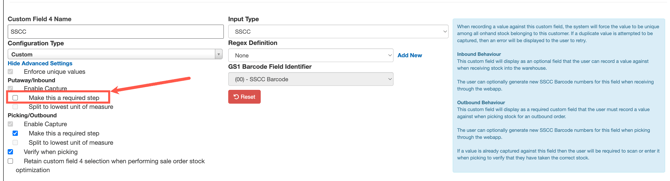
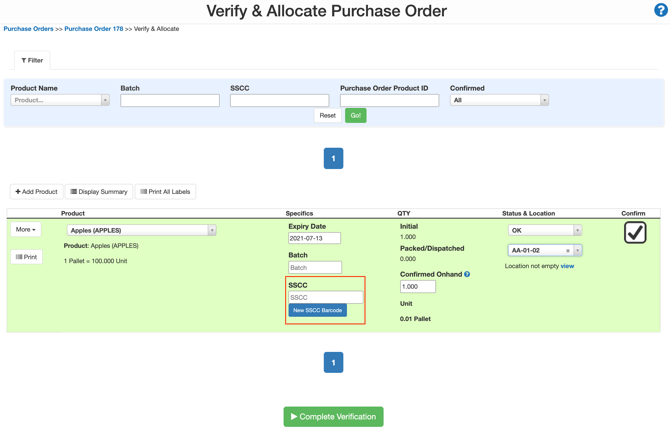
- This will create a New SSCC Barcode button on the verify Purchase Order page and pack Sale Order page.
- For other custom fields, such as "Serial Number", link them to the correct GS1 Barcode Field Identifier. This will allow them to be printed on the labels. It's important to note that CartonCloud supports printing two Custom Fields onto the labels (plus SSCC in addition).
Example of the New SSCC Barcode button on the Purchase Order Verification Screen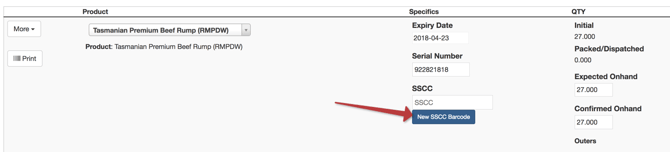
How to link custom fields to GS1 Barcode Field Identifiers
A GS1 barcode carries several pieces of data. Each piece starts with a GS1 Application Identifier (AI), a short code that tells the scanner what the data is. For example, (00) is the SSCC, (10) is the batch or lot number, and (17) is the expiry date. Linking a custom field to its GS1 Barcode Field Identifier tells CartonCloud which value to read into that field when you scan, and which value to print on the SSCC label.
- Navigate to the Customer's Purchase Order Products tab (Contacts > Customers, select the Customer, click Edit, then select Warehouse Management > Purchase Order Products).
- For each custom field you want to capture from GS1 barcodes (for example, Batch Number), select the matching option in the GS1 Barcode Field Identifier field.
- To capture an expiry date, select the matching option in the Expiry Date GS1 Barcode Field Identifier field.
- Click Save.
Note: SSCC labels print the SSCC plus up to two other custom fields.
How to generate an SSCC when receiving a Purchase Order
Note, you can only generate an SSCC when using the web application, not the mobile application.
You have the option of generating an SSCC when either receiving a Purchase Order (stock coming into the warehouse) or when packing a Sale Order (stock leaving the warehouse). However, it is recommended that you generate the SSCC when packing the Sale Order (stock leaving the warehouse).
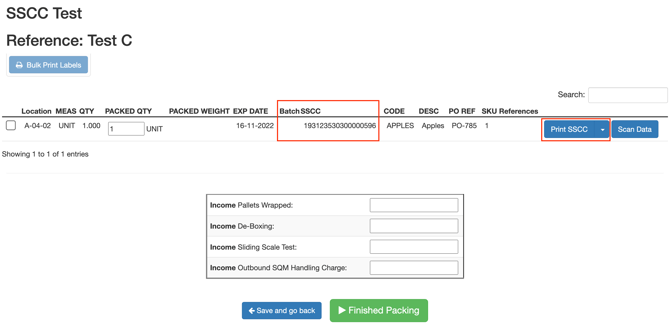
When packing the Sale Order on the web app:
-
Navigate to the Sale Orders page, Warehouse>Sale Orders.
-
Select the Sale Order you wish to pack.
-
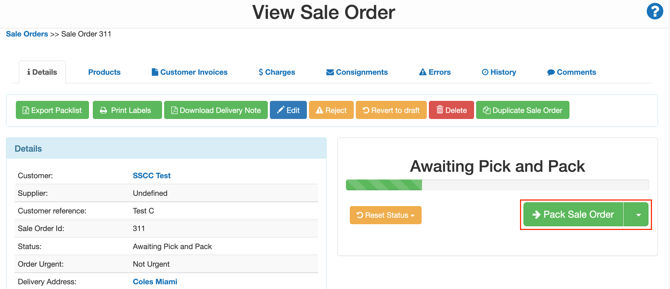
Ensure the Sale Order is in the Awaiting Pick and Pack status (if it is not, select Approve).
-
Select Pack Sale Order.
-
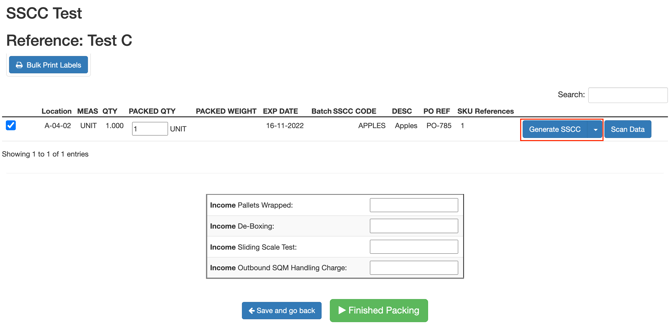
Select Generate SSCC.
-
Alternatively, you can select the arrow and select Set Manually from the drop-down menu. This will prompt you to fill in the SSCC field manually.
-
The SSCC field will then be filled with the SSCC number.
-
You then have the option to print the SSCC label by selecting Print SSCC.
How to generate an SSCC when receiving a Purchase Order
-
Navigate to the Purchase Order page, Warehouse > Purchase Orders.
-
Select the relevant Purchase Order.
-
Ensure the status of the Purchase Order is Received.
-
Select Verify Purchase Order Products.
-
Select the New SSCC Barcode button to generate the SSCC.
-
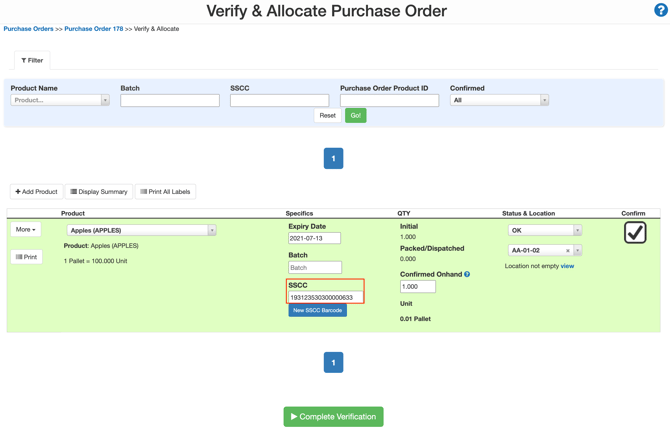
The SSCC number will now be visible in the SSCC field.
How to generate SSCC in bulk on a Purchase Order
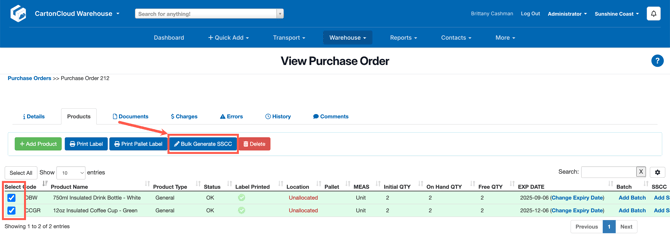
You can generate SSCC for products on a Purchase Order in bulk. To do so:
- Navigate to the relevant Purchase Order, Warehouse > Purchase Orders.
- Select the Products tab.
- Select the products you wish to generate the SSCC for.
- Click Bulk Generate SSCC.
SSCC Scanning in Putaway Mode (Android)
CartonCloud now supports SSCC barcode scanning directly within Putaway Mode on Android devices. This means warehouse operators can capture GS1 barcode data — including Batch or Lot, expiry, and quantity — at the point of putaway, without any manual data entry.
You can find the step by step guide here: SSCC Scanning in Putaway Mode (Android)