
Table of Contents
- What is a Sale Order
- How to create a Sale Order
- Sale Order process flow in CartonCloud
- Sale Order list view
What is a Sale Order
When stock leaves your warehouse, a Sale Order is the document's name, which records that stock's movement within CartonCloud.
How to create a Sale Order
A Sale Order can be created by:
-
By yourself manually in CartonCloud.
-
By your Customers in CartonCloud through their login.
- Automatically by Parsers.
Sale Order Process Flow in CartonCloud
The diagram below steps through the Sale Order Process and the different statuses a Sale Order will move through in CartonCloud.

If Warehouse Fulfilments are enabled, the Sale Order will move through different statuses to complement the Pack Screen workflow:

Draft
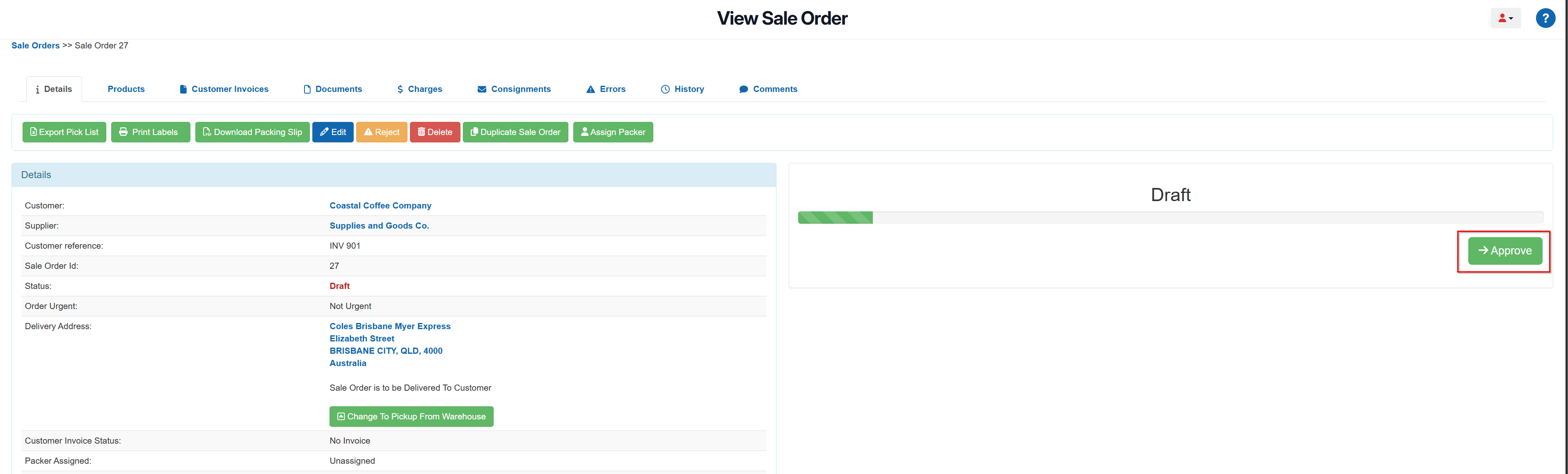
The Sale Order has been created but is not yet approved. To be able to approve the Sale Order, products must be associated with the order. To move the status to Awaiting Pick and Pack, the order must be approved, and this needs to be done manually within the Sale Order. This status is only applicable for Sale Orders that have been entered manually.
To approve the Sale Order and move it to Awaiting Pick and Pack status:
-
Select the green Approve button from the View Sale Order > Details page.
Awaiting Pick and Pack
The order has been approved, is now visible to warehouse staff, and is ready to be picked and packed. To begin packing the Sale Order, you must click Pack Sale Order.
Packing in Progress
The order is currently being packed.
Picking in Progress (Warehouse Fulfilments enabled only status)
The order is currently being picked.
Picked (Warehouse Fulfilments enabled only status)
The order has been picked.
Packed
The order has been packed and is ready to be dispatched. By default, this status is turned off so that when a Sale Order is packed, it will move straight from Awaiting Pick and Pack to Dispatched. To enable this status and manually move the order to Dispatched, you will need to configure this in the Customer Settings (see Automatically updating Sale Orders to Dispatched).
Dispatched
The Sale Order has been dispatched, and the Sale Order Warehouse process is now complete. If you have the CartonCloud Transport Management System and the correct setting is configured, the Sale Order will automatically create a Consignment, and the transport component of the process can begin (see Generating a Consignment from a Sale Order).
Rejected
When a Sale Order fails to import into CartonCloud. See Rejected Sale Orders for more information.
Sale Order List View
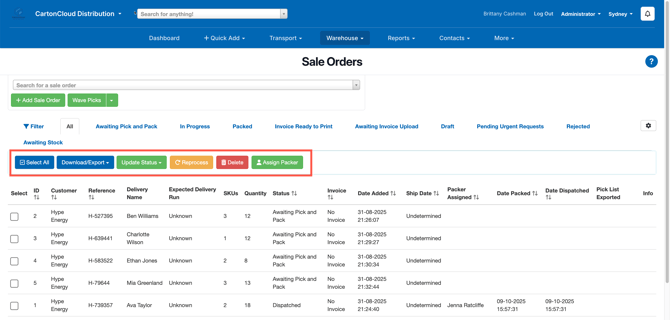
From the Sale Order List View, you can filter orders using the filter tab or use the pre-defined status filter tabs, such as 'Awaiting Pick and Pack', to show all orders in the status of Awaiting Pick and Pack. The available filters allow you to narrow down orders based on various criteria, including dates, status, customer and product, making it easier to find and prioritise orders.
In addition, you can use the action buttons at the top to perform tasks on individual orders or in bulk. To do so in bulk, select the tick box beside the orders you wish to perform the action on or click Select All.
| Button | Action |
| Select All | Select all orders on the page. Upon selecting this button you will be asked if you would like to select all orders on other pages as well. |
| Download/Export | Option to either export pick list, packing slip or download all invoices that are ready to print. |
| Mark Packed | Mark the order/s as packed |
| Re-process Orders | Re-process the selected order/s that are rejected. |
| Delete | Delete the order |
| Assign a Packer | To assign a packer to the Sale Order. This will show on the mobile and web app. See How to assign a packer to a Sale Order for more information. |