
🔔 Note: this article is part of the CartonCloud Academy - WMS Charging Trail. Please ensure you have read Introducing Warehouse Charging first. 🎓
Now that you know what a Rate Card is and how automatic charging in CartonCloud works, we can cover one of the first types of charges found within the Rate Card, Purchase Order and Sale Order Charges.
What are Purchase Order and Sale Order Charges?
Purchase Order and Sale Order charges are charges applied to individual Sale Orders and Purchase Orders and are set up from within the Rate Card. There are various charges within the Purchase Order and Sale Order Charges section of the Rate Card, which will be covered in greater detail in the coming units. These charges help cover the costs of managing and creating orders for your customers.
Where can Purchase Order and Sale Order Charges be found on the Rate Card?
- Navigate to the relevant Rate Card, More>Rate Cards.
- Select the relevant Rate Card.
- Select the Details tab.
- Under Warehouse Charges, you will see Sale Order and Purchase Order Charges.
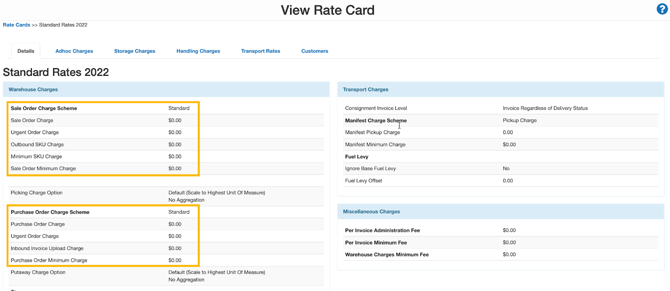
How are Purchase Order and Sale Order Charges calculated?
Purchase Order and Sale Order Charges are applied on a per-order basis. For example, the Sale Order Charge is applied per Sale Order, and the Outbound SKU Charge is applied per order per the number of unique products on the order. The rates for these charges are taken from the Customer’s Rate Card, automatically applied to the orders and then added to the Customer’s Invoice.
Creating Purchase Order Charges
Purchase Order charges cover the costs associated with creating and managing Purchase Orders in your warehouse. There are a number of different Purchase Order Charges you can apply to your Customer’s Rate Card and consequently your Customer’s Purchase Orders.
Follow along with Brittany as she explains how to create a Purchase Order Charge in your Customer’s Rate Card.
Purchase Order Charge Scheme
Before you create your Purchase Order Charges you need to first select your Purchase Order Charge Scheme. The Purchase Order Charge Scheme determines how your Purchase Order Charges are configured and calculated. You have two different schemes to choose from:
- Standard: charges per order fees.
- Percentage of value: charges percentage of the Purchase Order value. For example, if the value of a Purchase Order is $200 and you have a percentage of value percentage of 10%, the charge would be $20.
The charge scheme that you select will determine what charges are available for you to configure for your Purchase Order.
(Standard) Purchase Order Charges
|
Charge Name |
Charge Explanation | |
|---|---|---|
| Purchase Order Charge | A per order administration fee. This charge is applied to every Purchase Order. | |
| Inbound Invoice Upload Charge | Charge for uploading an invoice file or document to the Purchase Order. | |
| Urgent Order Charge | The additional charge to be applied to the order if the customer select that the order is urgent. | |
| Purchase Order Minimum Charge | The minimum charge for a Purchase Order. For example, if the minimum charge is $10 and all other charges added together come to $7 then the minimum charge would be applied and the charges would come to $10. |
(Percentage of value) Purchase Order Charge
| Charge Name | Charge Explanation |
|---|---|
| Purchase Order Charge Percentage | This is the percentage of the Purchase Order value that should be charged. The value of the Purchase Order is recorded against the Purchase Order in the Purchase Order Value field. |
Creating Sale Order Charges
Sale Order charges cover the costs associated with creating and managing Sale Orders in your warehouse. There are a number of different Sale Order Charges you can apply to your Customer’s Rate Card and, consequently your Customer’s Sale Orders.
Follow along with Brittany as she explains how to create a Sale Order Charge in your Customer’s Rate Card.
Sale Order Charge Scheme
Before you create your Sale Order Charges, you need to first select your Sale Order Charge Scheme. The Sale Order Charge Scheme determines how your Sale Order Charges are configured and calculated. You have two different schemes to choose from
- Standard: charges per order fees.
- Percentage of value: charges percentage of the Sale Order value. For example, if the value of a Sale Order is $200 and you have a percentage of value percentage of 10%, the charge would be $20.
(Standard) Sale Order Charges
| Charge Name | Charge Explanation |
|---|---|
| Sale Order Charge | A per order administration fee. This charge is applied to every Purchase Order. |
| Urgent Order Charge | The additional charge is to be applied to the order if the customer selects that the order is urgent. |
| Outbound SKU Charge |
The charge for each different SKU (different product) added to the Sale Order. For example, picking 100 cartons of one product would most likely be faster than picking 20 cartons for 5 different products. Therefore, by implementing an SKU charge, you are covering for the extra time and effort required for products with more than one SKU. The SKU charge is counted as the number of different products added to the order. The number of unique products x outbound SKU charge = SKU charges |
| Minimum SKU Charge | The minimum SKU charge is implemented when the SKU charge does not meet the minimum. The Minimum SKU charge is applied per product. |
| Sale Order Minimum Charge | The minimum charge for a Sale Order. For example, if the minimum charge is $10 and all other charges added together come to $7 then the minimum charge would be applied, and the charges would come to $10. |
(Percentage of value) Purchase Order Charge
| Charge Name | Charge Explanation |
|---|---|
| Sale Order Charge Percentage | This is the percentage of the Sale Order value that should be charged. The value of the Sale Order is recorded against the Sale Order in the Sale Order Value field. |
The charge scheme that you select will determine what charges are available for you to configure for your Sale Order.
▶️ Follow along in the WMS Charging Trail...next up is Introduction to Handling Charges 🎓