
🔔 Note: this article is part of the CartonCloud Academy - TMS Basic Setup Trail. Please ensure you have read Introduction to Consignments first. 🎓
What is a Run Sheet?
Run Sheets are used to allocate Consignments to a driver. The Run Sheet contains all the Consignments going with a single driver for that day. For example, deliveries for a single day on the Delivery Run ‘Gold Coast’ might be split up across multiple Run Sheets (East, North, West), and each Run Sheet is allocated to a different driver.
For Nick from Coffee Warehousing and Distribution, this means he will have a different Run Sheet for each of his eight drivers for each day. This will make it easier to manage workloads, organise deliveries and ensure each driver knows what they will be delivering for the day.
How to create a Run Sheet
There are a few different ways to create Run Sheets in CartonCloud and allocate Consignments and a driver to the Run Sheet. How you conduct this process will depend upon your operational requirements and workflows. The different ways you can create a Run Sheet include:
- From the Run Sheet page
- From the Consignments page (whilst allocating Consignments and a driver to the Run Sheet in the same process)
- From the Delivery Runs page (whilst allocating Consignments and a driver to the Run Sheet in the same process)
- When using the Bulk Allocations function (covered in a later unit)
Follow along with Vincent as he talks through two ways you can create a Run Sheet whilst also allocating Consignments to the Run Sheet (from the Consignments page or the Delivery Runs page)
How to use the Bulk Allocation screen
Follow along with Vincent as he explains how to use the Bulk Allocation page in CartonCloud.
Customising the Bulk Allocation screen
Nick is excited to use the Bulk Allocation screen to allocate Consignments to Run Sheets and Drivers. Nick also sees that he can customise his Bulk Allocation screen. You can configure specific controls and settings to customise the bulk allocation screen to best suit your operational needs.
Check out this page here for more information on how to customise your Bulk Allocation screen.
How should I allocate my Consignments?
In this module, we have covered four ways in which you can create Run Sheets and allocate Consignments to Drivers.
- From the Run Sheet page
- From the Consignments page (whilst allocating Consignments and a driver to the Run Sheet in the same process)
- From the Delivery Runs page (whilst allocating Consignments and a driver to the Run Sheet in the same process)
- When using the Bulk Allocations function (covered in a later unit)
Nick knows that he will be using a combination of methods, including the Bulk Allocation screen and from the Delivery Runs page. As you start using CartonCloud, you can test out each different allocation method and see which one works best for your operations and workflows. However, if you are still unsure, you can check out the Which way should I allocate my Consignments page in the Knowledge Base.
Managing Run Sheets in CartonCloud
Now that you know how to create a Run Sheet, it is time to learn how you can use your Run Sheet in your day to day operations!
Nick has decided he will create his Run Sheets from within the Delivery Run and also using the Bulk Allocation screen. Once he creates the Run Sheets, he can complete tasks and access different functionality from within the Run Sheet and on the Run Sheets page. We will cover the different functionality available from within the Run Sheet and on the Run Sheets page.
From the Run Sheets page
Once on the Run Sheets page, Transport>Run Sheets, there are a number of different functions you can action.
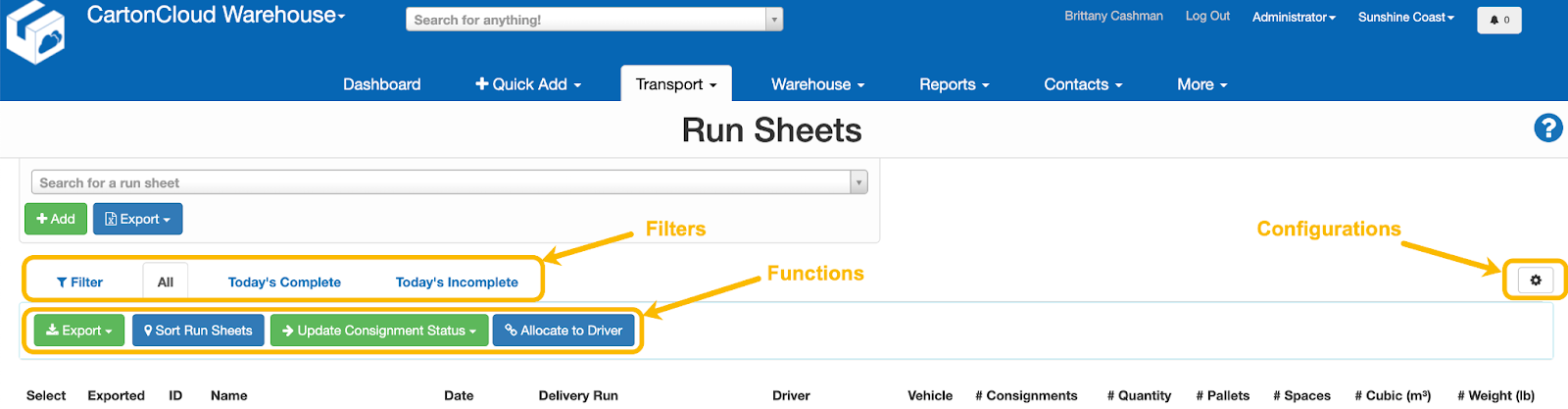
Filters
By using the filters on the Run Sheets page, you can easily manage your Run Sheets and filter the page to only see a selection of Run Sheets that you wish to see. When you click Filter, there are several options for filtering the Run Sheets page, including Delivery Run, Driver, Date, Complete, Delivered, Exported and Vehicle.
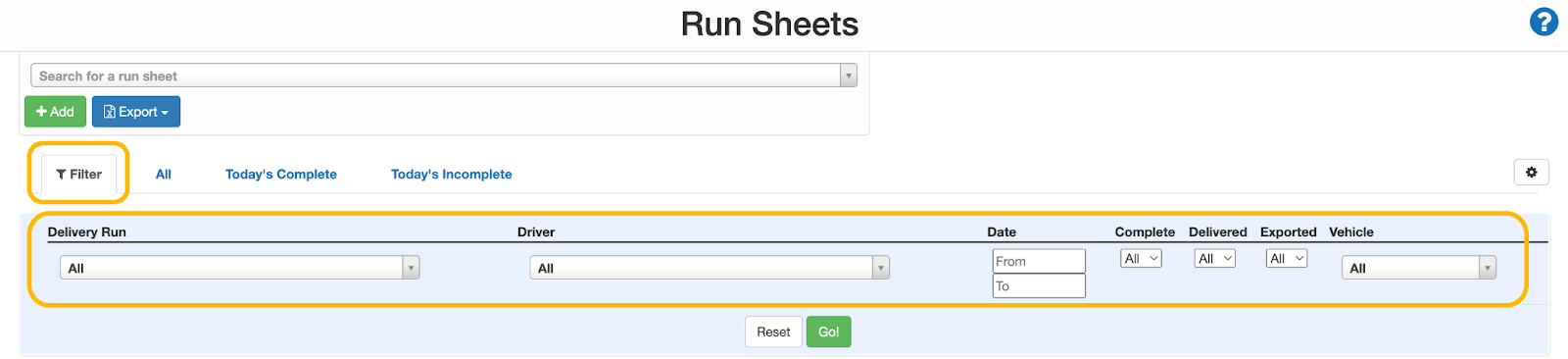
You can also use the Today’s Complete and Today’s Incomplete tabs to manage drivers' workloads and progress.
Functions
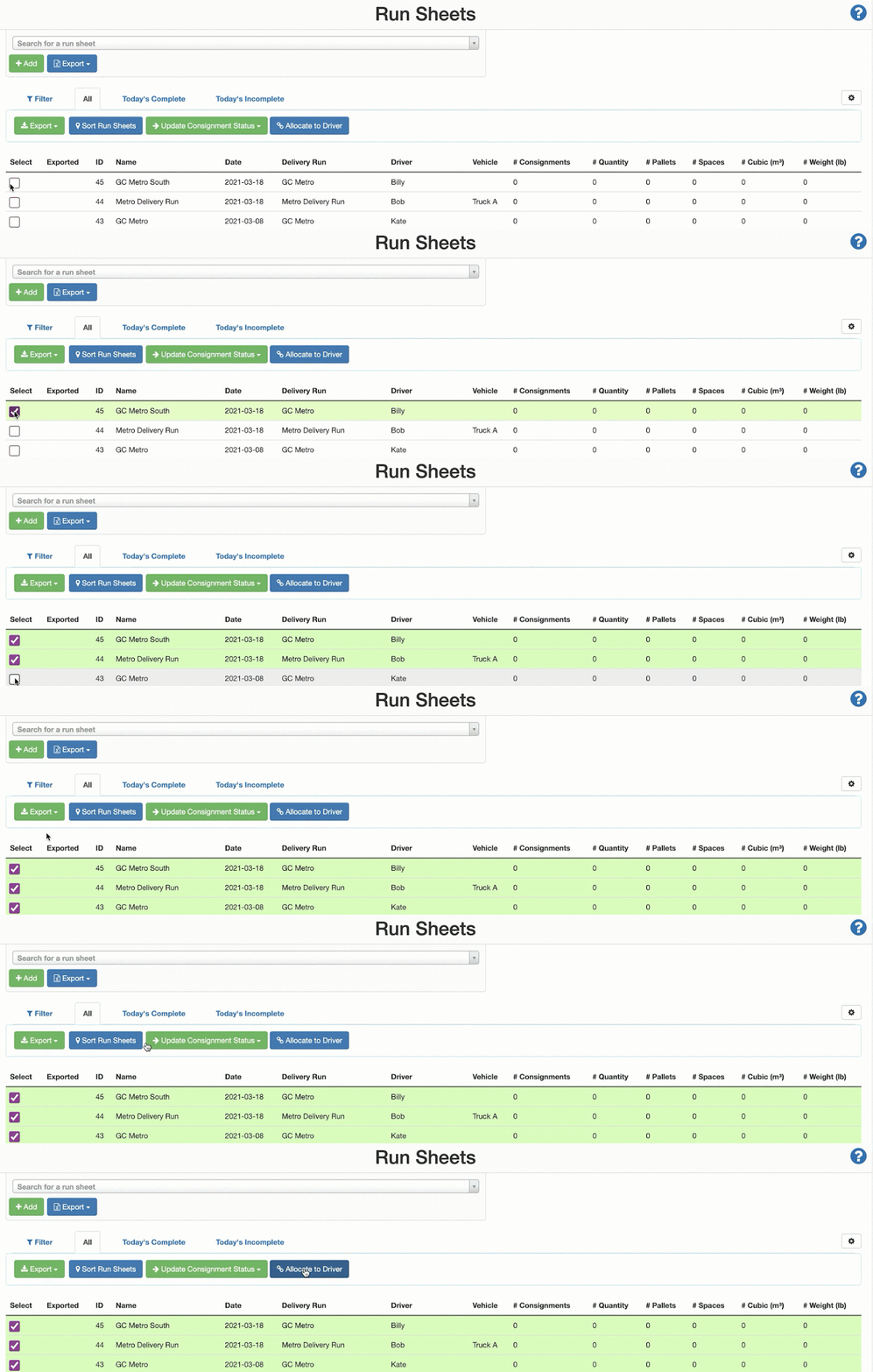
Before using the different functions, you will need to use the select function on the far left to select the Run Sheets to which you wish to apply the function.
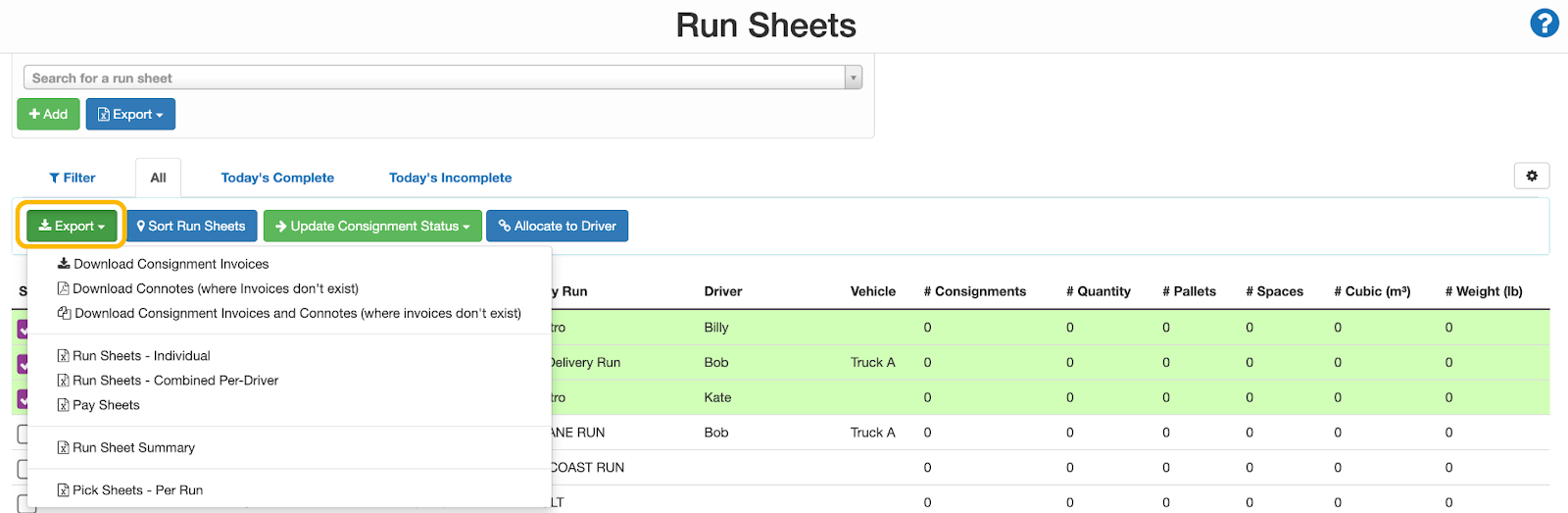
Export
When you click Export, you have multiple options of what documents you would like to export.
Sort Run Sheets
When you sort a Run Sheet, you are presented with a map view of the Consignments on that Run Sheet/s and can change and optimise the order of the Consignments on the Run Sheet. You can sort a single Run Sheet or select multiple Run Sheets and sort them simultaneously.
- Select the Run Sheet/s you would like to sort.
- Click Sort Run Sheets.
- Use the map to work out what Consignments you need to reorder, and using the delivery location names on the far right panel, move the titles into the order you desire.
- Click Save Consignment Order.
Update Consignment Status
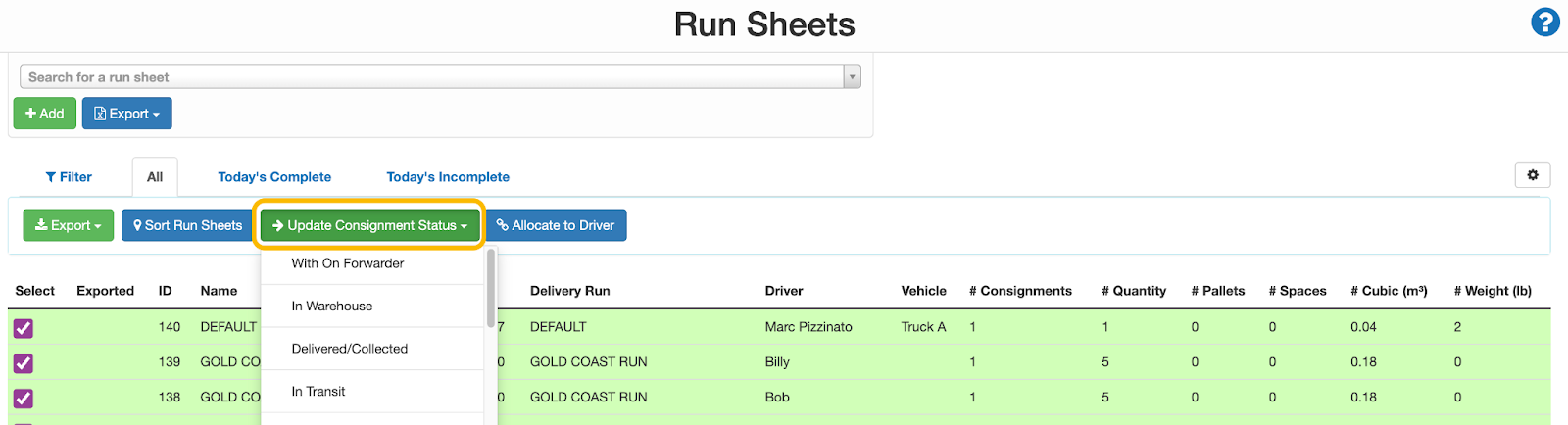
Using the Update Consignment Status button allows you to update the status of all the Consignments on a given Run Sheet. This is useful as it will enable you to update the status of Consignments in bulk.
- Select the Run Sheet/s you wish to update.
- Click Update Consignment Status.
- Select the status you wish to update the Consignment to.
Allocate to a Driver
- Select the Run Sheet/s you wish to allocate a driver to.
- Click Allocate to Driver.
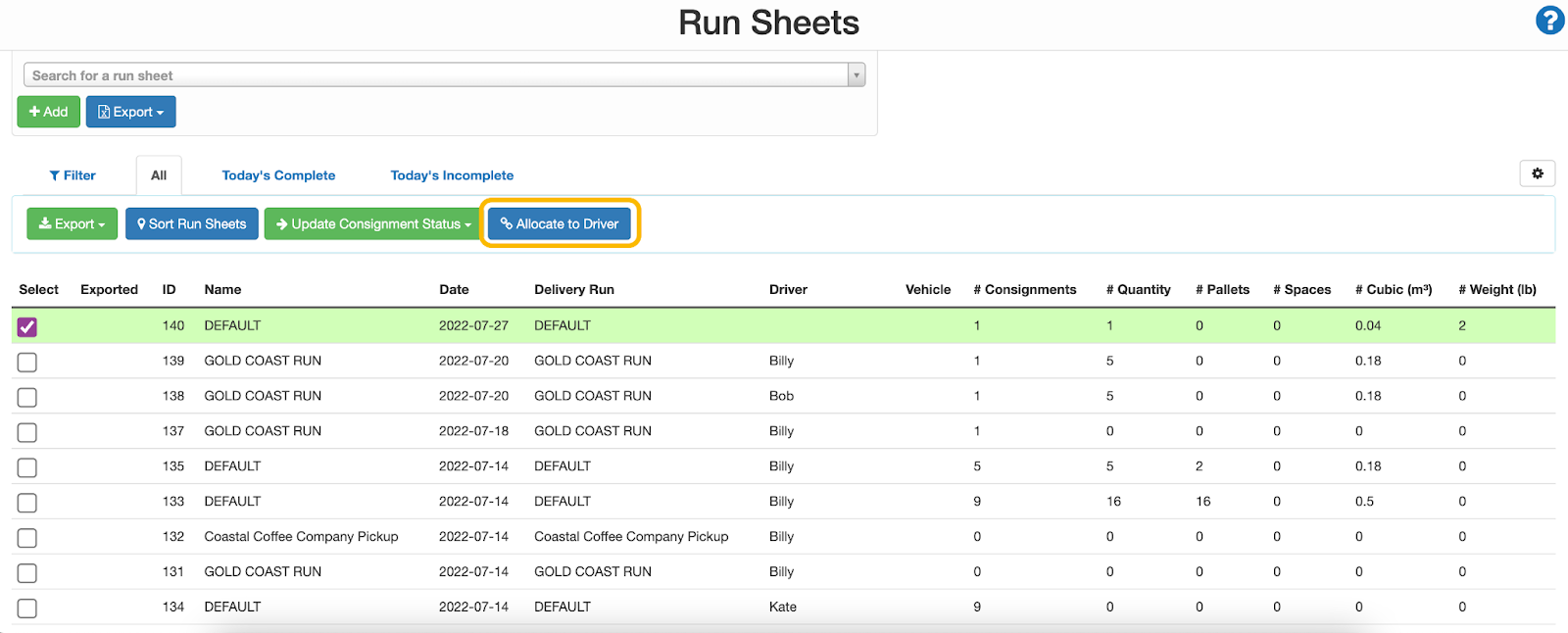
- Select the driver from the drop-down and click Update.
Run Sheets List Configuration
Using the configuration button, you can choose what headings and data you want to see on the Run Sheets list view.
How to customise the Run Sheets list view:
- Select the configuration cog icon in the top right corner.

- A pop-out window will appear. From here, you can choose the data columns to be visible on the Run Sheets List view.
- To add a data column, click the tick box next to the relevant data.
- To remove the data column, un-select the tick box.
- To view completed and non-completed Run Sheets, select the 'Complete' data column. You can also include the '#Incomplete Consignments' and '#Complete Consignments' data columns to track the number of consignments that have been delivered and the number left to be delivered.
- Select Save at the bottom of the window once all relevant data columns have been selected.
▶️ Follow along in the TMS Basic Set Up Trail...next up is Get Started with Parsers - Transport 🎓