
🔔 Note: this article is part of the CartonCloud Academy - TMS Basic Setup Trail. Please ensure you have read Transport Products in CartonCloud first. 🎓
What is a Consignment?
A Consignment in CartonCloud is a transport job. This is the job your driver is delivering on behalf of your customer.
Consignment Types
There are a number of different types of Consignments you can create in CartonCloud. These include
- Delivery
- Pickup
- Point to Point
- Pickup + Delivery
The type of Consignments you create and how you choose to manage your Consignments will depend upon your operational requirements and setup.
For example, Nick knows that one of his customers Coastal Coffee, store most of their products at Coffee Warehousing and Distribution; however, also keep some of their stock at their own warehouse. Therefore, sometimes they will need to first pick up the freight from Coastal Coffee before bringing it back to the warehouse to sort and then later deliver. For this scenario, Nick can create a Pickup Consignment.
Delivery Consignment
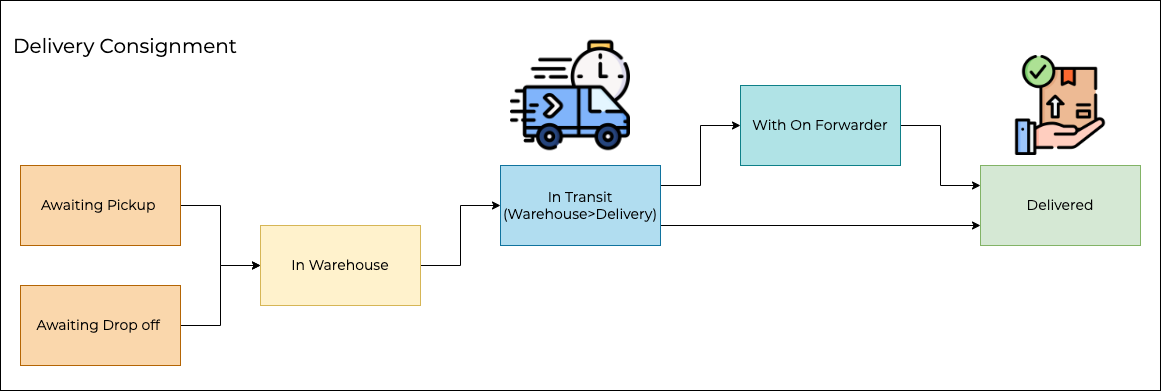
The most common type of Consignment. Delivery Consignments only contain a delivery component. This means the driver will not be given a collection address or the option to collect a signature at the time of collection. This Consignment type is usually best for freight leaving a designated warehouse.
Pickup Consignment
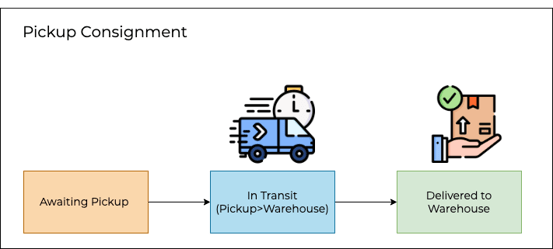
Pickup Consignments are used for collecting freight and returning it to a set warehouse. This type of Consignment will only contain a pickup component.
Point to Point Consignment
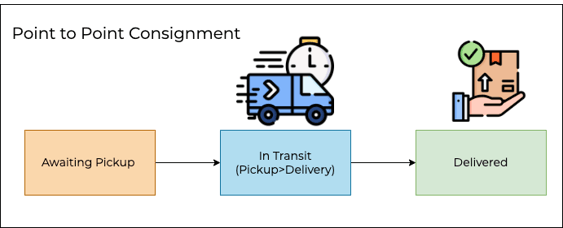
Point-to-Point consignments contain both a Pickup and Delivery component. This allows a driver to collect a signature at both the collection and delivery points within a single Consignment.
Pickup + Delivery Consignment
This Pickup + Delivery Consignment type creates two separate consignments, one for Pickup and one for Delivery. These two consignments are linked to each other by a parent-child relationship.
Consignment Statuses
Depending on the type of Consignment you select will dictate the statuses the Consignment will move through. The status is used to communicate at what point the Consignment is at in the process, increasing visibility and transparency.
| Status | Description |
|
Awaiting Sale Order Packing |
The Sale Order associated with the Consignment has not yet been packed. |
|
Awaiting Pickup |
The Consignment is yet to be collected by the driver. This status is only for Consignments that require a pickup. |
|
In Warehouse |
The Consignment is in the warehouse and is ready to go out for delivery. |
|
Awaiting Pickup (Point to Point) |
The Consignment is yet to be picked up by the driver. This status is only for Consignment types of Point to Point. |
|
In Transit (Pickup->Warehouse) |
The Consignment has been collected by the driver and is en route to the warehouse. This status is only for Consignments that require a pickup and are coming back to the warehouse. |
|
In Transit (Warehouse->Delivery) |
The Consignment has left the Warehouse and is with the driver en route to its delivery location. This status is for Consignments that are already at the warehouse. |
|
In Transit (Pickup→Delivery) |
The Consignment has been picked up and is with the driver and en route to its delivery location. This status is for Consignments that require a pickup. |
|
With On Forwarder |
If the Consignment is travelling with an On Forwarder and the Consignment has been handed over for delivery (left the Warehouse). |
|
Delivered to Warehouse |
The Consignment has now arrived at the Warehouse. This status is for pickup Consignments that do not require delivery and are coming back to the Warehouse. |
|
Delivered |
The Consignment has been delivered to its final destination. |
|
Delivered (Point to Point) |
The point to point Consignment has been delivered to its final destination and is now complete. |
Add a Consignment
Now that you understand what a Consignment is, it is time to create one! There are many ways you can create Consignments. You can:
- Manually add a Consignment
- Your customers can manually add a Consignment through their log in
- You can use a Parser and upload multiple Consignments at once (covered in a later module)
In this unit, we will cover how to add a Consignment manually. Follow along with Vincent, as he shows you how to add a Consignment.
▶️ Follow along in the TMS Basic Set Up Trail...next up is Run Sheets and Allocation in CartonCloud 🎓