
Table of Contents
Purpose
The View Sale Order page provides you with full control over your Sale Order after the creation stage.
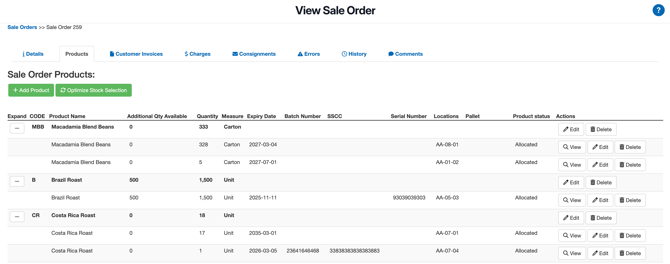
View Sale Order Tabs
Details
The details tab allows you to progress through the statuses of the Sale Order. It also allows you to Edit, Reject (in the case where you have customers submitting Purchase Order) and Delete the Sale Order.
The information provided in the details box provides an overview of key details surrounding that particular Sale Order such as its reference, Delivery address and instructions and if it's being invoiced to a customer or not. The "Specifics" box provides more detailed information including which Warehouse the stock is entering. It also provides an option to Upload a Customer Invoice against the order.
If the Sale Order is associated with a Consignment and needs to be picked up from the warehouse this information will be displayed under the delivery address. However, once the Consignment has been collected this information will no longer be diplayed.
Additionally, you can roll back the Purchase Order from this page using the Reset Status button (once approved).
Products
The Products tab allows you to add and view the stock associated with the Sale order.
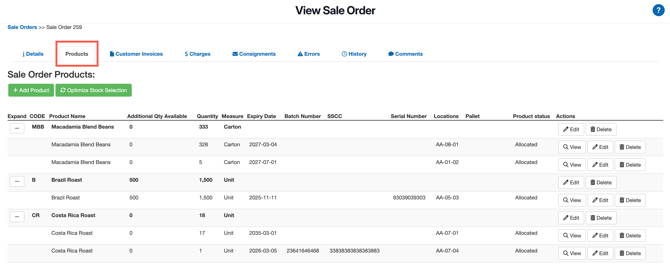
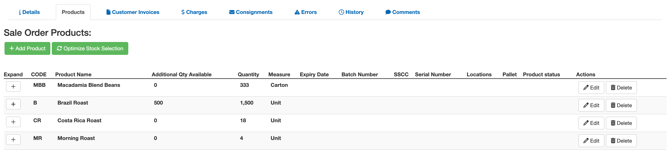
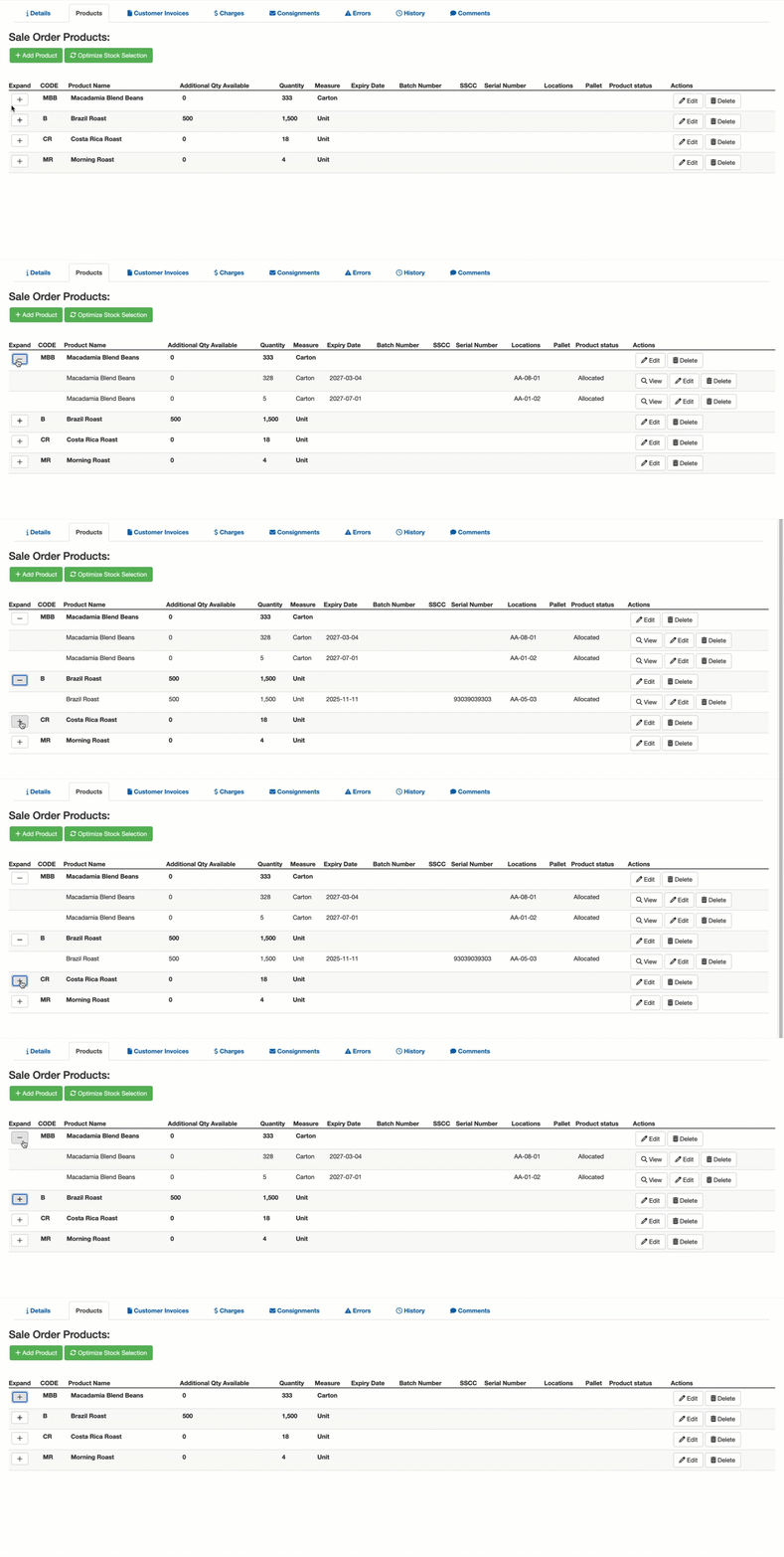
When viewing the products you have the option to expand or collapse the summary lines which are displayed per product. If the Sale Order contains more than 100 items it will load as collapsed by default and smaller orders will load with all product lines visible.
Product lines collapsed
Product lines expanded
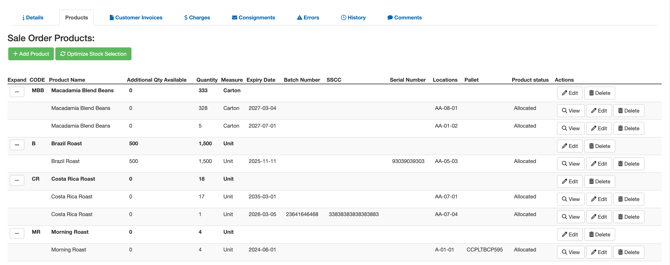
How to expand and collapse
- Use the expand collapse icons on the far left to expand or collapse the product lines.
Unassign stock
Before an order is in a status of 'Awaiting Pick and Pack' you have the option to unallocate stock from a SOP (Sale Order Product) line. If you unallocate stock from an SOP line the line's requested quantity will remain, therefore, you will not lose the ability to see how much stock was originally requested. Once the order is in 'Packing in Progress' you will no longer have the ability to unallocate stock and if you have unallocated stock it will warn you before approving the order and then remove the unassigned products.
The unassign stock option allows for greater flexibility in order management and stock allocations according to real-time needs without the risk of losing track of order quantities. Therefore, you can more effectively manage inventory and order fulfilment processes, leading to improved operational efficiency and customer satisfaction.
To unassign stock:
- Navigate to the relevant Sale Order.
- Select the Product tab.
- Against the product summary row or against the individual product lines select the Unassign button.
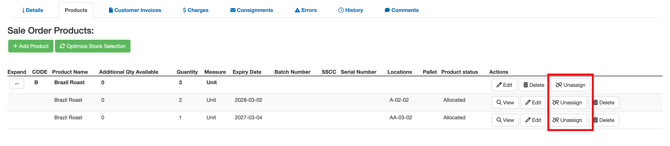
- Once you have unassigned a product or product line you will then see a Assign button with the option to assign the stock.
Note that once stock has been unallocated the history will show any additional changes to allocation of stock in an aggregated format into one SOP and combine the quantities.
Add a product
-
Select +Add Product.

-
Select the relevant Product from the drop-down menu and Unit of Measure.
-
Type in the quantity.
-
Click Search.
-
Select Take Stock.
Stock Optimisation Stock Selection Lock
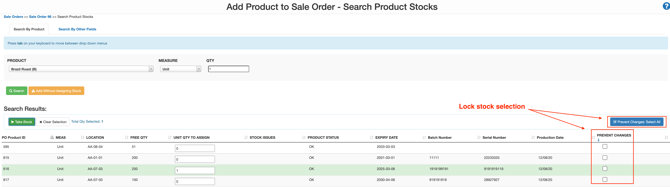
When selecting the stock to add to the Sale Order, you have the option to lock the stock selection and prevent CartonCloud from changing what stock is associated with the Sale Order when conducting the stock optimisation process.
To do so, tick the Prevent Change box next to the product or to select all, select Prevent Charges: Select All.
Optimise Stock Selection

By selecting Optimise Stock Selection, CartonCloud will use the Stock Selection Method specified for the Product to re-optimise the stock selection for the Sale Order.
See How CartonCloud chooses outgoing stock - Stock Selection Methods for more information.
Actions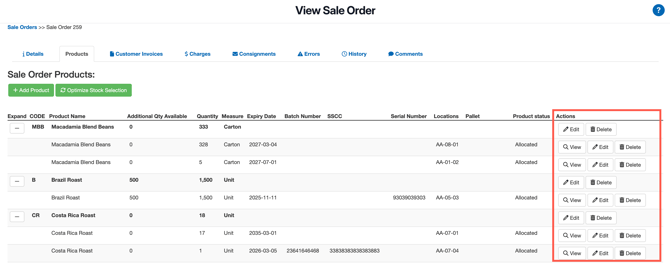
Edit
Select Edit to edit the quantity of the Sale Order Product. See Adjusting Stock Quantity for more information.
Delete
To delete the stock from the Sale Order.
View
To view the Sale Order Product.