
🔔 Note: this article is part of the CartonCloud Academy - WMS Basic Setup Trail. Please ensure you have read Learn about Warehouse Locations first. 🎓
What are Products?
Products in CartonCloud are not the stock itself but rather the SKU or Product Master. In other words, a Product is a template that stores information, characteristics and rules associated with a particular item in your warehouse.
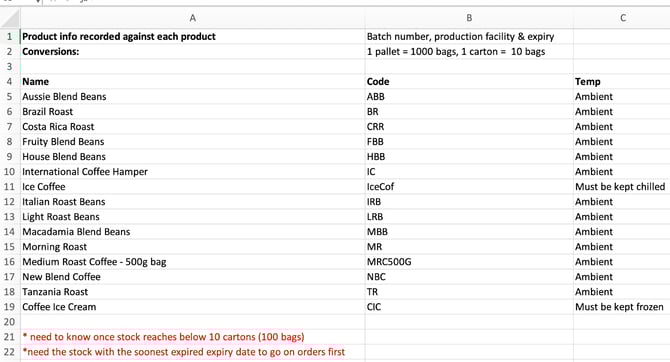
For example, Nick has received a list of products from his customer Country Roasters. Nick will need to add these products into CartonCloud so that when his customer sends through new orders, the information about the product is already there in CartonCloud.
Products are customer-specific. Each of your Customers will have a number of Products that only apply to them.
Product Settings
Products are highly customisable, meaning you can configure them to meet your customer’s requirements, operational needs, and workflows. How you set up your Product impacts the stock allocation and charging logic.
Product Settings can be configured when adding a Product and, once created, can be edited at any time.
For example, Nick’s customer, Country Roasters, has requested that the stock with the first expiry date is added to orders first. The customer has also requested that they be notified when the stock reaches a certain threshold. All of these requirements can be set up in the Product Settings.
Product Types
Nick’s customer has also flagged some Products on the list as needing to be kept chilled or frozen. Nick can select the appropriate Product Type from the Product Settings to match the temperature requirements. For example, he will give the Product Ice Coffee, a Product Type of Chilled.
Product Statuses
Product Statuses are similar to Product Types in that they help communicate more information about the Product; however, the Product's status can change depending on the conditions of the product and uncontrollable variables in the order lifecycle. For example, if a Product is damaged during transit, you can update the state of the stock to ‘Damaged’.
Every product will have a default status; however, the status of the stock can then be updated at any point during the inbound and outbound process.
You can also choose which Product Statuses don’t count towards storage charges. For example, if stock is missing and you update the status to ‘Missing’, you won’t want to charge storage as you don’t have it!
There are some Product Statuses already loaded into CartonCloud, such as ‘Damaged by Carrier’ and ‘Quarantine’; you can choose to use these statuses or create your own. Follow the instructions on this page to create your own Product Statuses.
Now that Nick understands what a Product is, he is ready to start adding the Products into CartonCloud for his customer, Country Roasters.
How to create a Product
Now that you know what a Product is in CartonCloud, it is time to create a Product in your account!
Nick is going to choose the product ‘House Blend Beans’ from the list of products his customer gave him as the first Product to create.
If you are following along in your account, we suggest you create a product for the customer you already set up in your account.
Nick needs to follow the instructions specified on the product list given to him by his customer. To meet the requirements specified on the list, he will need to make sure he:
- Sets up the correct Product Unit of Measure conversions (as specified on the list)
- He will need to choose FEFO (first expiry first out) as the stock selection method as the customer has requested the stock with the first expiry be selected first.
- He will need to select ‘Enable low stock notification’ and enter 100 bags as the low stock threshold. This means the customer will be notified once the product reaches 100 bags.
- Select Ambient as the Product Type.
- The batch number, production facility and expiry date fields will need to all be set up from the Customer Settings as Purchase Order Product Custom Fields and Product Custom Fields, as covered in previous units. For more information, see Setting up Custom Fields for Purchase Order Product Custom Fields.
Follow along with Vincent as he steps through how to create a Product in CartonCloud.
Note that you will have to select a Stock Selection Method for the Product you are creating. The Stock Selection Method determines how CartonCloud will choose which stock will go out on an order. Please see this article for more information.
How to create Products via export/import
Now that Nick has created one Product for his customer, Country Roasters, he is ready to create the rest. When creating multiple Products, you should use the export/import function to do so.
What is the export/import function?
The export/import function allows you to export your current Products in an excel document format, edit the existing products or add new ones to the document, and then import them back into CartonCloud. When you import the document back into CartonCloud, any updates or new Products on the document will be updated in CartonCloud. This is a great way to create Products when your customer has sent through a long Product list, and the Products have similar settings (which means you can copy and paste a lot of the data!).
How to create Products via export/import
Follow along with Vincent as he shows you how to create new Products via export/import.
Since Nick has his list of Products from his customer, this process will be even easier! All Nick needs to do is export his list of Products from CartonCloud, add the new Products to the document and import them back into CartonCloud. Once he has imported the file, the new Products will be created in CartonCloud.
Tip: if you only wish to create new Products for one Customer at a time and copy the settings you already have for their existing Products, then it is suggested you filter the page before exporting. Using the filter option of Customer, select the relevant Customer and then click Export Products.
▶️ Follow along in the WMS Basic Set Up Trail...next up is Get started with Parsers - Warehouse 🎓