
Table of Contents
Purpose
Product Settings allow you to configure and customise the Product to best suit your operational and Customer needs.
How to access Product Settings
- Navigate to the Products page, Warehouse>Products.
- Select the relevant Product.
- Click the green Edit button in the top left corner.
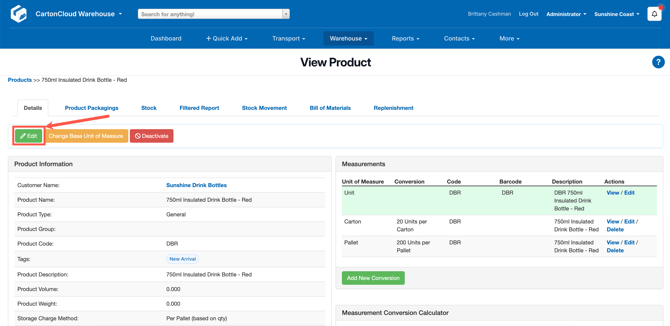
Edit Product Settings in Bulk
To edit Product Settings in bulk, please see Exporting and Importing Products.
Product Settings/Fields
| Product Setting | Explanation | Example |
| Name | The name of the product | Beef Pie 1 x 110gm |
| Product Code |
The code / SKU for the Product. This code is used when importing new orders via Parsers. Special characters ARE NOT supported in the Product Code. |
BEEF110 |
| Tags |
The Tags added against the Product. See Tags for more information. |
|
| Description | Additional information about the Product. This description can be used on documents such as Picking Slips and Consignment Notes. | Made from 100% premium quality grass-fed Angus beef. |
| Product Type | The Product Type of the Product. Product Type is used to restrict where in the warehouse the Product can be stored (e.g. Temperature Zones or Dangerous Goods) and to control Storage Charges). See Product Types for more information. |
Chilled |
| Storage Charge Method |
How Storage Charges are applied to this Product.
|
Per Location |
| Allow Zero Storage Charge |
Allows storage to be charged at $0. This means no charge error will come up if storage charges equal $0. |
|
| Product Volume (in Cubic Meters) | The volume of the Product in cubic meters (L x W x H). This can be used to control Storage Charges and automatically populate the cubic of a Consignment. | 0.0034 |
| Product Weight (in Kilograms) | The weight of the Product is in kilograms. This can be used to control Storage Charges and automatically populate the cubic of a Consignment. | 0.110 |
| Country of Origin | The Country of Origin of the product. This is useful if needing the Country of Origin for import/export purposes. | Australia |
| HS Code | The Harmonized System Code (HS Code) is an international standard for classifying products in cross-border trade. Adding the correct HS Code to your products ensures compliance with customs regulations and accurate calculation of duties and taxes. | 6601.99 |
| Product Group | If the Product belongs to a Product Group. See Product Group for more information. | |
| Random Weight Product |
A random weight Product is a Product where the weight of each unit that's picked needs to be recorded. For example, when packing cartons of meat, each carton is a slightly different weight, and the customer charges per kilogram. You will have to enter the exact weight of each item upon picking it. This information is then sent back to the Customer in their Pack Notification Email to bill the receiver for the exact weight. |
No |
| Warning Threshold Days |
The number of days before expiration in which a warning threshold stock notification will be sent to the Customer. This is useful for advising a client that their stock will expire soon and should be cleared out (possibly through a discount or promotion). This email can be configured through the Outgoing Notification Emails. |
10 |
| Expiry Threshold Days |
The number of days before expiration that the Product will no longer be automatically selected on import. For example, products within 2 days of expiration probably shouldn't be sent out to customers as they won't last long enough once they arrive. Therefore, if an expiry threshold of 2 was used, the stock will no longer be selected automatically if the order is within 2 days of expiration. |
2 |
| Enable Low Stock Notification |
If enabled, you can set the stock quantity in which a low stock notification will be sent to the Customer. |
Yes |
| Low Stock Threshold Days |
When it is reached, the quantity in which a low stock notification will be sent to the Customer. This email can be configured through the Outgoing Notification Emails |
10 |
| Initial Status of Purchase Order Product when created |
The status that a Purchase Order Product will automatically be assigned to when the Product is added to a Purchase Order. For example, if you select 'Quarantine, ' all Products added to the Purchase Order will automatically be in a 'Quarantine' status. |
OK |
| UOM Barcode |
The barcode for the Base Unit of Measurement. You can define different barcodes for the different Units of Measurement. The Unit of Measurement barcode can be used for Scan Move. |
10003998392 |
| Stock Selection Method |
The method utilised to determine what stock is assigned to a Sale Order.
See the article: How CartonCloud chooses outgoing stock - Stock Selection Methods for more information. |
FEFO |
|
Strict Stock Selection |
If strict mode is enabled, then FEFO / FIFO / LIFO will be enforced even if it causes splitting of full pallets or picking from part pallets to build full pallets. See the article: How CartonCloud chooses outgoing stock - Stock Selection Methods for more information. |
Yes |
| Stock Sub-Selection Method |
Once you have selected a Stock Selection Method, you must choose a Sub-Selection Method. This means that after the system uses the stock selection method if multiple locations meet that method's requirement, the sub-selection method will be used to optimise further how you select stock. This logic is secondary to the Stock Selection method and will never override it.
|
Location Efficiency |
| If finished Bill of Material products (BOMs) are out of stock, take from individual components during Sale Order import |
CartonCloud will take stock from individual products if the BOM products are out of stock. See Creating a Sale Order with BOM products yet to be built or Bill of Materials (BOM) for more information. |
Yes |
| Reallocation |
If you wish to enable reallocation for this product. The settings applied at the customer level will apply to the product by default.
See Reallocation for more details |
|
| Scannable field |
If reallocation is enabled you will need to select a scannable field. This can either be the POP label or a POP custom field. This is the field you can reallocate with. |
|
See Exporting and Importing Products to edit Products in bulk.