
🔔 Note: this article is part of the CartonCloud Academy - TMS Basic Setup Trail. Please ensure you have read Get Started with Parsers - Transport first. 🎓
What is a Manifest?
A Manifest in CartonCloud is a grouping of Consignments for one customer on a single date that are moving together. This function was originally built for cross-docking with the idea that the Manifest can be used to check off the receipt of Consignments during a pickup.
When to use a Manifest?
It is best to use a Manifest when you have multiple Consignments that will fit onto one truckload. It is less advantageous to use a Manifest when you have several full truckloads of Consignments.
For Nick, this is great because he has a customer who requires a number of Consignments to be collected from their warehouse, and Nick has a dedicated truck to pick up these Consignments each day. Nick will be able to instruct this Customer to send through their Consignments for pickup as a Manifest, and he will then be able to easily manage the pickup and bring the orders back to the warehouse to be sorted and sent out for delivery with other orders that were already at the warehouse.
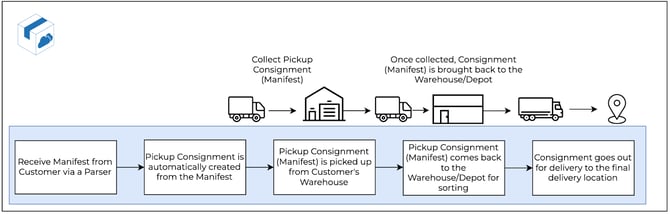
Example 1 - Manifest pickup
In this example, the Customer has sent through a Manifest (via a parser) of all Consignments that need to be collected from their warehouse. Upon receiving the Manifest, CartonCloud automatically creates a Pickup Consignment (if configured in the Customer Settings). The Manifest Pickup Consignment can then be collected and brought back to the warehouse/depot to be sorted before being dispatched for delivery to the final destination.
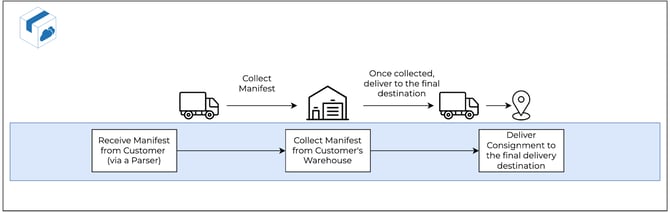
Example 2 - Manifest pickup and deliver
In this example, the Customer has sent through a Manifest of all Consignments that need to be collected from their warehouse. The Manifest will be collected and then delivered in one movement.
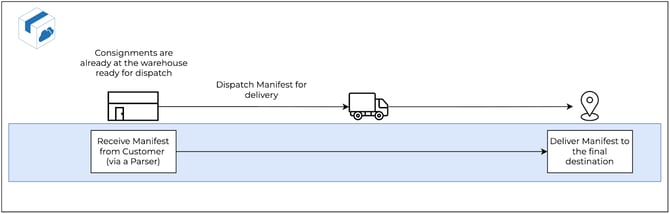
Example 3 - Manifest is already at the warehouse
In this example, the Customer has sent through a Manifest of all Consignments that need to go out for delivery. The Consignments are already at the warehouse and do not need to be collected (for example, they have come from a Sale Order).
How to create a Manifest
There are two ways you can create a Manifest, (1) through a Parser file or (2) when creating a new Consignment.
(1) Through a Parser file
- Once the Manifest Parser is configured to the applicable Customer, your Customer can either email the Manifest in or use the Parse a file page to upload the Manifest.
- The Manifest with all associated Consignments will now be in CartonCloud.
Downloading the Original Manifest File
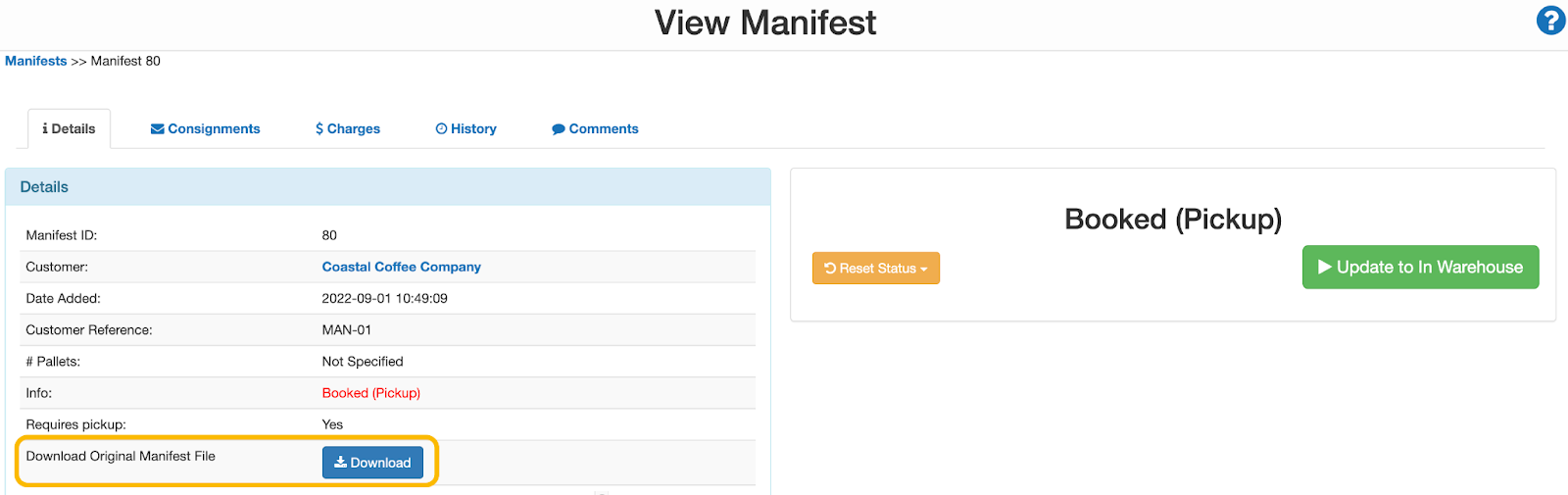
When you import a Manifest via a Parser, you have the option to download the Manifest from the View Manifest Page. To do so:
- Navigate to the Manifest page, Transport>Manifests.
- Select the applicable Manifest.
- Select the Details tab.
- Select the blue Download button next to the Download Original Manifest File heading.
(2) When creating a new Consignment
Depending on what settings you have configured in your Organisation Settings will determine how you create a Manifest from a new Consignment.
To configure the Manifest settings:
- Navigate to Organisation Settings (More > Organisation Settings).
- Select the Transport tab.
- Within the Manifest Settings box, select if you wish to Add Consignments to Manifests by Default by selecting Yes (Default) or No.
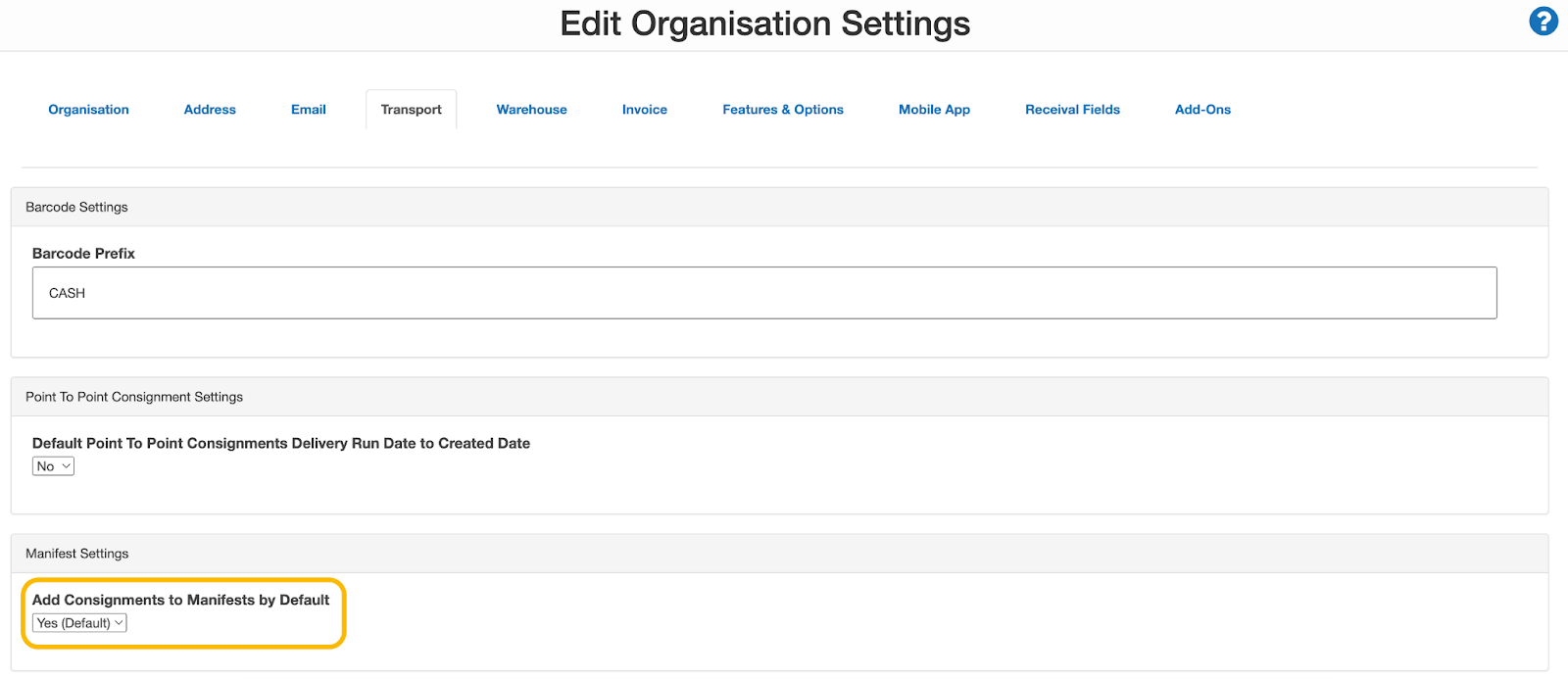
- If you select Yes, the Create New Manifest will already be selected by default when creating a new Consignment. If you select No, the No Manifest option will already be selected by default.
To create a Manifest from a new Consignment (when the setting Add Consignments to Manifests by Default is No):
- When creating a new Consignment, fill in the applicable information and then select the drop-down arrow next to Advanced Options (at the bottom of the screen).
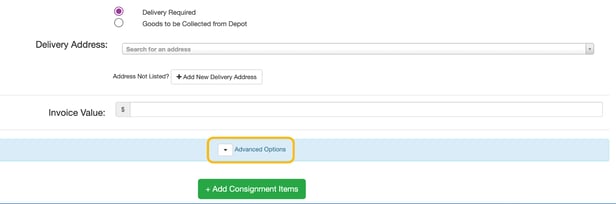
- You can then choose to either Create a New Manifest or Add to Existing Manifest.
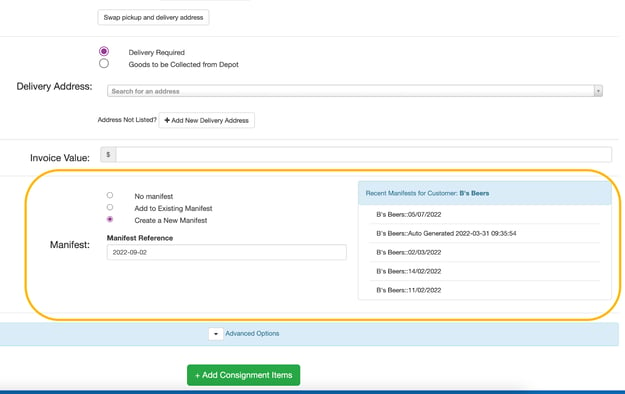
To create a Manifest from a new Consignment (when the setting Add Consignments to Manifests by Default is Yes):
- When creating a new Consignment, fill in the applicable information.
- At the bottom of the screen within the Manifest section, the Create a New Manifest option will already be selected by default.
- Type in the Manifest Reference.
- Alternatively, you can add the Consignment to one of the Customer's existing recent Manifests by selecting a Manifest from the displayed list under, Recent Manifests for Customer.
Using Manifests in CartonCloud
Now that you know what a Manifest is and how to create one, we can look at the Manifest arrival process. You will follow this process once the Consignments on the Manifest arrive back at your warehouse.
Follow along with Vincent as he explains the process you will need to follow once the Manifest is back at your warehouse.
🎉 Congratulations! You have completed the TMS Basic Setup CartonCloud Academy Trail.