
Table of Contents
- Purpose
- Manifest workflow options
- How to enable CartonCloud to create automatic pickup consignments for manifests
- Charging for Manifest Pickup Consignments
Purpose
To enable CartonCloud to automatically create a Pickup Consignment when a new Manifest is generated.
This is useful because you can:
- Schedule the pickup without the need for extra data entry (which can then be allocated to the Driver facilitating the collection).
- Charge accurately for pickups using the rate card assigned to the Customer.
Manifest Workflow Options
Option 1 - Pickup Consignment will NOT automatically be created for Manifests
Setting: Automatically create Pickup Consignment is No
In this workflow, the Manifest is collected from the Customer's Warehouse and then delivered to the different Consignments final destinations. The Manifest is not created into a Pickup Consignment. 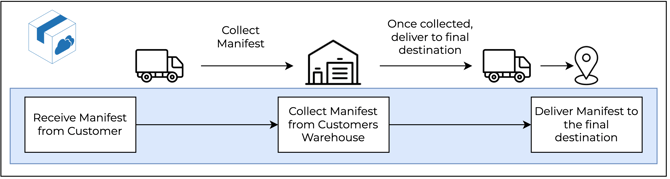
Option 2 - Pickup Consignment will automatically be created for Manifests
Setting: Automatically create Pickup Consignment is Yes
In this workflow, once the Manifest is imported into CartonCloud it will automatically be created into a Pickup Consignment. The Consignment is picked up from the Customer's Warehouse and is brought back to your Warehouse/Depot to be sorted. It will then later be delivered to its final destination.
Note, if you do not wish to charge for a pickup you will need to create a Service Type (such as 'Manifest PU') that has no charge against it. For more information see the charging section of this article.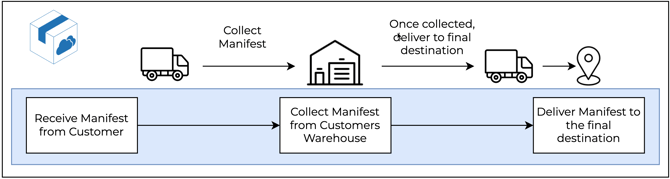
How to enable CartonCloud to create automatic Pickup consignments for Manifests
This setting is configured from the Customer Settings, meaning it will only apply to the Customer you set it up for.
Prerequisites:
-
Ensure you have created and/or have a Service Type for the Pickup Consignment. See Setting up Service Types for more information.
-
Ensure you have created and/or have a Delivery Run you wish the Pickup Consignments to be allocated to. See Setting up Delivery Runs for more information.
To enable the setting:
-
Navigate to Customer Settings (Contacts > Customers > Select applicable Customer > Edit).
-
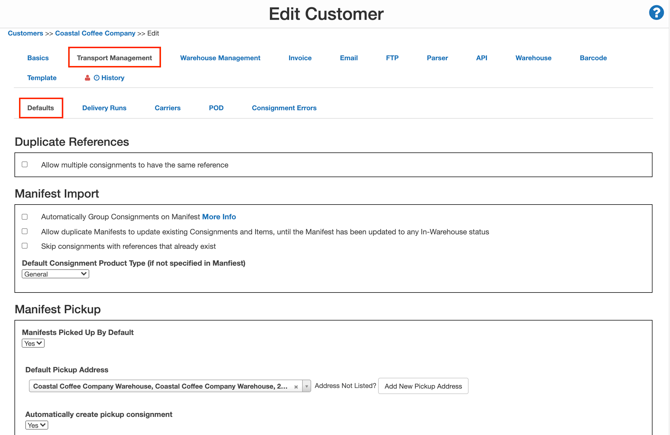
Select the Transport Management tab followed by the Defaults sub-tab.
-
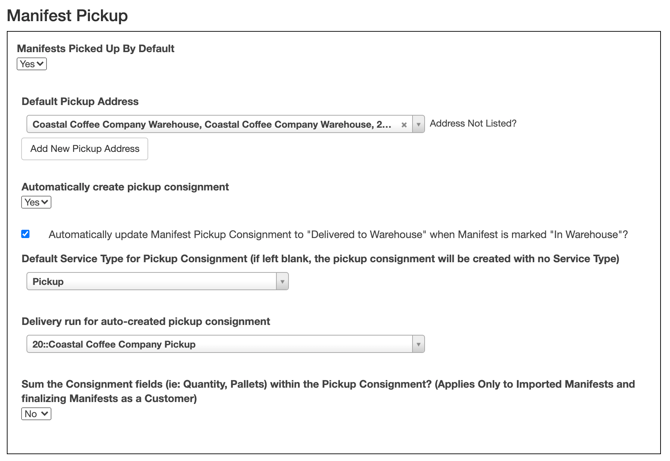
Set Manifest Pickup up by Default to Yes.
-
Select the Default Pickup Address (this is a required field and only one Pickup Address per customer).
-
Change Automatically create pickup consignment to Yes.
-
If you do not want the Manifest Pickup Consignment to update to "Delivered to Warehouse" when Manifest is marked "In Warehouse", untick the box.
-
Select the Default Service Type you wish to use for the Pickup Consignments.
-
Select the Delivery Run you wish the Pickup Consignments to be allocated to (this is a required field).
-
Select if you wish to Sum the Consignment fields (this will aggregate Consignment Item lines when they match). For example, it will total the number of pallets or cartons being collected.
-
Select Save.
Charging for Manifest Pickup Consignments
To charge a specific rate for a Manifest Pickup Consignment:
Option 1: Within the Customer's Rate Card under the Details tab
-
Navigate to the relevant Rate Card (by typing in Rate Card in the Search for anything bar).
-
Select Edit.
-
Within the Manifest Charge Scheme box, type in the Manifest Pickup Charge and Manifest Minimum Charge (if applicable).
Please note, this charge is for the Manifest, not the Pickup Consignment. This means that the fee will be applied on top of the Pickup Consignment charge (if there is a Pickup Consignment associated with the Manifest and a fee configured for a Pickup Consignment).
Option 2: Within the Customer's Rate Card under the Transport Rates tab
-
Navigate to the relevant Rate Card (by typing in Rate Card in the Search for anything bar).
-
Select the Transport Rates tab.
-
Create a Transport Rate with the applicable Transport Zones and Service Type. See Setting up Transport Rates for more information on how to configure a Transport Rate.
NOT charging for Manifest Pickup Consignments
If you do not wish to charge for a Manifest Pickup Consignment:
-
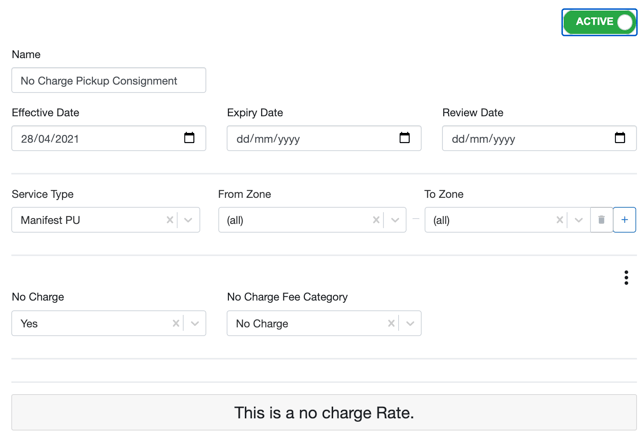
Create a Service Type for a no charge Pickup Consignment (for example, Manifest PU). See Setting up Service Types for information on how to create a new Service Type.
-
Create a Transport Rate with the applicable Transport Zones (you can choose All if you wish the no charge to apply to all Pickup Consignments with that Service Type) and the Manifest Pickup Consignment Service Type.
-
Select Yes from the drop-down menu of No Charge.
-
Select No Charge as the Fee Category from the drop-down menu.
Pickup Consignment's Product Type
The automatically generated pickup consignment will have its product type determined by reviewing the product type of each Consignment on the manifest and picking the product type with the lowest priority number i.e. 1 is the lowest.
In the instance where there are multiple product types on the manifest that are all set to the same priority, the product type with the lowest ID will be used.