Table of Contents
- Purpose
- Use cases
- How to update the status of a purchase order product (stock)
- Bulk edit purchase order product status
Purpose
To update the status of a Product on a Purchase Order.
Use cases
Changing the status of a Purchase Order Product (stock) is helpful in scenarios when:
- Stock arrives damaged.
- Stock goes missing in the Warehouse.
- Stock goes into Quarantine.
See the Product Statuses article for further information on why using Product Statuses can be beneficial.
How to update the status of a Purchase Order Product (Stock)
Please ensure you have read and followed the steps outlined here to find the stock you wish to adjust.
- Locate the stock you wish to adjust (using the instructions outlined here).
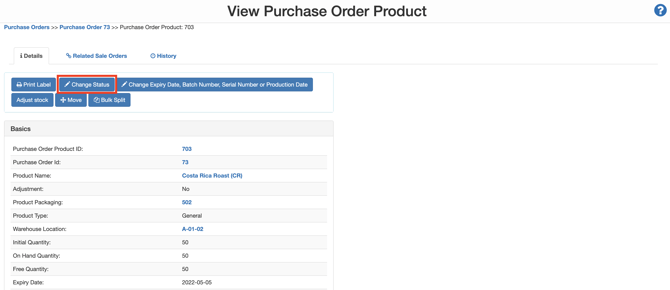
- Click Change Status.
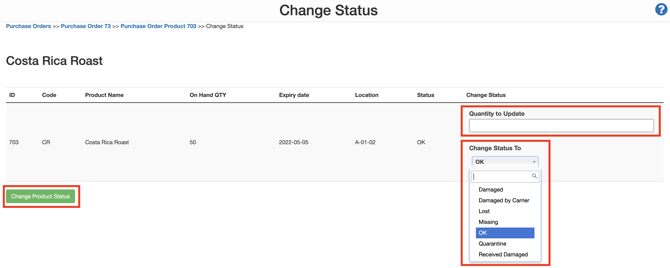
- Select the status to change from the Change Status To dropdown menu.
- Enter the quantity in the Quantity to Update field.
- Click Change Product Status.
Note, depending on your Customer Settings, changing the status of a Purchase Order product can trigger CartonCloud to stop charging storage.
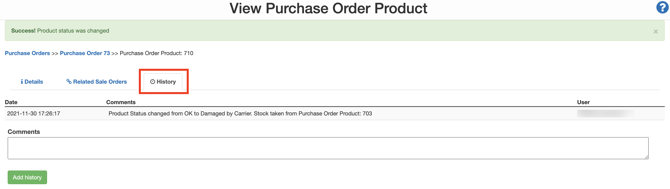
- You will trace the Product Status change on the history tab on the Purchase Order Product.
Bulk edit Purchase Order Product Status
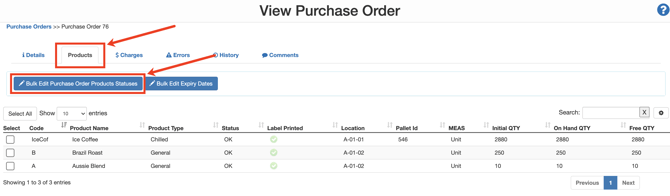
- Navigate to the relevant Purchase Order you wish to update the Products status on, Warehouse>Purchase Orders.
- Select the Products tab.
- Click Bulk Edit Purchase Order Products Statuses.
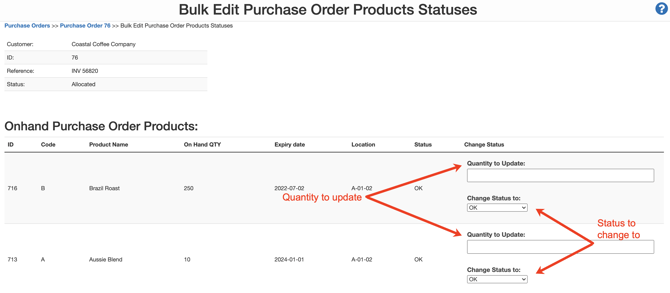
- Enter the quantity to change in the Quantity to Update field.
- Select the status you wish to change to from the Change Status to dropdown.
If SSCC is enabled, you will have the option to create a new SSCC when the new POP record is created upon status or quantity change.
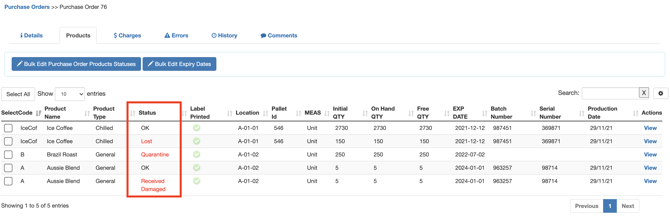
- The new statuses will be visible on the Purchase Order.