
🔔 Note: this article is part of the CartonCloud Academy - TMS Basic Setup Trail. Please ensure you have read Delivery Runs in CartonCloud first. 🎓
What is a Transport Zone Set?
Transport Zone Sets are defined geographical areas your operation uses for allocating deliveries. Transport Zone Sets and Transport Lanes work together to provide the framework and logic that allows CartonCloud to assign Consignments to Delivery Runs automatically.
There are two types of Zone Sets, Transport Zone Sets (used for allocating Consignments to Delivery Runs) and Income Zone Sets (used for charging). In this unit, we will focus on Transport Zone Sets; however, to better understand Transport Zone Sets, we will first talk through the differences between the two.
| Income Zone Set | The zones your operation uses for charging. You will use these zone when you create your Transport Rates. Income Zones allow CartonCloud to calculate your consignment charges automatically. |
| Transport Zone Set | The zones your operation uses for allocating consignments. These zones will work with Delivery Runs and Transport Lanes to enable CartonCloud to assign consignments to the appropriate Delivery Run automatically. |
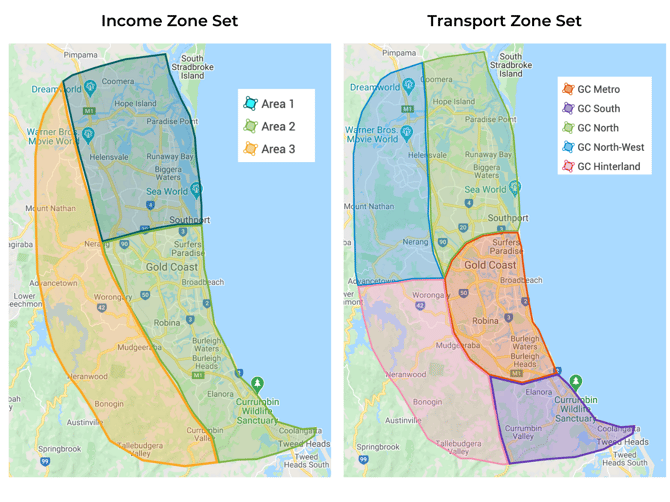
For Coffee Warehousing and Distribution, they will need to create a Transport Zone for each geographical zone they deliver to and an Income Zone for each zone they use to base their rates off. For now, we will just focus on the Gold Coast area, but Nick will need to follow this process for all the areas the company deliver to. The map below shows how Coffee Warehousing and Distribution has divided the Gold Coast into different zones for its delivery allocation (Transport Zone Set) and rate calculation (Income Zone Set).
Suppose Coffee Warehousing and Distribution have a consignment moving from Burleigh Heads to Paradise Point. In that case, CartonCloud will find the Income and Transport Zone associated with the suburbs of Burleigh Heads and Paradise Point.
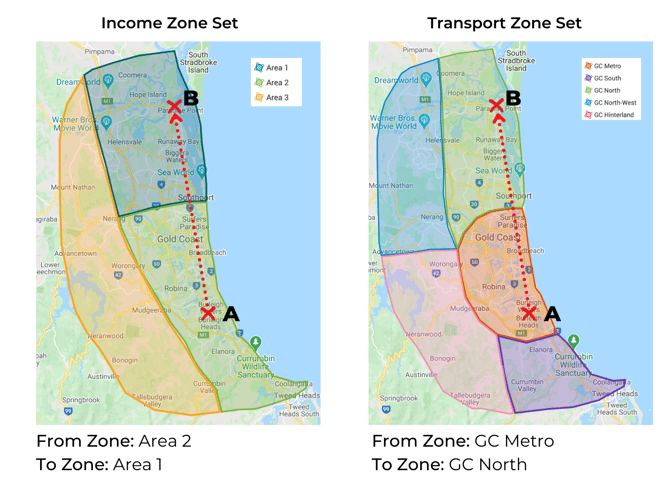
CartonCloud will then use the Income Zone pairing to find the associated Transport Rates and the Transport Zone pairing to find the matching Delivery Run.
Consignment 1:
- From address: CartonCloud, 5/27 Dover Drive, Burleigh Heads 4220
- To address: FoodWorks Paradise Point, Shop 1/3 Grice Avenue, Paradise Point 4216
- Income Zones: Area 2 → Area 1
- Transport Zones: GC Metro → GC North
- Delivery Run: Metro Daily
Follow along with Vincent as he explains further what Zone Sets are and their function in CartonCloud (you will only need to watch the video until timestamp 1:48).
Create a Transport Zone Set
Now that you know what a Transport Zone Set is it is time to create one in your account. You can only have one Transport Zone Set; however, within the Zone Set, you can have multiple zones.
Follow along with Vincent as he explains how to create your own Transport Zone Sets (if you watched the start of the video in the previous Unit, you can start the video from time stamp 1:49 and finish at 3:27).
Need to create multiple zones?
If you know what Transport Zones you need to create, then we suggest creating your Zones in bulk using the export/import function. To do this, please see this page in our Knowledge Base (see the heading Creating zones in bulk - using the export/import function).
Add and assign location entries
You have now created your Transport Zones; however, CartonCloud still doesn’t know what Consignments need to be delivered to each of these Zones. As of right now, these Zones have only been named; we haven’t defined the area associated with the zone (the postcode and suburb). This unit will cover how to define your zones by creating location entries.
What is a location entry?
A location entry is a suburb and postcode combination associated with the relevant zone and used to find a match against addresses on Consignments. For example, even though we have created a zone called ‘GC Metro’, CartonCloud still doesn’t know what Consignments need to be delivered to ‘GC Metro’. This is why you create location entries and associate the entry with the zone so that CartonCloud can associate the delivery address on the Consignment to the correct zone. For example, suppose you have a location entry for Burleigh within the GC Metro Transport Zone. In that case, CartonCloud will now know that for any Consignments with a delivery address to Burleigh, they will be going to the GC Metro zone and on the Delivery Run mapped to that zone.
Time to create a location entry!
Follow along with Vincent from time stamp 3:27 to create your location entries.
To save time, it is suggested that you create your location entries using the export/import function. This is especially useful when you already have the locations stored in a spreadsheet format.
▶️ Follow along in the TMS Basic Set Up Trail...next up is Get Started with Transport Lanes 🎓