
Table of Contents
- Overview
- Prerequisites
- How Directed Putaway suggests locations
- How to put away a Purchase Order using suggested locations
- How to move stock using suggested locations (Scan Move)
- Filtering, sorting and searching locations
- Known limitations
Overview
Directed Putaway is in Beta and is available to selected customers. It runs on the CartonCloud mobile app (iOS and Android) version 6.59.0 or later. If you would like Beta access please let us know: product@cartoncloud.com
Directed Putaway helps you decide where to store stock by suggesting suitable warehouse locations in the mobile app. Suggestions are ranked based on your warehouse location setup and the stock being put away.
You can select the location you want to use and then scan the location barcode to confirm the putaway.
Watch the walkthrough below from Vincent to see how Directed Putaway works:
Prerequisites
To use Directed Putaway:
- Your account must be enabled for the Directed Putaway Beta. If you would like Beta access please let us know: product@cartoncloud.com
- The app must be version 6.59.0 or later on iOS or Android.
- The user must have the “Packer” role. See User Roles Explained.
- The warehouse locations are set up correctly in the web app. Navigate to Warehouse > Warehouse Locations to check them.
Directed Putaway uses the following warehouse location settings when generating suggestions:- Product Types: The location must accept the Product Type assigned to the product.
- Pick Efficiency: Used to rank locations. Standard locations use values from 1–20, while pick face locations use values from 21–30.
- Warehouse Location Type: Locations can be configured as Single Pallet or Multiple Pallets. For Multiple Pallets locations, the maximum pallet capacity is also considered.
- Location barcode: Each location must have a barcode so it can be scanned to confirm the selected location.
-
While optional, we recommend your products have a pallet quantity configured, as this will prioritise empty locations when putting away full pallet quantities. Go to Warehouse > Products, click Edit for the product, and check the Unit of Measure settings.
- If you use Replenishment, your pick face locations and product replenishment settings must also be configured. See How to set up Replenishment.
Tip: Suggestions are only as good as your location setup. Check product types, location efficiency and pallet capacity on your locations before you start.
How Directed Putaway suggests locations
CartonCloud checks every active location that accepts the product's type and gives each one a score.
The score is based on the Location Selection Methods the location matches:
|
Location Selection Method |
What it means |
|---|---|
|
Current SKU |
The location already holds this product. |
|
Empty |
The location holds no stock. |
|
Recently Putaway |
This product was put away to the location in the last 14 days. |
|
Recently Picked |
This product was picked from the location in the last 14 days, including partial picks. |
|
In Zone |
The location is in the same warehouse zone as the product. |
|
Pick Face |
The location is a pick face. |
- Locations that match more methods score higher, and the highest-scoring location is ranked first.
- Highly efficient locations rank higher. When you put away a full pallet, CartonCloud favours empty, highly efficient locations.
- Pick faces are hidden by default. When you turn on Pick Face, pick faces linked to the product through Replenishment settings always rank above pick faces that are not linked.
-
The top-ranked location is marked Suggested. You can choose any location in the list instead.
Understanding a location in the list
Each location in the list shows:
- The location name, and how many SKUs and units it currently holds.
- Icons for the Location Selection Methods it matched. A target icon means the product is currently stored there.
Tap a location to expand it and see:
- A tag for each Location Selection Method it matched.
- Barcode: the location's barcode.
- Rank: its position in the list.
- Warehouse Location Efficiency: the efficiency set on the location.
Tip: If a location ranks higher or lower than you expect, expand it to see why. Checking the location's efficiency, product types and zone usually explains the result.
How to put away a Purchase Order using suggested locations
- Open the CartonCloud mobile app and select Putaway mode. See Accessing Putaway Mode.
- Select the Purchase Order.
- Receive and verify the products as normal. See Putaway process.
- The Purchase Order shows each line as Awaiting Location. Select a line and tap Locate.
-
The Scan Move screen opens with the product already selected. CartonCloud automatically recommends a location, shown as a button under the product. The Using line underneath lists the Location Selection Methods used to find it.
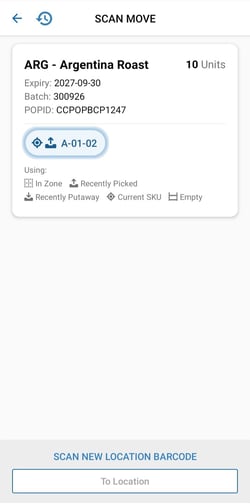
- To use the recommended location, go to it and scan its barcode into the To Location field. You can also type the location name.
- To see other options, tap the recommended location. The Choose a location list opens with all suggested locations in rank order.
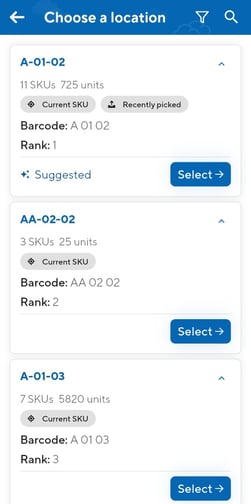
- Tap Select against the location you want. The list closes and your chosen location is shown on the Scan Move screen.
- Go to the chosen location and scan its barcode into the To Location field to complete the move.
- The app returns you to the Purchase Order so you can locate the next line.
Selecting a suggestion does not move the stock. The move only happens when you scan or enter the location and confirm it. You can put the stock in any valid location, suggested or not.
How to move stock using suggested locations (Scan Move)
- Open the CartonCloud mobile app. Tap the menu icon, select Switch Mode, then select Scan Move.
Suggestions are not yet available in Move Cart. - Scan or enter a location barcode, POP barcode or pallet barcode in the Scan Location or Purchase Order Product field.
- The stock is shown with its current location. Tap Suggest Location.
- The Choose a location list opens with suggested locations in rank order. If the stock is already in the best location, its current location is ranked first.
- Tap Select against the location you want. The Scan Move screen shows the move from the current location to your chosen location.
- Go to the chosen location and scan its barcode into the To Location field to complete the move.
Filtering and searching suggested locations
- On the Choose a location list, tap the filter icon.
- Under Location Selection Methods, tap a method to turn it on or off. Methods that are on are shaded blue. Pick Face is off by default.
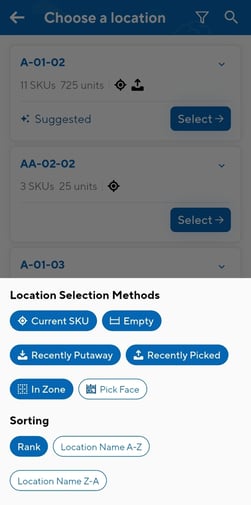
- Under Sorting, choose Rank (default), Location Name A-Z or Location Name Z-A.
- To find a specific location or area, tap the search icon and type part of a location name, for example RC.
Filters are turned off while you search, so your results include all matching locations.
Known limitations
Directed Putaway is in Beta. The following limitations apply today:
- Move Cart: Move Cart is not available in the Directed Putaway flow, and Move Cart does not show suggestions.
- Location capacity and quantity fit: while CartonCloud checks whether the product quantity will exceed a pallet, it does not know whether the stock will physically fit into a particular location. Always check the space before you confirm.
- Mixed pallets: suggestions are based on a single product. Pallets holding several different products get less accurate suggestions.
- Clearing a location: you cannot yet clear a location in the Purchase Order putaway flow. Until this is fixed, use the web app to clear the location.
- Several users at once: suggestions are not reserved. Two users can be offered the same empty location at the same time.
-
Location contents: the list shows how many SKUs and units a location holds, but not which products. Showing a location's contents when you expand it is coming.