
Table of Contents
Purpose
How to use the Putaway mode on the mobile app to receive, verify and locate a Purchase Order.
Putaway process
- Navigate to the Putaway mode (see Accessing Putaway Mode for more information).
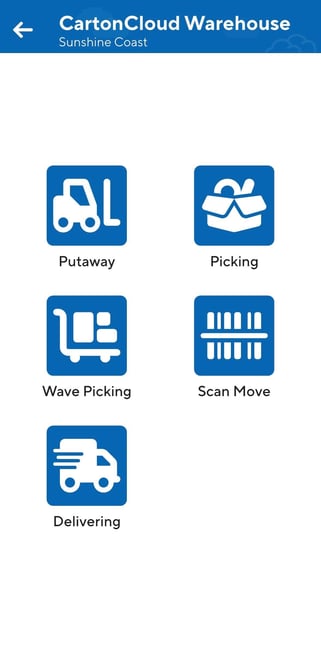
- Select the relevant Purchase Order you wish to receive in.
- Click Receive.
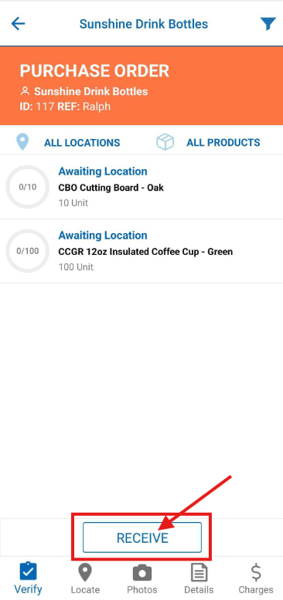
- Tap the product.
- If the quantity is greater than the product's pallet quantity (defined against the product) you can split the product into pallet quantities. It is suggested that you do split the quantity into pallet quantities as this will make it easier when you need to move and locate the pallet.
- Click the three dot action icon in the top right and click Bulk Split.
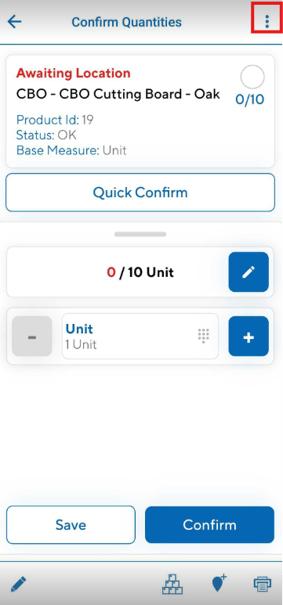
- The pallet conversion quantity will show, this is the quantity it will be split by. If you wish to change it, edit the number. Tap Bulk Split. You will now see individual lines of product for each pallet.
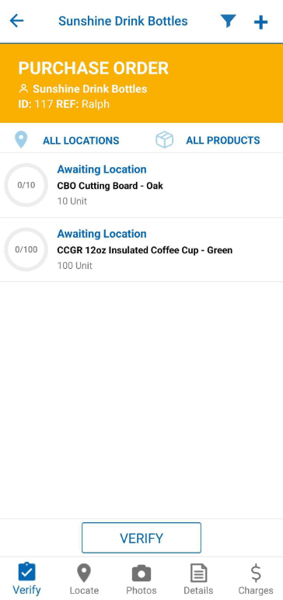
- Select a product to verify.
-
If you have Custom Fields set up and need to record these references upon receiving the stock, see Purchase Order (inbound) unique reference scanning for how to steps.
- From this screen, you can then choose to assign a pallet barcode and/or print a pallet label by clicking the pallet icon. For more information please see Pallet Handling.
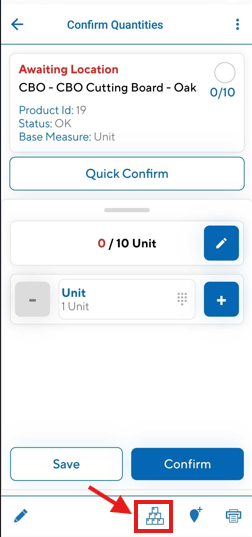
- Confirm the product quantities by scanning the Product Unit of Measure barcode or typing in the confirmed product quantities.
- Once product quantities are confirmed, tap Confirm.
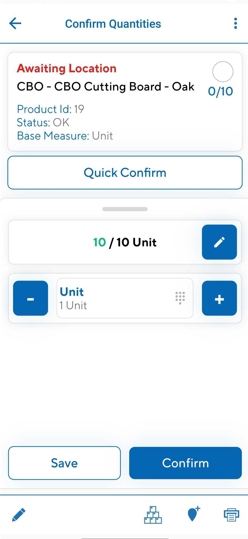
- Repeat this process for the other lines of stock.
- Once you have completed each line, select Verify.
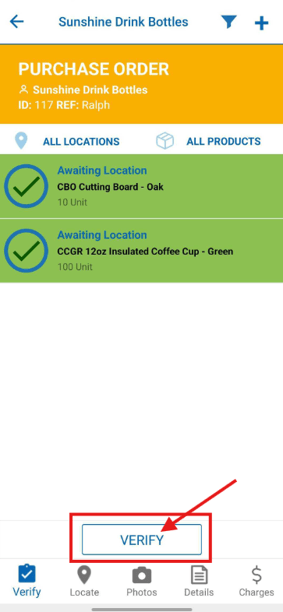
- You can now locate the stock, select a line to locate.
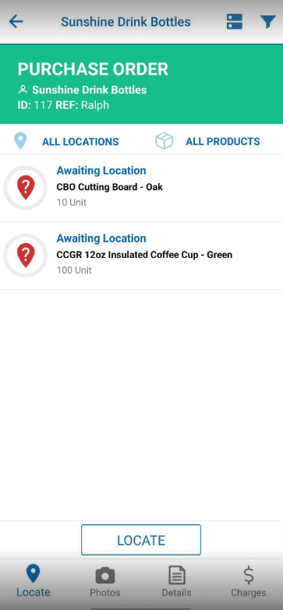
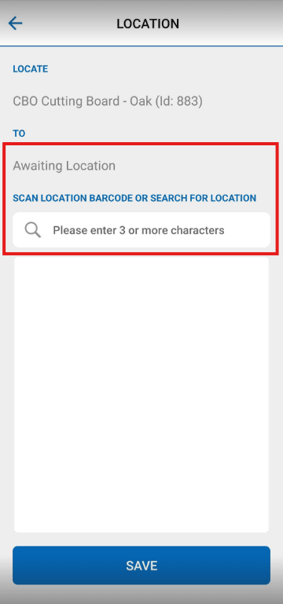
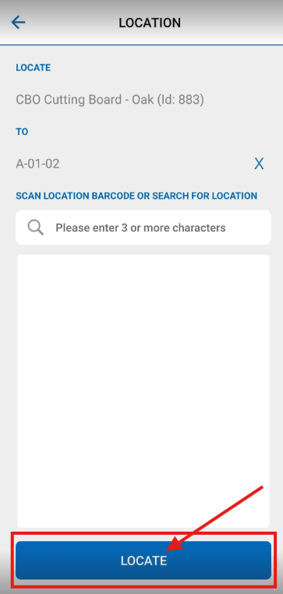
- Scan the warehouse location (or type the location) and click Locate.
Video Tutorial
Auto-Confirm on Putaway
Auto-Confirm on Putaway is a device-level setting that speeds up receiving by confirming Purchase Order lines automatically as they're scanned, instead of requiring a separate manual confirmation tap for every line.
Please see this page for more information > Auto-Confirm on Putaway