
Table of Contents
Purpose
Please note that if your CartonCloud account was created prior to 1 July 2019 the below functionality may not be available at this stage. If you would like to discuss migrating to the newer version of the CartonCloud TMS, please use CartonCloud Help and lodge a case with our Service Desk.
Before starting this article, you must have already completed Setting up CartonCloud to automatically allocate Consignments, Setting up CartonCloud to automatically rate Consignments, Setting up Service Types, and Setting up Transport Products.
Transport Rates are the rates your customers will be charged for deliveries and are created within a Rate Card.
Within a Transport Rate, you will have either a single or multiple Charge Groups and within that Charge Group, you will create your charges using different charging methods. For more information on what a Charge Group is, please see the Charge Group section of this article.
Steps to create a Transport Rate
Follow the below steps to create a Transport Rate.
1. Add a new Transport Rate - from within the Rate Card, add a new Transport Rate.
- Type Rate Card into the Search for anything bar.
- Select the relevant Rate Card and click Transport Rates from within the Rate Card.
- Click Add Rate in the top left corner.
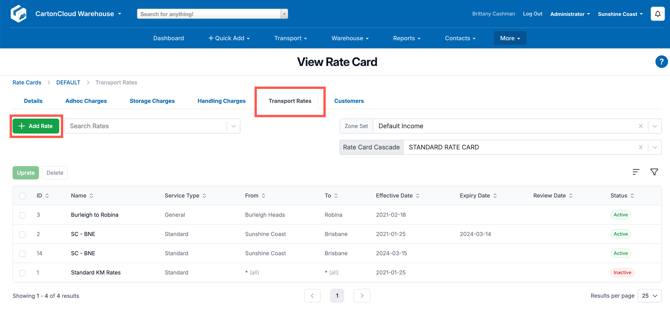
- Upon adding a new Transport Rate the below screen will appear.
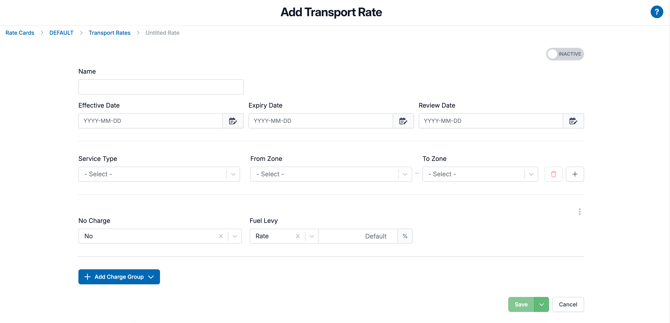
2. Set up the Transport Rate - fill in the applicable fields for both the header and default information sections.
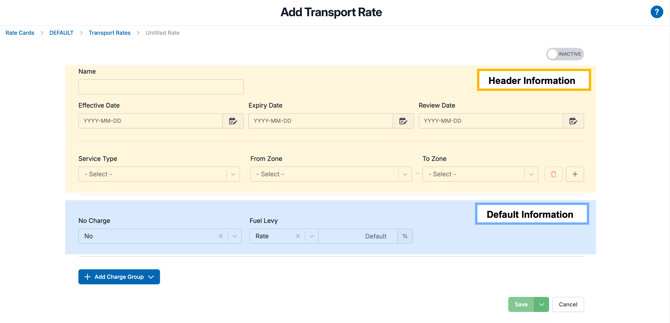
- The below field descriptions will assist you when filling in this information.
Remember to activate the rate once completed by sliding the toggle in the top right.
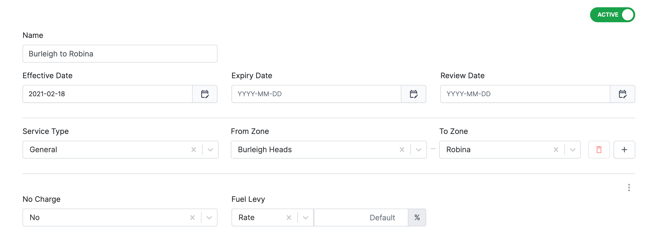
| Section | Field | Description |
| Header Information | Name | The name of the Transport Rate. It is important that you use a name that allows you to easily identify the rate. We suggest using a descriptive name, for example, GC Depot - North & South. |
| Effective Date | The date the rates will become effective and be used to calculate consignment charges. This is helpful if you do not wish to use the rates immediately and are instead building the rates for a future date. To use the Transport Rate immediately, use today's date. | |
| Expiry Date | Date when the rates are no longer valid and CartonCloud will no longer use the rates to charge consignments. This is useful when planning to transition from one Transport Rate set up to a new one (one would expire on a set date, and the new one would become active on the same date). | |
| Review Date | The date you would like to review the rate. This field is not required and can be left blank. | |
|
Service Type |
What type of service the rate is for e.g General Service, Hourly Service, Express Service. | |
| From Zone | The Zone from which the consignment is originating from. | |
| To Zone | The Zone the consignment is going to. | |
| Default Information | No Charge | If you do not wish to charge for the movement. This is useful if you do not charge customers to bring goods back to your warehouse. |
| Fuel Levy | You can apply a different fuel levy from the rate card by either overriding the existing fuel levy (selecting Rate from the drop-down menu) or offsetting it (selecting Offset from the drop-down menu and the off-set percentage amount). For more information see Fuel Levy. | |
| Three dot additional actions icon | Extra features that can be enabled when configuring the charge
|
|
| Inactive/Active slide bar | This sliding bar will active the rate | |
| Add Charge Group | Select to start adding charges to the Transport Rate. |
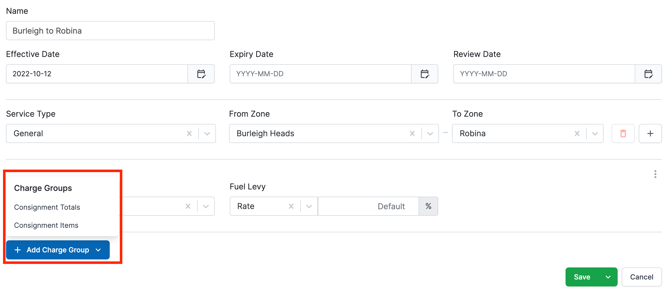
3. Configure charges - use the Add Charge Group to select the Consignment Charge Group Types you would like to add to your Transport Rate and the appropriate charging methods to configure your charges.
Before configuring your charges it is recommended that you read the Charge Group Types section of this article.
- Select Add Charge Group.
- Select the relevant Consignment Charge Group from the drop-down menu.
-
Select the relevant Fee Category.
-
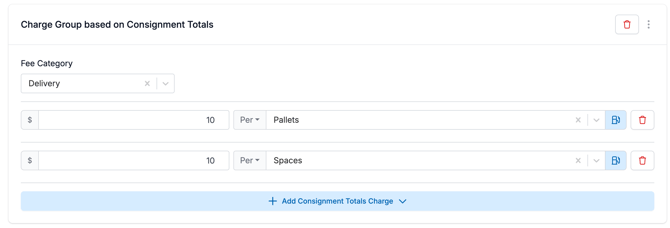
Click Add Consignment Totals/Item Charge to begin configuring your charge. You will have four or five (depending on what type of Charge Group you selected) charging methods to choose from. For Consignment Item Charges you will have an additional option of Item Code which will enable you to charge per item.
-
Fill in the charge amount and what it will be charged by (depending on what Charging Method you have selected).
-
Ensure to apply the fuel levy by clicking the fuel icon next to the applicable charge.
It is suggested you apply a fuel levy to all charges that use fuel. For example, a hand-unload fee would not incur a fuel levy as you do not use fuel to perform the task. See Fuel Levy for more information.
- Once you have added your initial charge, you can continue to add new charges to the Transport Rate by selecting the Add Charge Group button at the bottom of the screen.
- There is no limit to the number of charges you can have in the one Charge Group or Transport Rate.
| Field/Button | Description |
| Charge Group based on Consignment Totals | The type of charge group you have selected will appear at the top of the charge. |
| Delete button | Delete the charge. This will not delete the Transport Rate, only the charge configuration. |
| Three dot additional actions icon |
Extra features that can be enabled when configuring the charge
|
| Fee Category | A way to identify and describe the charge e.g 'Delivery'. This title will appear on the customer's invoice in reference to the charge. |
| Add Consignment Totals Charge | Add the charge configuration. This is how the charge will be calculated. There are four different charge configurations to choose from. |
| Add Charge Group | Select this if you wish to add a completely new charge (different from the one you just added). You can either select the same Charge Group as your previous charge or select a different one. |
Charge Group Types
A Charge Group provides the template and structure to create charges and allows you to group different charges within a Transport Rate. The two types of Consignment Charge Groups you can choose from include, a Consignment Total Charge or a Consignment Item Charge. Depending on how you wish to charge your consignments will dictate what type of Charge Group you select.
Consignment Total Charges
Consignment Total Charges will charge by the total number of items in a consignment. For example, if you have a consignment with the consignment items of one pallet and two cartons the charge will be applied to all three items.
Consignment Item Charges
Consignment Item Charges will charge by a single line item in a consignment. This means you can apply different rates to different consignment items within one consignment. For example, for a consignment with one pallet and two cartons, you can apply one rate for the pallet and another rate for the cartons.
Note, you can have both types of Charge Groups within one Transport Rate.
Example Transport Rate with both types of Charge Groups 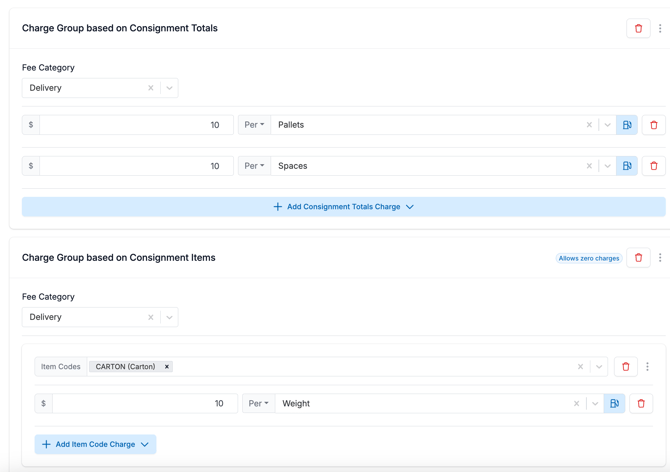
Helpful Videos
The below videos will assist you when setting up your Transport Rates.
Overview of Transport Rate Cards
Pallet Rates or Transport Products
To fully understand the below video it is essential that you have already read and understood the Transport Products article.
Hourly Hire
There are a number of different ways in which Hourly Hire can be set up within CartonCloud.
In the video below we cover the two ways we recommend implementing hourly hire rates.
Per Kg Rates, including cubic weight conversion
Charging by Distance
Adhoc Charges (Demurrage, DG Surcharges and more)