
Table of Contents
Purpose
When adding a new customer in CartonCloud there are three methods to choose from:
- Creating a Customer from scratch with default settings.
- Duplicating an existing Customer allowing you to use their settings as a template for the new customer.
- Adding them in bulk with default settings using the Export/Import function.
How to add and duplicate customers
1. Creating a Customer from scratch with default settings
-
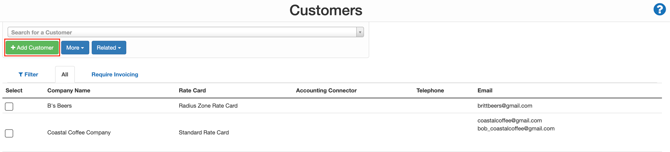
Navigate to the Customers page, Contacts>Customers.
-
Select the green +Add Customer button in the top left corner of the screen.
-
A pop-out window will appear, fill in the Company, Email and Telephone fields. Tick the warehouses which apply to the Customer (where they will be storing their stock).
-
Select Add Customer.
If this is the first Customer you are creating, remember to create a Test Customer first, before creating your actual Customer.
-
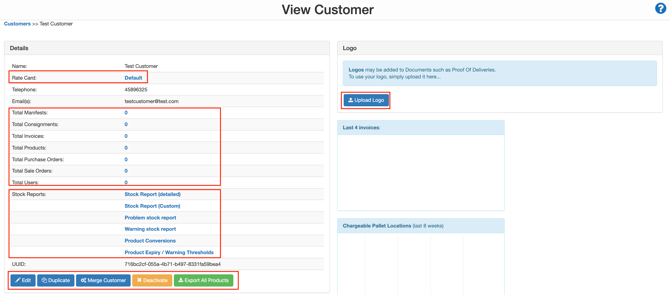
You will then be provided with the View Customer page, as per below. From this page, you can access the Customer's Rate Card, all current orders for the Customer and their reports. In addition, you will be able to access and configure the Customer Settings.
-
Upload the Company logo by selecting the blue Upload Logo button.
When uploading logos for your real Customers, it is suggested you request a high-quality copy of their logo as this logo will appear on all of their documents.
2. Duplicate an existing Customer
When you duplicate an existing Customer it allows you to use their settings as a template for the new customer.
Duplicating a Customer is helpful if you wish to create a new Customer with similar settings to an existing Customer.
-
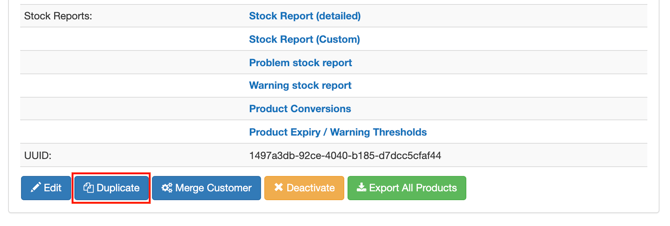
Select the blue Duplicate button at the bottom of the screen.
-
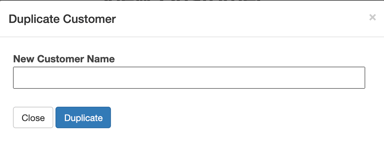
Enter the name of the new Customer.
-
Click Duplicate.
-
A success banner will appear at the top of the browser, and you will be on the View Customer page of the newly created customer. From here, you can further edit any settings as required.
3. Adding customers in bulk with default settings using the Export/Import function
-
Navigate to the Customers page, Contacts>Customers.
-
Select the More button.
-
Select Export to CSV from the drop-down menu.

-
Open the downloaded file.
-
In column B, add the new customer's name. In column C add the customer's email and in column D add the customer's phone number.
-
In column E, type the name of the Rate Card you wish to be associated with the customer. If you are unsure at this stage and wish to change it later once the customer has been created you can enter the word Default and the default Rate Card will be applied.
-
In column F, enter the number 1 to signal that the customer is active.
-
In column G, enter the number 0.
Note, you must leave column A blank otherwise the import will not work.
-
Save the file.
-
Return to the Customers page in CartonCloud.
-
Select the More button.
-
Select Import CSV from the drop-down menu.

-
Select Choose File.
-
Select the file.
-
Click Upload File.
-
You will then receive the below success message.

You will now need to edit the Customer Settings for your new Customers.