Table of Contents
Purpose
From the Warehouse tab in the Customer Settings you can select which Warehouse you would like to give the Customer access to.
How to assign Warehouse access to a Customer
- From the Customer Settings, select the Warehouse tab.
- Tick the Warehouse that you would like to give the Customer access to.
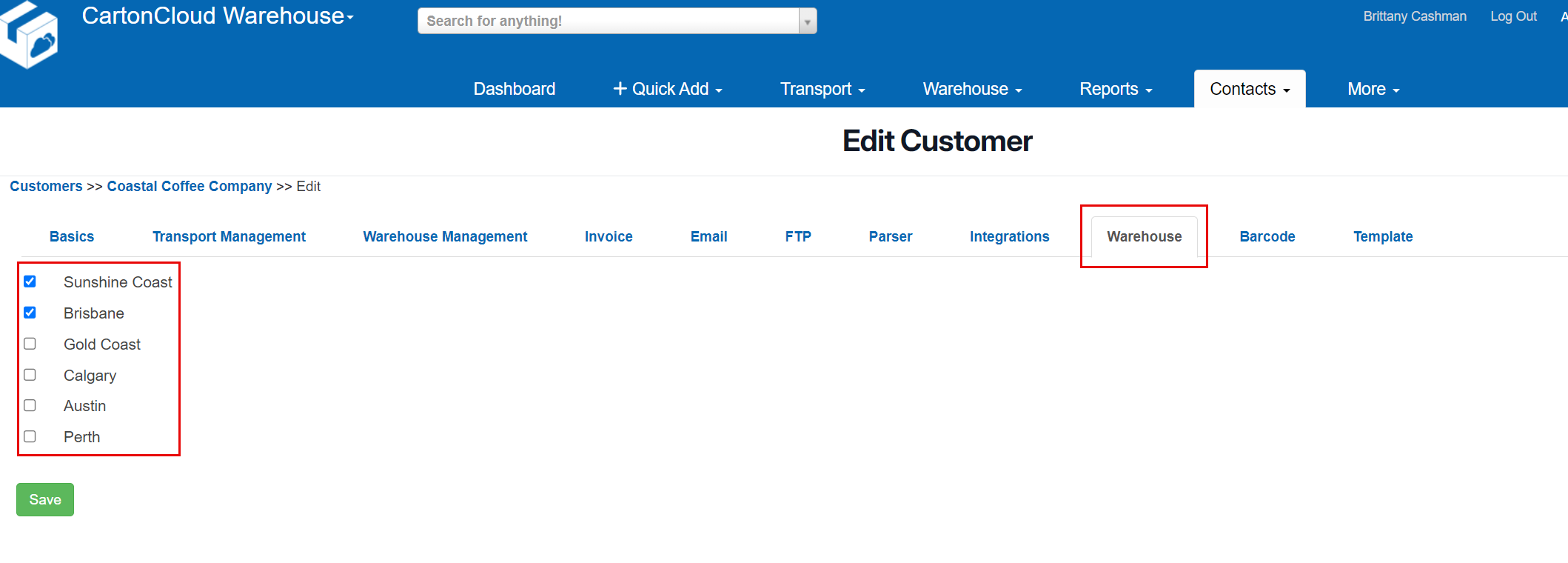
- Click Save.
Note, if you are removing Customer's access from a warehouse and there are unpacked Sale Orders in that warehouse for the Customer you will be prompted with an error message: Error! Cannot revoke Warehouse access. There are unpacked Sale Orders for this customer in one of the unselected warehouses. To resolve this error you will need to dispatch the Sale Orders from the warehouse before removing the access.

Warehouse-Specific Rate Cards
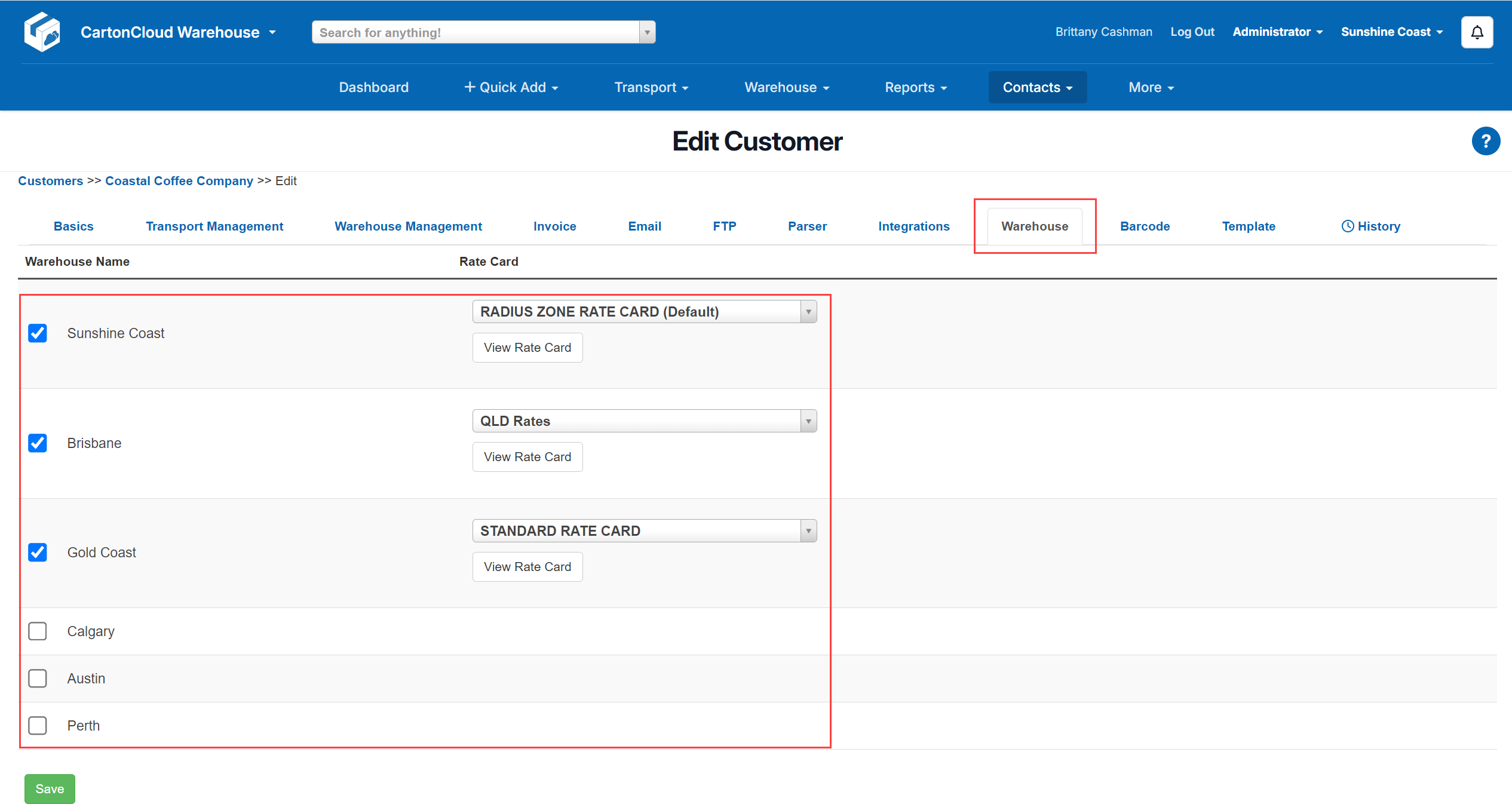
Customer-Specific Rate Cards allow you to assign a different Rate Card for each Warehouse the Customer has access to.
Please note this is a WMS Premium only feature. For more information on WMS Premium and to upgrade your account please reach out to our Service Desk team here.
-
Navigate to the relevant Customer, More > Customers.
-
Select the Customer and click Edit.
-
Select the Warehouse tab.
-
Use the select box against the Warehouse Name to select which warehouse the Customer has access to.
-
Select the Rate Card that will apply for that Customer in that Warehouse.
-
Click Save.